Free & Open Source Built-in AI MCP Agent APIs Cross-Platform GPU Accelerated Zero Telemetry

Orca Desktop

The open source container management app with built-in AI. Manage Docker, Kubernetes, Helm, and GPU-accelerated AI workloads — from a single, beautiful interface.

43
AI Agent Tools
5
AI Providers
3
Platforms
20+
K8s Resource Types
~15MB
Installer
Build License Stars
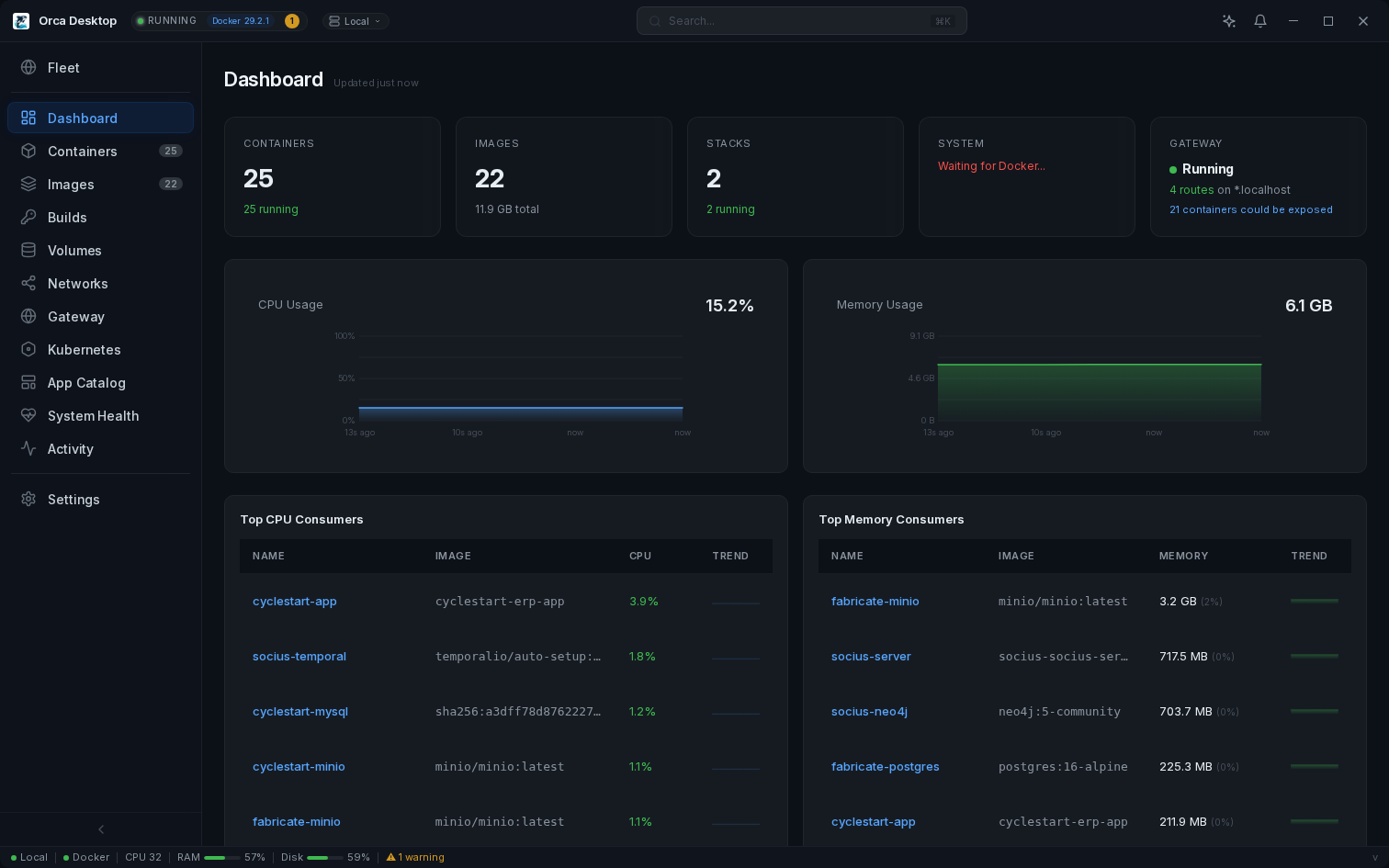
Orca Desktop Dashboard

Why Orca Desktop

Free forever. Lightweight. Open source. Containers and Kubernetes.

Free
Open source. MIT licensed. Forever.
~30 MB
RAM usage. Lightweight by design.
< 2s
Startup time. Instant.
Features Collapse All ✓ = unique to Orca Desktop
Containers18 ▾
Full container lifecycle (create, start, stop, restart, kill, remove)✓
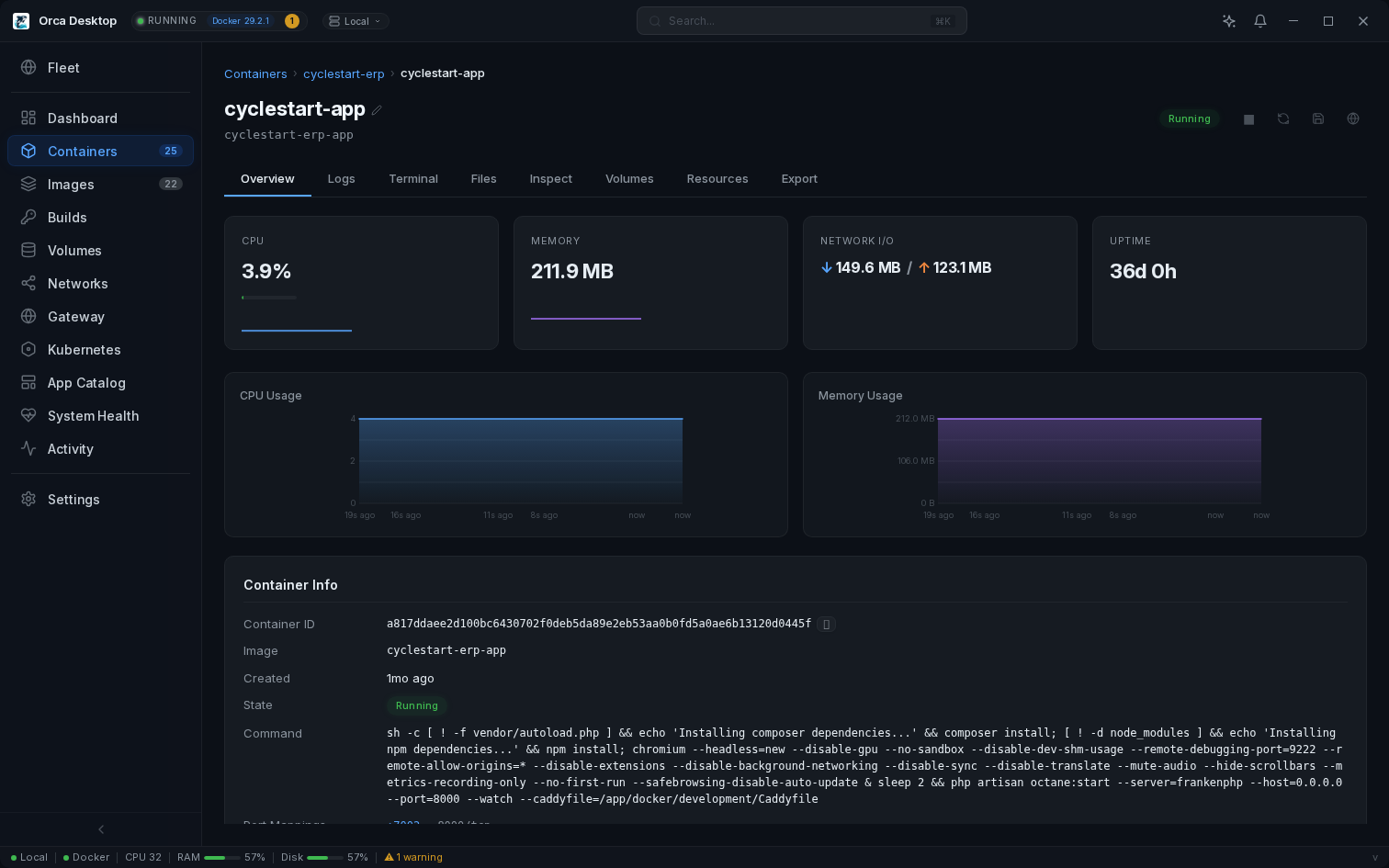
Live resource monitoring (CPU, memory, network I/O)✓
Live resource editing — change memory, CPU, restart policy on running containers✓
Interactive terminal (exec shell)✓
Log viewer — regex search, match highlighting, case-sensitive filter✓
Multi-container logs — combined, color-coded log view across containers✓
Health checks — live status indicator, health history, check output✓
Restart policy — display, edit, and restart count tracking✓
AI-powered diagnostics — click to analyze any container with logs✓
Container file browser — explore filesystem of running containers✓
Save as Image — commit container state to a new image✓
Export as docker run / docker-compose.yml✓
Docker Hub browser — search and pull images directly from Docker Hub✓
Container rename — inline rename from the detail page✓
Per-container charts — CPU and memory history per container✓
Stop all containers — one-click stop with confirmation✓
Live log streaming — SSE-based real-time logs, no polling✓
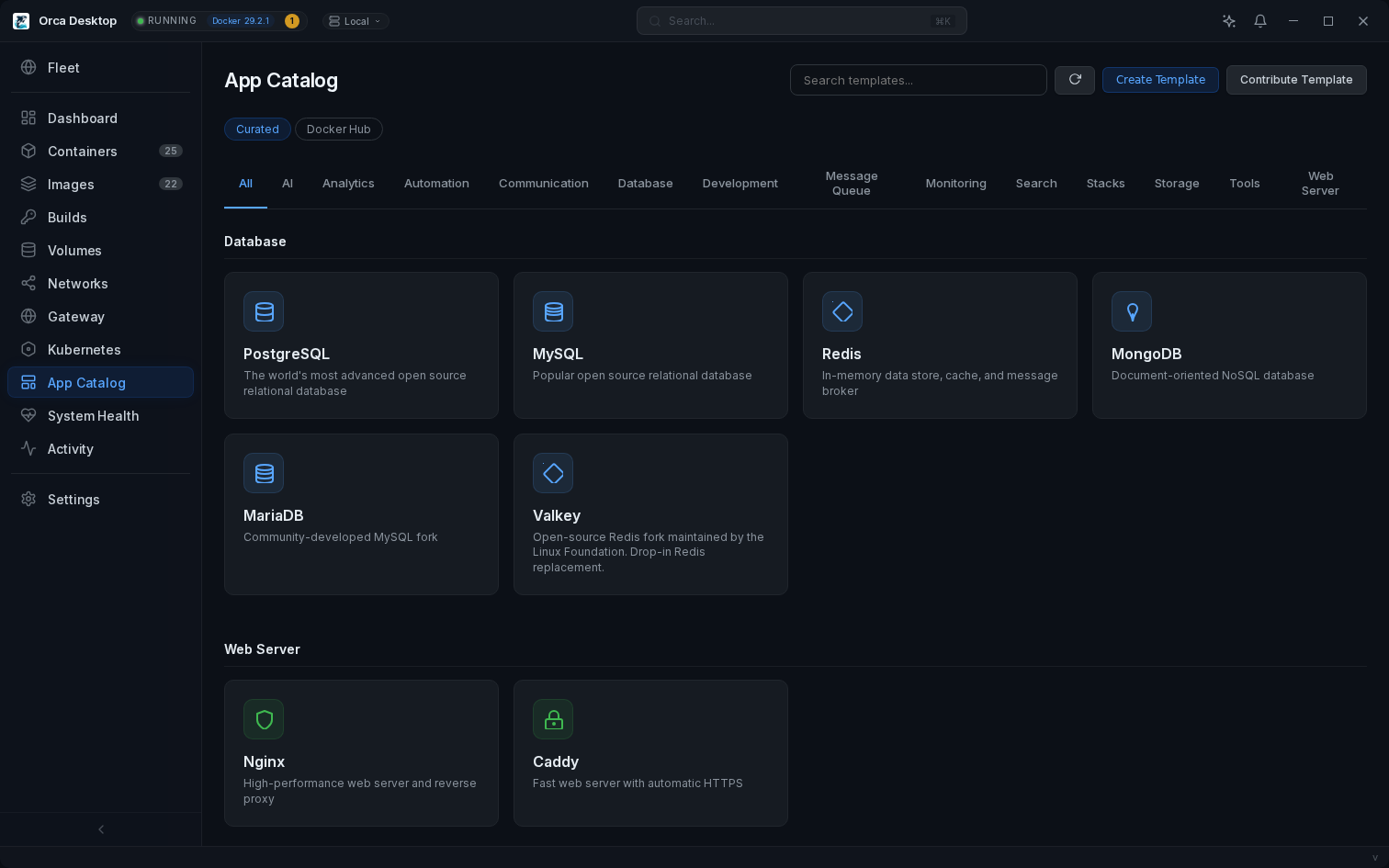
App Catalog — curated templates with auto-generated passwords✓
Compose stack templates — multi-service apps deployed as stacks✓
Post-deploy setup guides — step-by-step wizard with interactive actions✓
Pull with Docker Hub search dialog✓
Build with live output — streaming logs, build args, Dockerfile selection✓
Image layer visualization — stacked bar chart with Dockerfile instructions✓
Vulnerability scanning — one-click CVE scan with Trivy✓
HTML vulnerability report — exportable, opens in browser✓
Distinct severity colors — Critical, High, Medium, Low at a glance✓
Image file browser — explore filesystem without running✓
Import from tar — load images from tar archives✓
Image tagging — tag images with custom repository and version✓
Streaming pull — per-layer progress bars during image download✓
Tag autocomplete — search tags from Docker Hub when pulling✓
Private registry auth (Docker Hub, GitHub, GitLab, ECR)✓
Build dashboard — build history with persistent logs, status tracking, duration✓
Build from URL — paste a git repo or Dockerfile URL to build✓
Build cache insights — cache hit rate visualization per build✓
Build comparison — side-by-side diff of two builds✓
AI build debugging — "Ask AI" on failed builds with error context✓
Build targets — define builds in orca.yaml, trigger from UI or schedule✓
Compose stacks — auto-detect, up/down/pull, inline YAML editing with restart✓
One-click Kubernetes (k3s) with Traefik ingress✓
Pods — CPU/memory metrics, logs with follow mode, in-browser terminal✓
Deployments — scale dialog, restart, rollback history, HPA autoscaling✓
DaemonSets — node-level workload management✓
StatefulSets — scale, restart, ordered pod management✓
ReplicaSets — owner tracking, replica status✓
Services — per-port forwarding, network policies✓
Events timeline — color-coded warnings and errors✓
ConfigMaps & Secrets — full CRUD, reveal toggle, type selection (Opaque, TLS, Docker)✓
Create Ingress — service/port dropdowns, hostname, TLS toggle✓
PVC provisioning — storage class, size, access modes✓
Storage Classes — provisioner, reclaim policy, default class indicator✓
HPA autoscaling — create, monitor, target CPU with min/max replicas✓
Network Policies — pod selector, ingress/egress rules✓
CRD browser — list all Custom Resource Definitions with group, kind, scope✓
Traefik dashboard — auto-detection with one-click access✓
Deploy from YAML — Monaco editor with syntax highlighting✓
Helm management — list releases, install charts, uninstall✓
Visual topology — Service → Deployment → Pods relationship map✓
Jobs & CronJobs — manage, trigger manually, suspend/resume, view logs✓
Namespace management — create, delete, switch between namespaces✓
YAML editor for all resources — syntax highlighted, apply changes live✓
Volume management with file browser and export✓
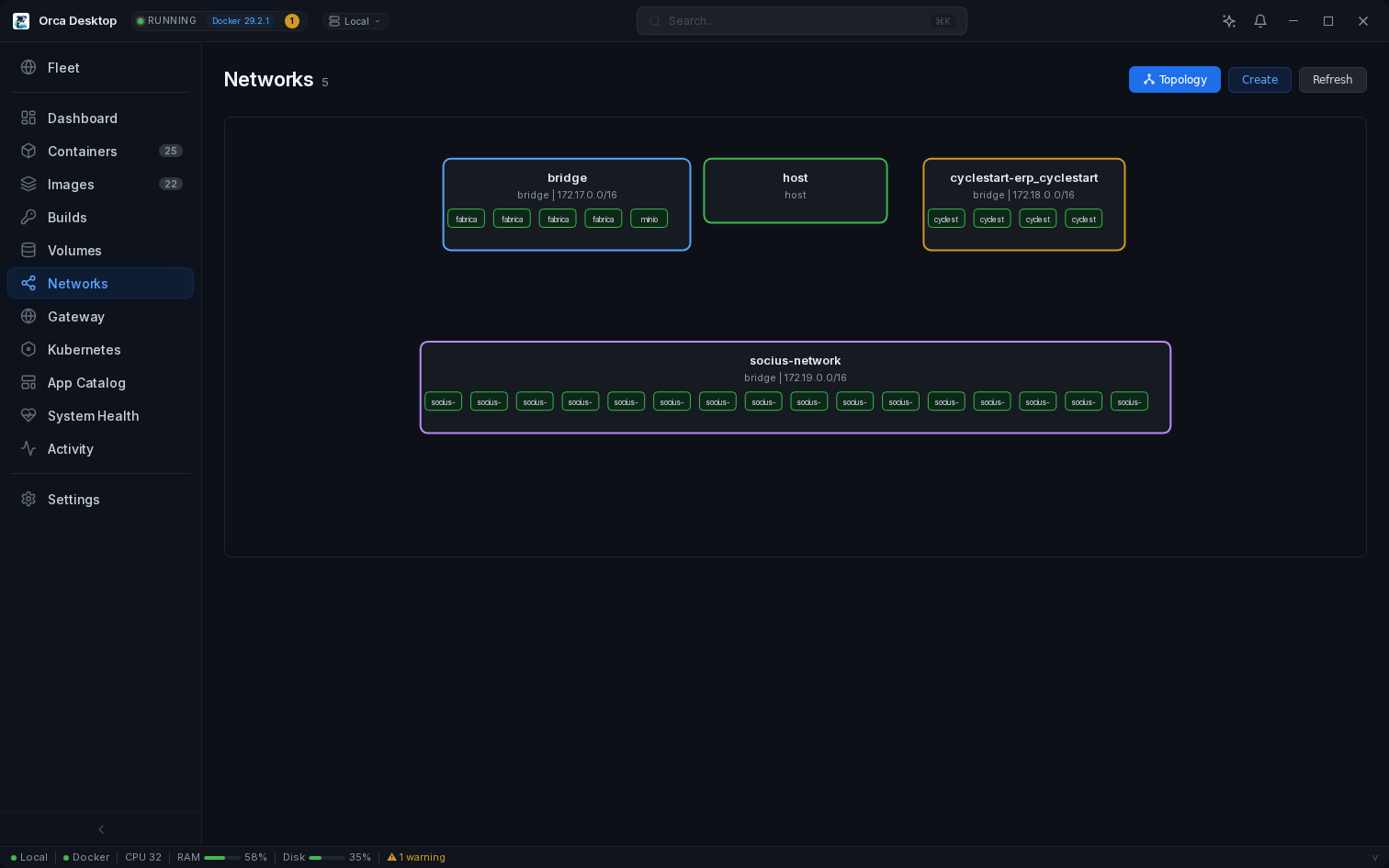
Network topology — visual diagram of networks and connected containers✓
Network selection — choose network when creating containers✓
Gateway reverse proxy — managed Caddy with automatic TLS, hostname routing to containers✓
.localhost domains — app.localhost works in all browsers, no DNS config✓
Custom domains — configurable base domain with wildcard cert support✓
Path-based routing — overlay /api/*, /ws/* on the same hostname for different services✓
One-click expose — register any container with the gateway from its detail page✓
orca.yaml — projects declare gateway routes in their repo, auto-registered on deploy✓
AI assistant — floating window, drag to any monitor✓
5 AI providers — Claude, GPT, Gemini, Ollama (local), custom OpenAI-compatible✓
One-click Ollama setup — local AI with GPU acceleration✓
Tool calling — AI can list containers, inspect, and manage resources✓
Conversation history — sliding window context for multi-turn sessions✓
MCP server — 43 tools for Claude Code / Claude Desktop✓
OpenAI-compatible endpoint — works with any agent framework✓
App templates — one-click deploy + create your own✓
Full CLI — orca command for scripting, CI/CD, and team automation✓
Config export/import — share team config as YAML, secrets excluded by default✓
Team workflows — orca.yaml in repos + shared domain + wildcard cert✓
Linux, macOS, Windows — native on all platforms✓
Guided setup wizard with streaming progress✓
Signed auto-updates with tamper-proof upgrade manifests✓
Code signed — Apple notarized (macOS), EV signed (Windows)✓
Startup progress — real-time feedback during daemon and environment checks✓
Built-in CA — persistent local Certificate Authority signs TLS certs for deployed templates✓
macOS: Apple Virtualization.framework + VirtioFS + proxy passthrough✓
NVIDIA GPU detection — Container Toolkit auto-install✓
GPU VRAM monitoring — dashboard and status bar display✓
WSL2 resource management — configure memory, CPU, and swap✓
Docker auto-start — automatic startup on Windows reboot✓
JetBrains Mono Nerd Font — in terminal and log viewers✓
Resource history charts — CPU and memory time-series with hover tooltips✓
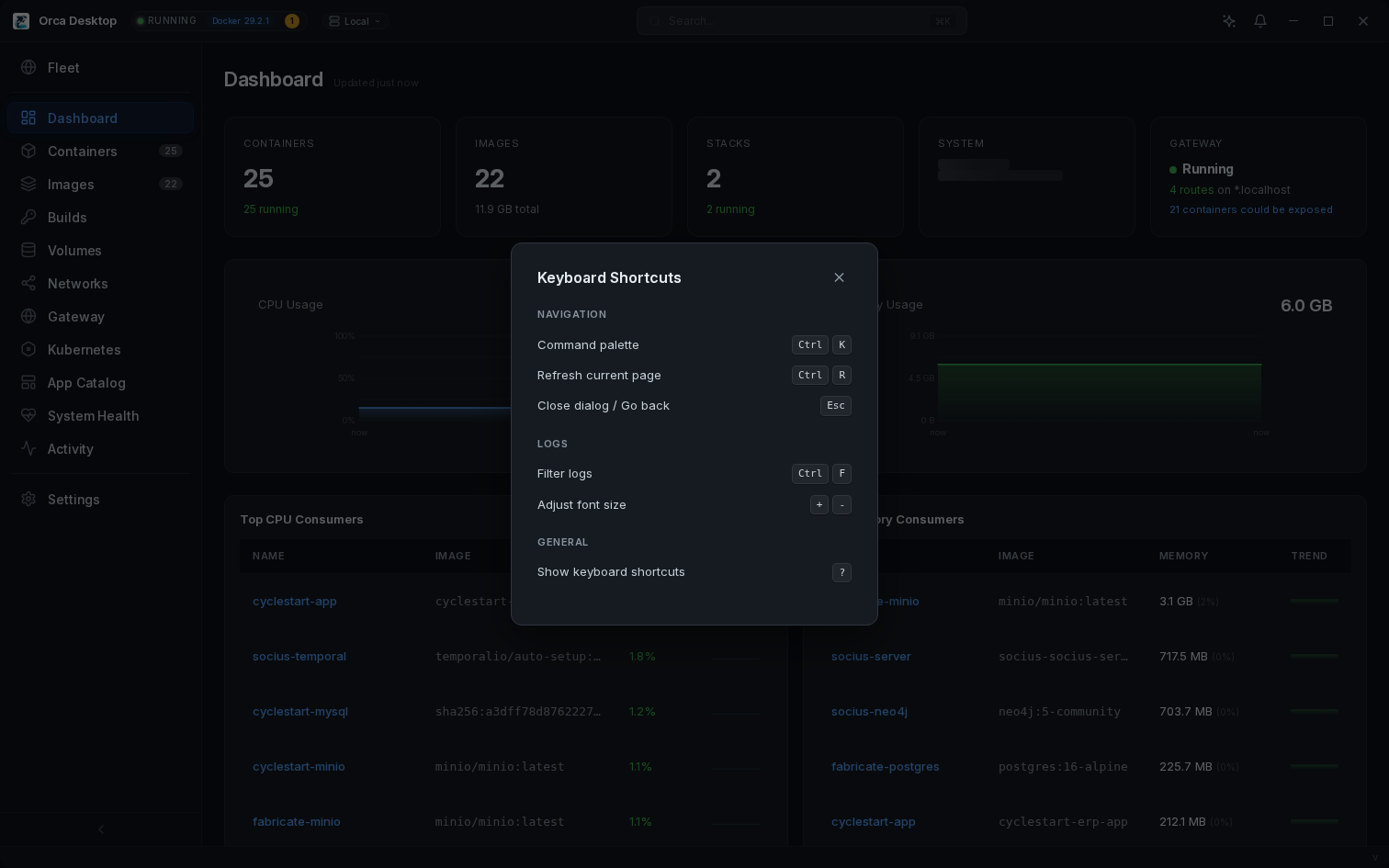
Keyboard shortcuts — Ctrl+K palette, Ctrl+R refresh, ? shortcut guide✓
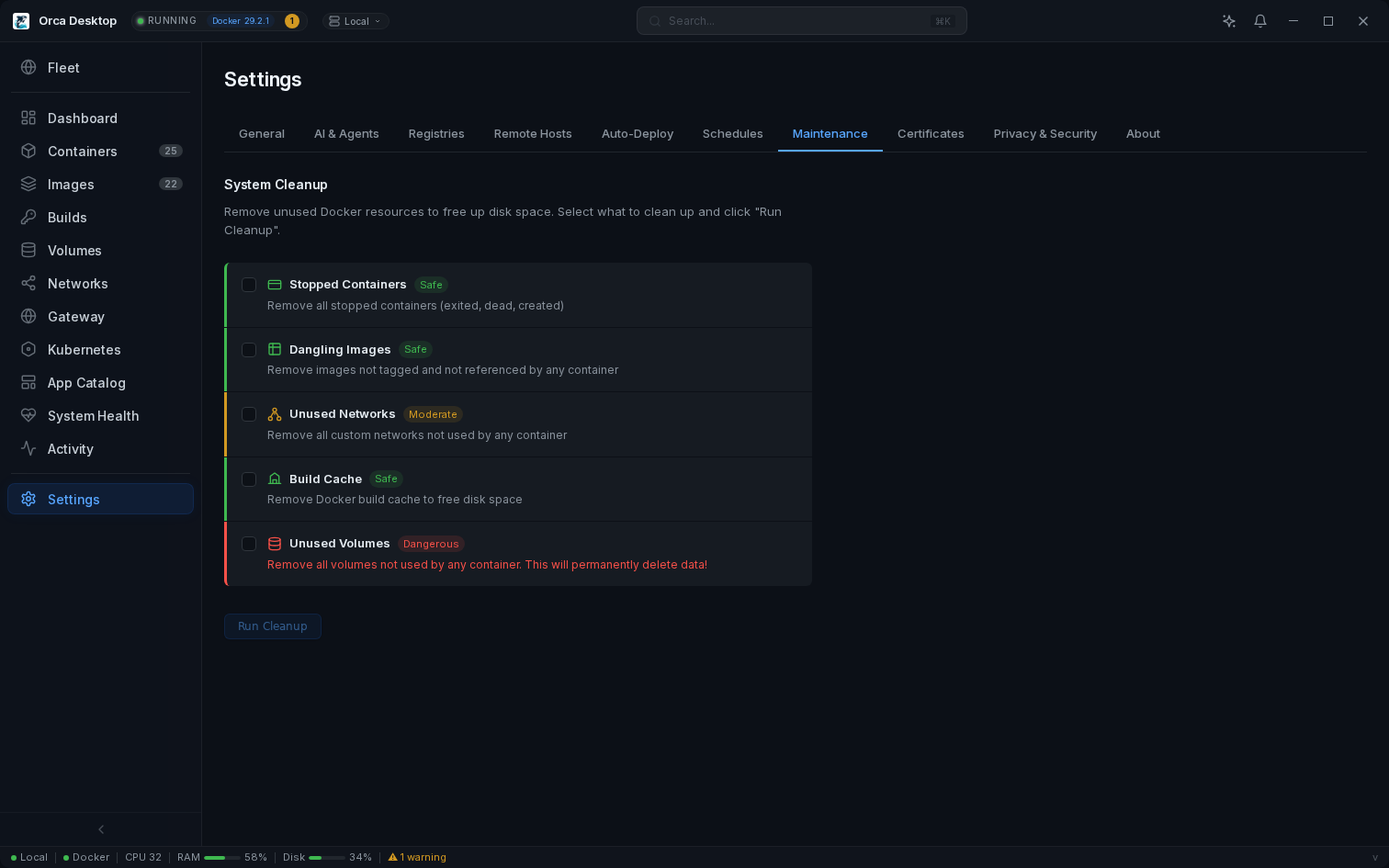
System cleanup — prune containers, images, volumes, networks, build cache✓
Resource usage alerts — toast when containers exceed 90% memory or sustained CPU✓
Container export — save container filesystem or image to tar file✓
Scheduled actions — built-in cron to restart, stop, or start containers on a schedule✓
Command palette — fuzzy search pages, resources, and actions✓
Glassmorphism UI — frosted glass, smooth animations✓
Open source — MIT licensed, free forever, no telemetry✓
Fleet dashboard — grid overview of all hosts with status, CPU, memory, disk, containers✓
Host groups & tags — label hosts (production, staging, eu-west), filter fleet by tag✓
Bulk operations — select mode, test selected, remove selected, test all✓
OS & architecture detection — auto-detect Linux distro and CPU arch per host✓
Deploy to any host — choose target server when deploying from App Catalog✓
Health alerts — background polling with debounce, toast on host offline/online✓
Staggered probing — batch-probe hosts in groups of 3, incremental status updates✓
Version mismatch warning — alerts when hosts run different daemon versions✓
Host selector — switch between local and remote in the titlebar, status bar indicator✓
One-liner server install — apt install orca-daemon via Cloudsmith✓
Hot-swap reconnect — Diagnose button finds Docker and reconnects instantly✓
TLS ready — Caddy/nginx reverse proxy examples, bearer token auth✓
Remote port forwarding — WebSocket TCP tunnel to any service on any host, no VPN needed✓
Auto-deploy — GitHub/Docker Hub webhook triggers pull + redeploy with config preservation✓
Tag filters — deploy on v* (versions), latest, branch names, or any push✓
Host comparison — side-by-side compare of containers, images, and resources across hosts✓
Multi-host deploy — deploy templates to multiple hosts simultaneously✓
Built-in Gateway

Orca Gateway is a managed Caddy reverse proxy that gives every container a clean hostname with automatic HTTPS. Deploy an app and access it at myapp.localhost — no port numbers, no config files.

  • *.localhost works in all browsers — zero DNS config needed
  • Custom domains for teams (e.g., *.dev.example.com)
  • Path-based routing — overlay /api/* and /ws/* on the same hostname
  • TLS certificates signed by the Orca CA — or bring your own wildcard cert
  • One-click "Expose" from any container detail page
  • orca.yaml in project repos — gateway routes auto-register on deploy
  • WebSocket, SSE, and HTTP/2 proxied transparently
# orca.yaml — path-based routing gateway: - hostname: app service: frontend port: 3000 - hostname: app path: /api/* service: backend port: 8080 - hostname: app path: /ws/* service: reverb port: 6001 # app.localhost → frontend # app.localhost/api/* → backend # app.localhost/ws/* → reverb

Environment links & developer portal

Turn the Gateway dashboard into a developer portal. Each project's orca.yaml can define links grouped by section and environment — local, staging, production, or any custom environment your team uses.

  • Links organized by group (Storefront, Admin, Backend, Infrastructure)
  • Environment tabs — switch between Local, Staging, Production
  • local values auto-resolve to gateway hostnames
  • Non-local environments are direct URL bookmarks — no proxying
  • Shared via git — every team member sees the same links
  • Gateway landing page shows all apps across all environments
# orca.yaml — environment links links: Storefront: - name: Web App local: app staging: https://staging.example.com production: https://www.example.com Admin: - name: Admin Panel local: admin staging: https://staging-admin.example.com

Full Kubernetes management

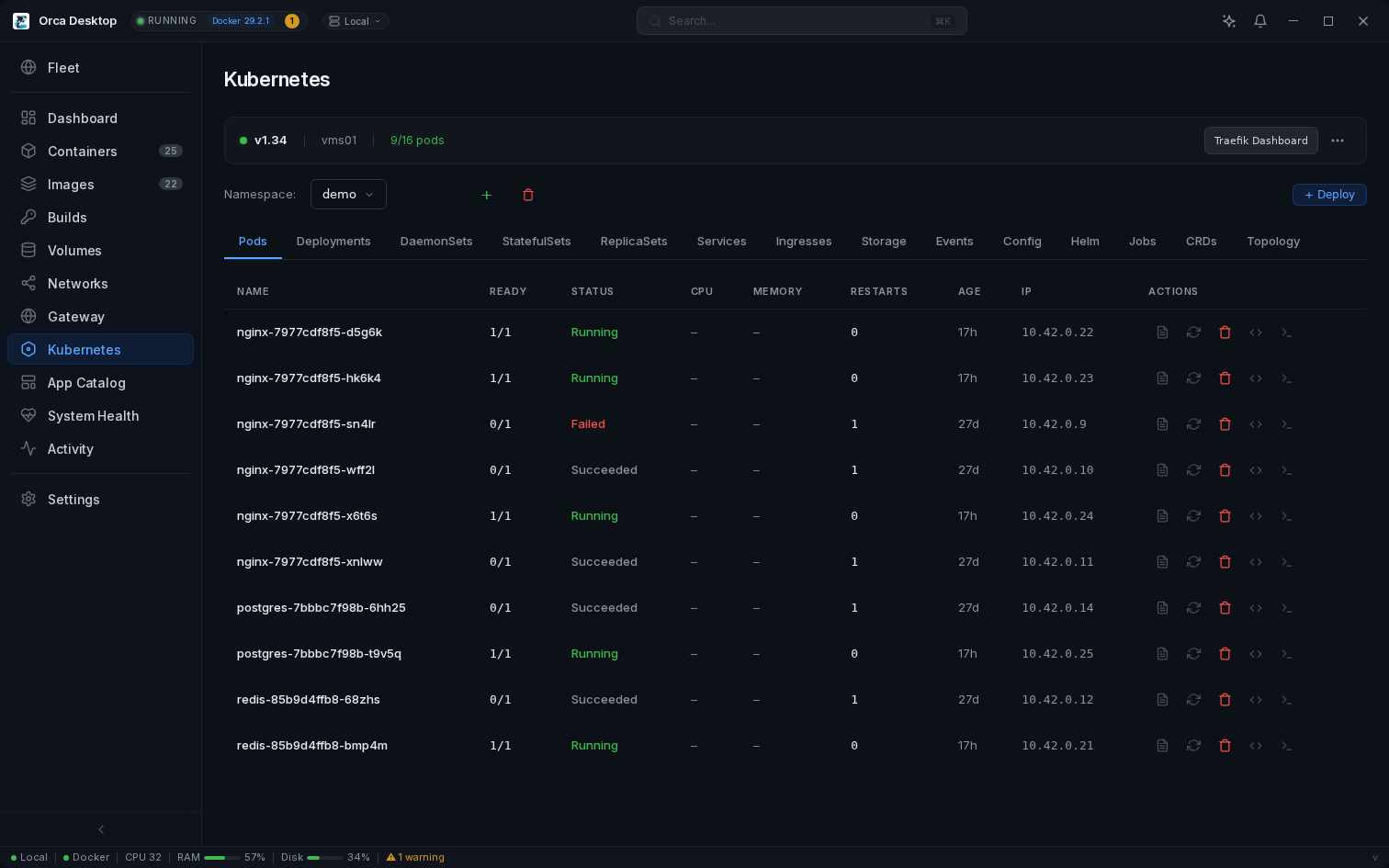
Orca Desktop gives you a complete Kubernetes dashboard without the complexity. Visualize your cluster topology, manage Helm releases, and edit any resource with a syntax-highlighted YAML editor — all from one window.

  • Visual topology map — Service, Deployment, and Pods at a glance
  • Helm chart management — install, upgrade, and uninstall releases
  • Monaco YAML editor with live apply for all K8s resources
  • Scale deployments, rollback, and port-forward services instantly
  • Jobs and CronJobs — trigger, suspend, view logs and status
  • Events timeline, ConfigMaps, Secrets, and namespace management
Kubernetes management

AI assistant with local GPU power

Get AI-powered container diagnostics and management with your choice of provider. Run Ollama locally with GPU acceleration for private, zero-latency AI — or connect to Claude, GPT, or Gemini for cloud intelligence.

  • One-click Ollama setup with NVIDIA GPU auto-detection
  • Tool calling — AI can list, inspect, and manage your containers
  • 5 providers — Claude, GPT, Gemini, Ollama (local), custom
  • MCP server with 43 tools for Claude Code integration
  • Conversation history with sliding window context
Container management with AI diagnostics

Security scanning with exportable reports

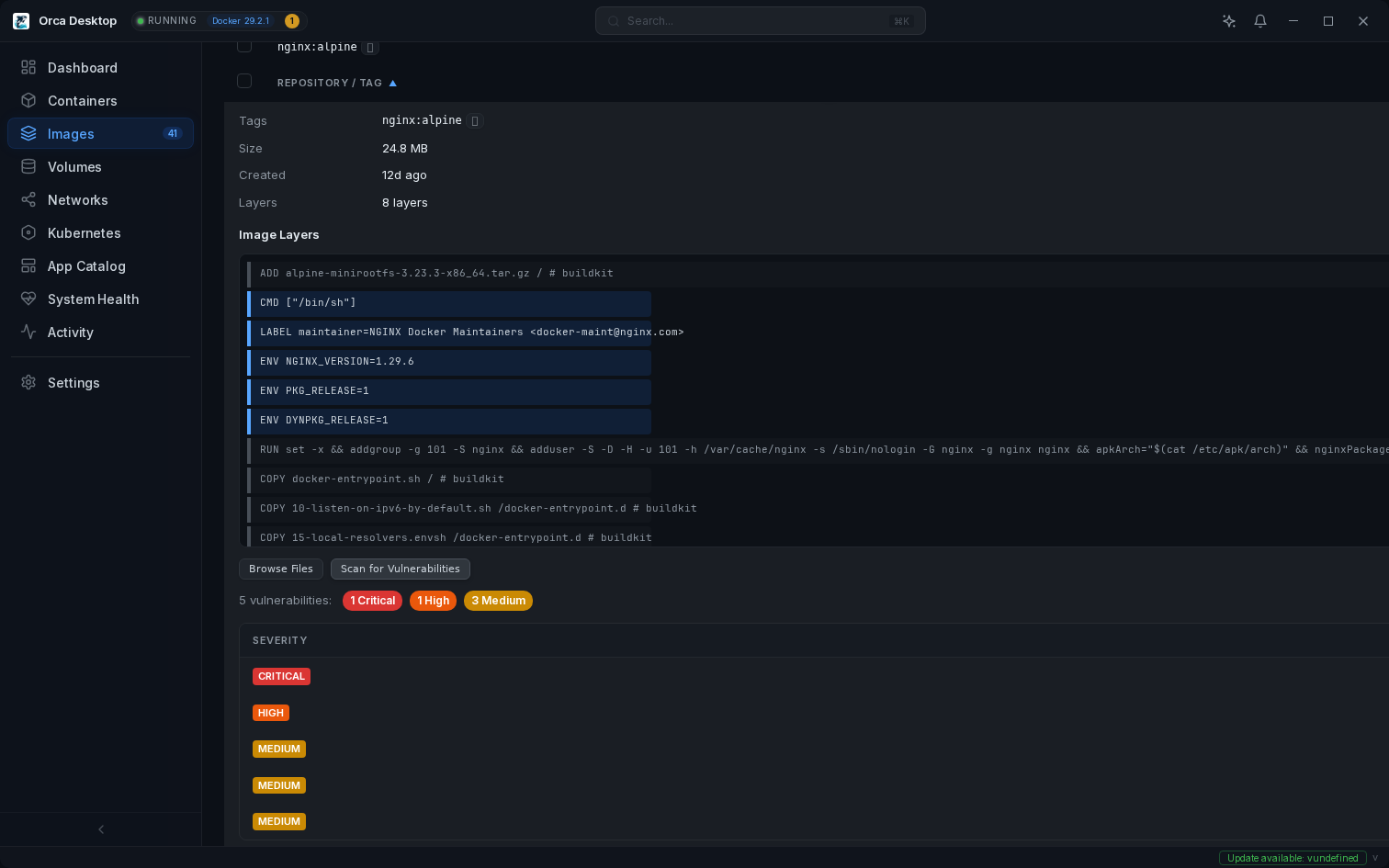
Scan any image for vulnerabilities with one click. Orca Desktop uses Trivy to find CVEs, displays results with distinct severity colors, and generates full HTML reports you can share with your team or open in any browser.

  • One-click vulnerability scan powered by Trivy
  • Critical, High, Medium, Low — color-coded at a glance
  • Exportable HTML report — opens directly in your browser
  • Image file browser — explore layers without running
  • Private registry support for enterprise workflows
Vulnerability scanning with severity badges

Built for AI agents

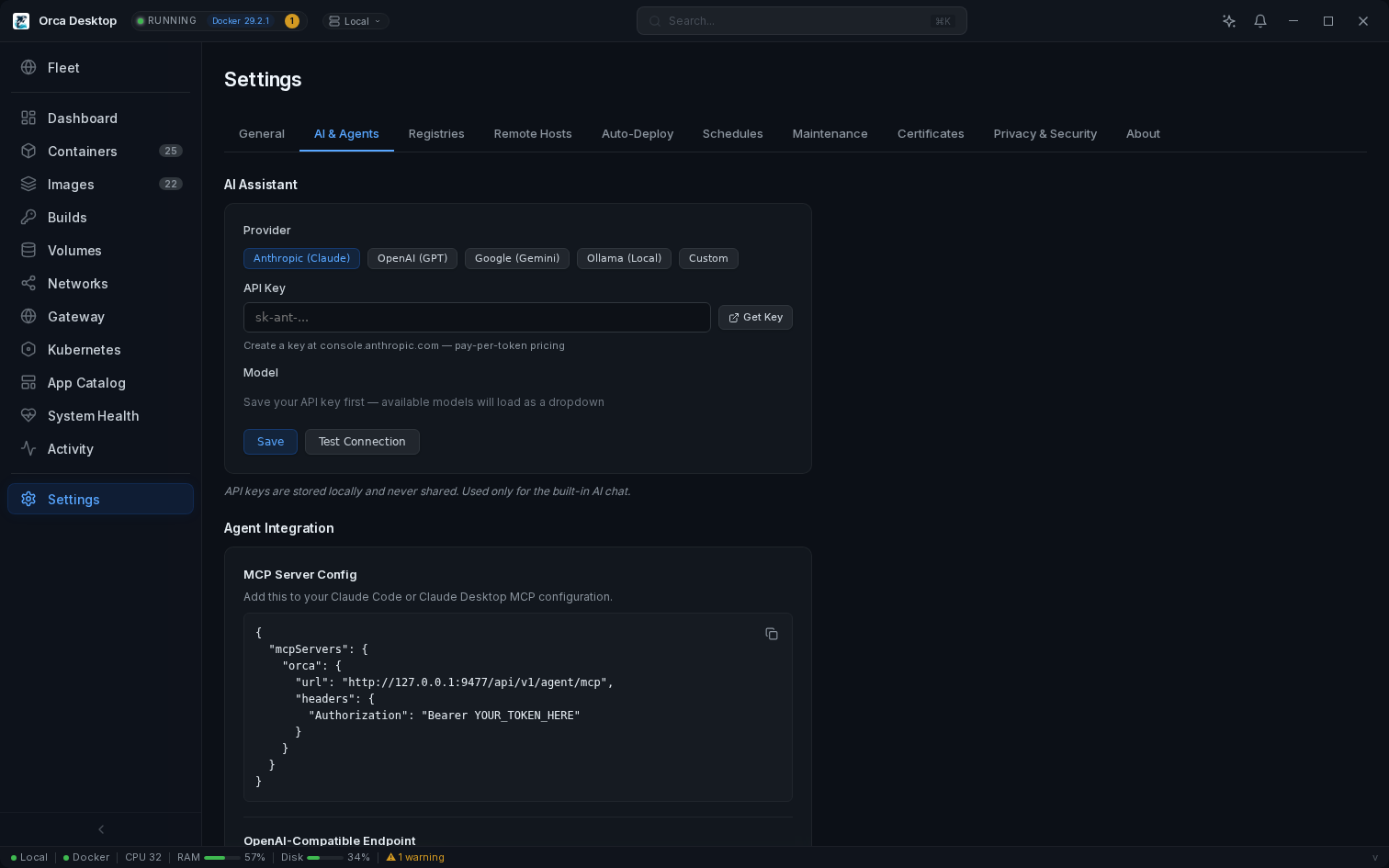
Orca Desktop exposes a full container management API that any AI agent can use. Connect Claude Code, OpenAI agents, or any MCP-compatible client.

  • MCP server with 43 tools
  • OpenAI-compatible function calling
  • Direct tool execution endpoint
  • Bearer token authentication
AI & Agents settings with MCP configuration

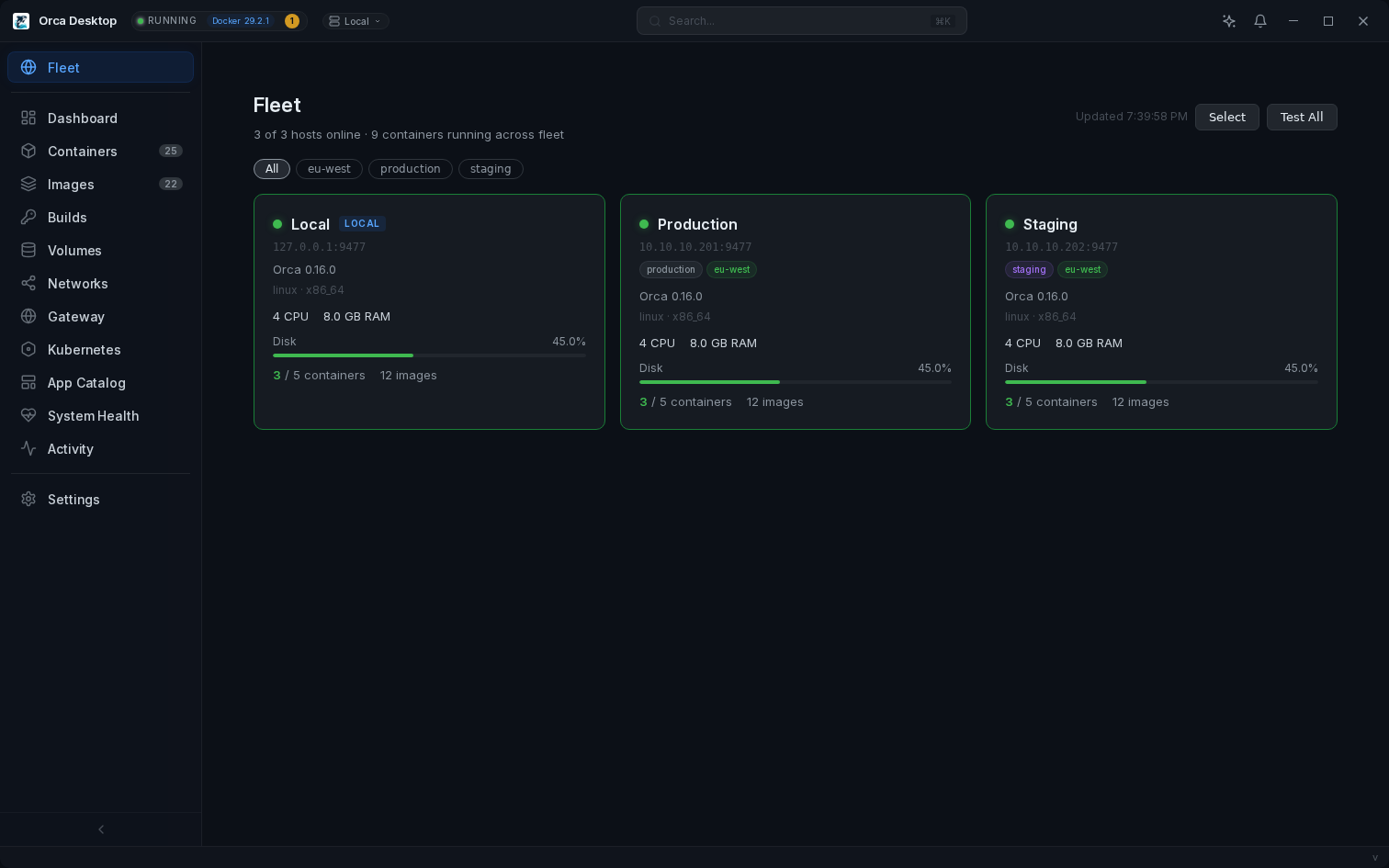
Fleet management

Install the Orca daemon on any Linux server and manage your entire fleet from one desktop. Tags, groups, bulk operations, health alerts — all built in.

  • Fleet dashboard — status, CPU, memory, OS, containers at a glance
  • Host groups & tags — filter by production, staging, region
  • Bulk test & manage — select hosts, test connectivity, deploy templates
  • Health alerts — automatic toast when hosts go offline or recover
  • One-liner install — apt install orca-daemon
Fleet dashboard with host cards, tags, and status

Full CLI for scripting & teams

The orca command gives you complete control from the terminal. Script deployments, automate team onboarding, manage the gateway, and export config — all without opening the GUI.

  • Manage containers, images, stacks, and Kubernetes from the terminal
  • Gateway management — add routes, configure domains, set up custom certs
  • Config export/import — share team setup as YAML, secrets excluded by default
  • CA management — export certificate, install to system trust store
  • Deploy stacks and templates from the command line
  • Bundled with the installer — available on PATH immediately
# Team onboarding — one-time setup $ orca config import team-config.yaml $ orca gateway start # Deploy a project (reads orca.yaml) $ orca deploy ./my-project Gateway: app.dev.example.com, api.dev.example.com # Manage the gateway $ orca gateway routes HOSTNAME CONTAINER PORT app.dev.example.com frontend-1 3000 api.dev.example.com backend-1 8080 # Install the CA cert $ orca ca install CA certificate installed to system trust store.
Install the daemon on any Linux server
# One-liner install (Ubuntu/Debian)
curl -1sLf 'https://dl.cloudsmith.io/public/edvin/orca/setup.deb.sh' | sudo bash
sudo apt install orca-daemon
Starts automatically on boot. API token generated at /etc/orca/config.json. Then add the host in Orca Desktop: Settings → Remote Hosts → paste URL and token.

Push to deploy

Push code to GitHub. Containers update automatically on your servers.

You push code
git push
→
GitHub Actions
Build & Push
→
ghcr.io
New Image
→
Webhook
Orca Daemon
→
Auto
Redeploy
Zero-config CD
Add a webhook URL to your GitHub repo. Set a deploy rule in Orca. That's it. No ArgoCD, no Watchtower, no YAML pipelines.
Smart tag filters
Deploy on version tags (v*), specific branches (main), or every push. One rule per environment.
Config preserved
Ports, volumes, env vars, labels, restart policy — all carried over. Only the image changes. Signed webhook validation prevents unauthorized deploys.

Remote port forwarding

Access any service on any remote host — as if it were running locally.

Your browser
localhost:8080
→
WebSocket tunnel
Encrypted · Authenticated
→
Remote daemon
service:80
No VPN required
Tunnels through the existing HTTPS connection to the daemon. Works through any firewall or NAT. No SSH, no WireGuard, no extra software.
One-click forwarding
Click "Port Forward" on any K8s service. Orca opens a local listener and tunnels traffic to the remote cluster. Access it at localhost.
Authenticated & secure
Every tunnel is authenticated with your API token. Constant-time token comparison prevents timing attacks. TLS supported for production deployments.
Works everywhere
Same UI for local and remote hosts. Switch between fleet members in the titlebar — port forwarding works on all of them. Multiple tunnels at once.

macOS: How it works

No Docker Desktop required. Orca uses Lima with Apple's Virtualization.framework.

Auto-Setup
First launch installs Lima, Docker CLI, Compose & Buildx via Homebrew. Creates a Linux VM with auto-sized RAM and VirtioFS.
Port Forwarding
Container ports automatically forwarded to your Mac. -p 8080:80 works at localhost:8080.
Bind Mounts
chmod, chown, and file writes just work on bind mounts. No workarounds needed.
Auto-Reconcile
On startup, the daemon patches VM config and kernel automatically. No manual steps on upgrade.

Community App Catalog

One-click deploy for popular apps. The catalog updates automatically — no app update needed.

Loading catalog...
Contribute a Template Add your favorite app to the catalog via a simple form

See it in action

Real screenshots from a live environment. Click to enlarge.

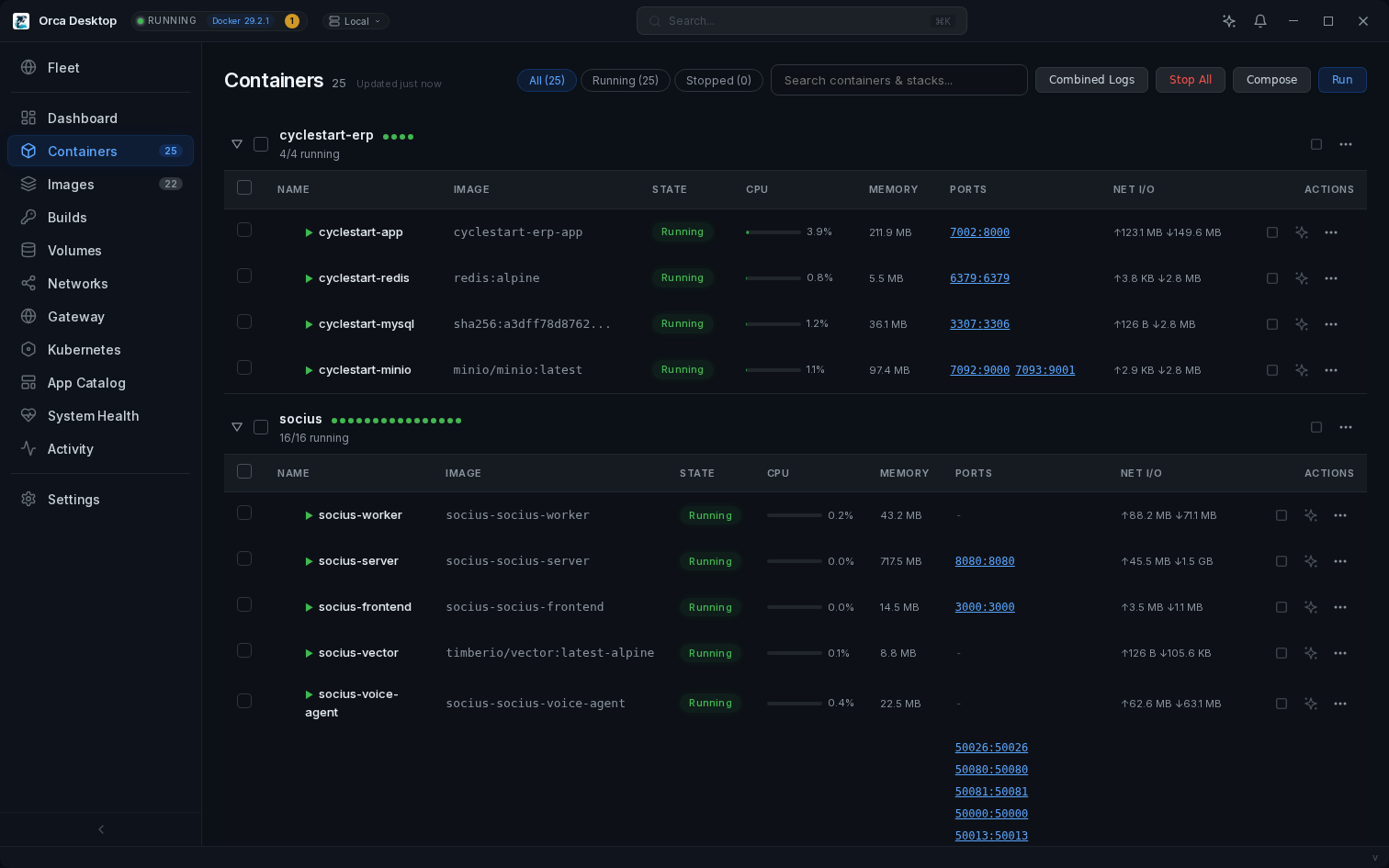
Containers
ContainersCompose stacks, live CPU/memory, port links
Fleet Dashboard
Fleet DashboardManage all servers from one UI with tags and health
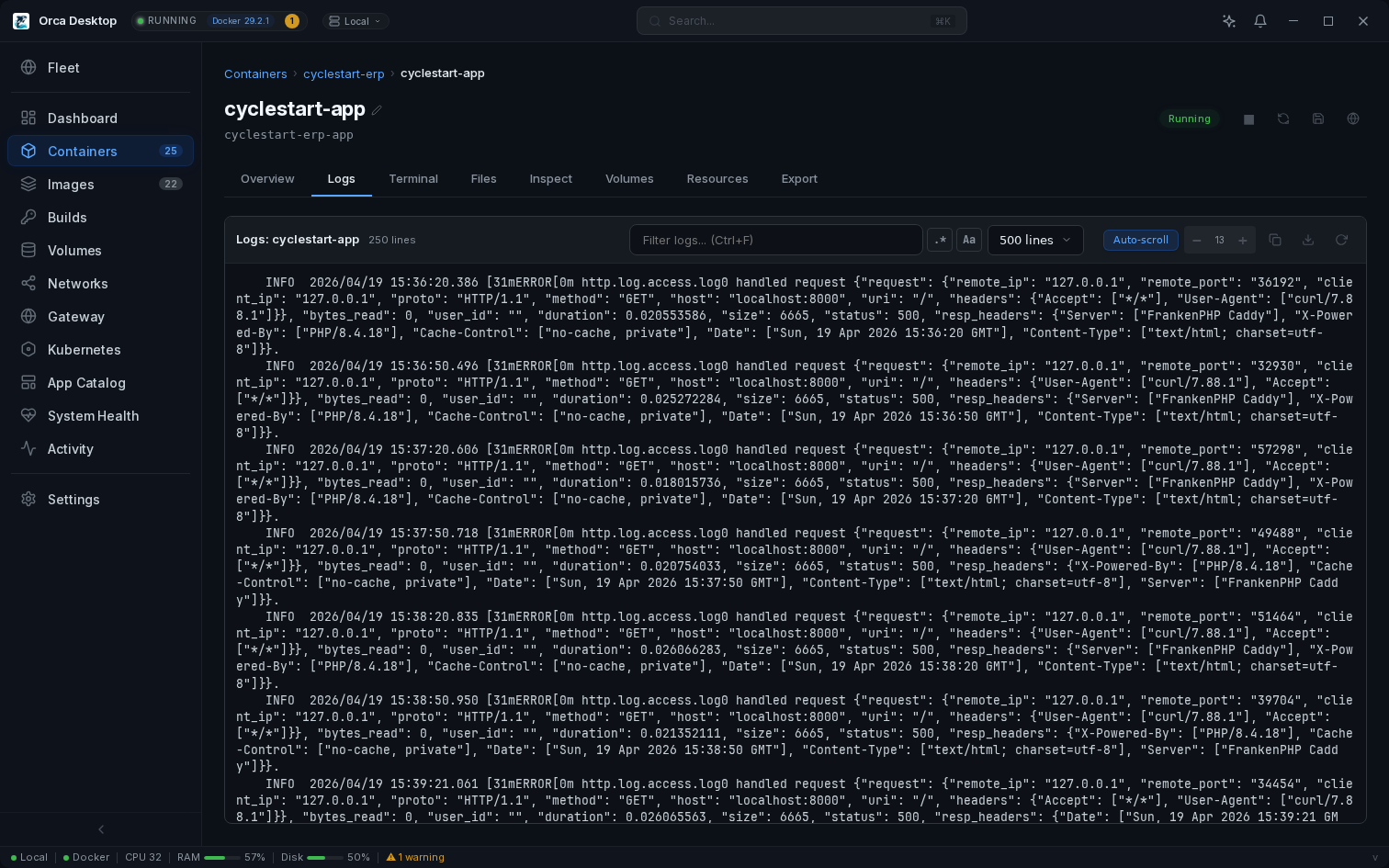
Container Logs
Log ViewerRegex search, match highlighting, auto-scroll
Network Topology
Network TopologyVisual diagram of networks and containers
App Catalog
App CatalogOne-click templates with auto-generated passwords
System Cleanup
System CleanupPrune containers, images, volumes, build cache
Keyboard Shortcuts
Keyboard ShortcutsCommand palette, shortcuts overlay

Privacy & Security

Built for teams that take data security seriously.

Zero Telemetry
No analytics. No crash reporting. No accounts. No cloud service. Your containers are your business — we never see them.

100% Local

Everything runs on your machine. The daemon binds to localhost only. Config, credentials, and logs never leave your system.

No Phone Home

We don't operate servers. The only automatic calls are update checks (GitHub) and the template catalog — both plain GET requests with no user data.

Fully Auditable

MIT licensed and open source. Every network call is documented. Build from source to verify. Your security team can audit everything.

Every Network Connection — Full Transparency
ConnectionWhenUser Data?
AUTO Update check — github.com On startup None
AUTO Template catalog — orca-desktop.com Hourly, cached None
USER Docker Hub search — hub.docker.com You search Query only
USER AI assistant — Your provider You ask AI Context you see
USER Image pull — Your registries You pull Image ref

Built-in Certificate Authority

Orca generates a persistent local CA that signs TLS certificates for every deployed app template. Install the CA certificate once and all Orca-deployed services are automatically trusted — no more browser warnings.

✓ One-click download in Settings ✓ 10-year root CA, 1-year leaf certs ✓ Install instructions for macOS, Windows, Linux

Code Signed Releases

✓ macOS — Apple notarized with Developer ID
✓ Windows — EV code signed via SSL.com
✓ Signed update manifests — tamper-proof upgrades
✓ Built in GitHub Actions — reproducible CI

Air-Gap Ready

✓ Ollama integration — fully local AI, no cloud
✓ Private registries — no Docker Hub required
✓ Localhost-only daemon — no open ports
✓ Works offline — cached templates, no cloud deps
Read the full Privacy Statement · Security Policy

Ready to try it?

Free, open source, and works with your existing Docker and Kubernetes setup.

Download Orca Desktop Star on GitHub

The App Catalog is powered by a community catalog. Contribute a template for your favorite app.