
What is Orca?
Orca is a free, open source desktop app for containers, compose stacks and Kubernetes, built for local development with real HTTPS hostnames, worktree instances and AI agents.
On this page
Orca runs your containers, compose stacks and a local Kubernetes cluster, and adds what local development usually needs on top: real HTTPS hostnames for every service, one file in the repo that sets a project up for the whole team, and a running copy of the app for every git worktree. AI agents can drive all of it through MCP.
It runs on macOS, Windows and Linux, and replaces Docker Desktop on all three.
Who it's for
- Developers who run a project's services locally with Docker Compose and want them on proper hostnames instead of a list of ports.
- Teams that want a new colleague to clone a repository and have everything work the same way on their machine.
- People working with AI agents who want several branches running side by side, each with its own URLs and data, and an agent that can start, inspect and test them.
- Anyone running a few servers who wants to see and manage those containers from the same window.
How it fits together
Orca has three parts:
| Part | What it does |
|---|---|
| The desktop app | The window you work in: containers, stacks, the gateway, projects, Kubernetes, settings. |
The daemon (orca-daemon) | A small background service on 127.0.0.1:9477 that talks to Docker or Podman. The app, the orca CLI and AI agents all use its API. The app starts and updates it for you. |
| The container runtime | Docker or Podman. On macOS Orca runs it in a Linux VM with Lima; on Windows inside WSL2; on Linux directly. |
The same daemon can run on a Linux server, and the app can switch between your machine and any number of servers.
The ideas worth knowing
Stacks. Every Docker Compose project Orca can see is a stack, however it was started: from Orca, from a terminal, or by a script. You don't import anything. See Compose stacks.
The gateway. A managed reverse proxy that gives services HTTPS hostnames like https://shop.localhost, with certificates from Orca's own certificate authority. Routes come from orca.yaml, container labels or a click. See Gateway.
orca.yaml. One file next to your compose file, committed to the repo, that holds the project's routes, links to its other environments, build targets, setup commands and worktree settings. Orca applies it the moment it changes. See the orca.yaml reference.
Profiles. Compose's own profiles: mark optional services. Orca lets each developer switch them on and off and remembers the choice. See Profiles.
Worktree instances. Each git worktree of a project can run as its own copy of the app, with its own hostnames and ports, while databases and other infrastructure run once and are shared. See Worktree instances.
Agents. The daemon is an MCP server. Claude Code and other agents can list containers, read logs, start stacks and run their own worktree instance to test a change. See Agents and MCP.
Find your way around
The sidebar
The sidebar starts with the Dashboard and ends with Settings. In between, pages are grouped by what you're doing:
| Group | Pages |
|---|---|
| Develop | Workspace, Worktrees, Containers, Gateway, App Catalog |
| Resources | Images, Builds, Volumes, Networks |
| Platform | Kubernetes, and Fleet once you've added a remote host |
| System | System Health, Activity |
While Kubernetes is turned off, its entry is marked off.
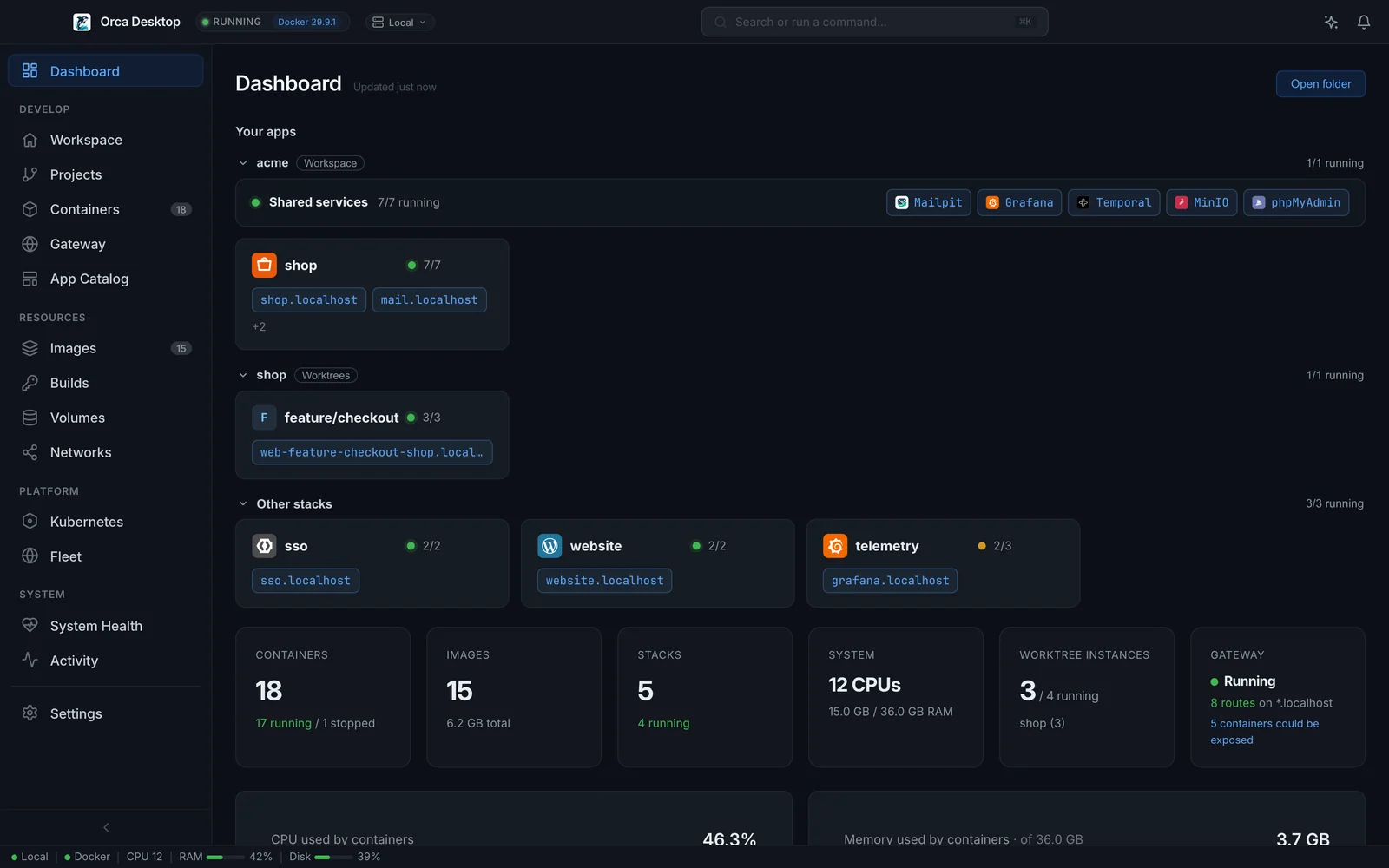
The Dashboard opens with Your apps: a card for each stack with its HTTPS URLs, and Start on the stopped ones. The cards are grouped by where they come from: your workspace's projects, with its shared services as one row of links; each project's worktree instances, named by branch; then other stacks. Click a group's name to fold it. Hover a card to pin it to the top or hide it; N hidden next to the heading shows hidden apps again. Below them are counts of containers, images, stacks and worktree instances, the gateway's state, and charts of CPU used by containers and Memory used by containers (with the machine's total memory). Before you've run anything, it shows four ways to start instead: Open a project folder, Add a git repository, Join your team's workspace and Start from the catalog.
The command palette
Press Cmd+K on macOS or Ctrl+K on Windows and Linux, or click Search or run a command… in the title bar. Start typing to search everything on the active host at once, and the matching actions and pages:
- stacks, and the gateway URLs (opening one opens it in your browser),
- projects, containers and images,
- Shell in followed by a running container's name, which opens that container's terminal.
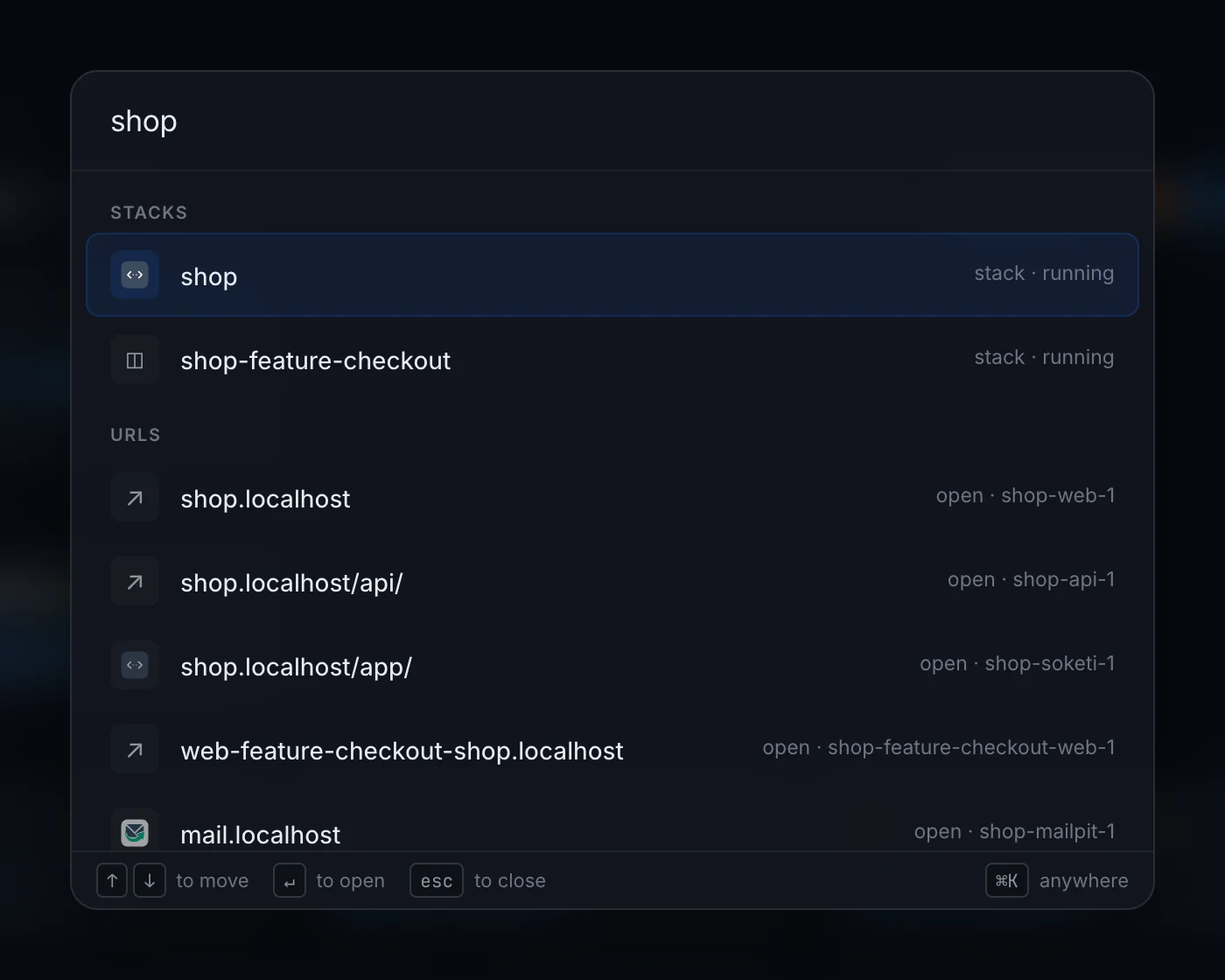
With nothing typed, the palette lists actions and pages. The actions include Open a project folder…, Run a container…, Pull an image…, Build an image…, Add a gateway route…, Create a stack from scratch…, Connect Claude or another AI tool, Start the gateway, Stop the gateway, Stop all containers and Keyboard shortcuts. Under Go to are the pages, plus direct links to tabs such as Settings → AI & agents. Use the arrow keys and Enter, or click.
Drop a folder on the window
Drag a project folder, or a compose file, from your file manager onto Orca's window. Orca opens the Open a project folder dialog on it, ready to start. See Open a project folder.
Where to start
- Install Orca for your platform.
- Follow the quickstart: open a project folder, give it a hostname, and add an
orca.yaml. - If you work on several branches at once, set up worktree instances.
- If you use an AI coding agent, connect it.
Orca is MIT licensed and developed in the open at github.com/edvin/orca. Questions, bugs and ideas are welcome as issues.