
Workspace secrets
How a workspace fills in a project's .env from Passbolt or 1Password, by hand or with their CLIs, without secrets ever entering the workspace repo.
On this page
Most projects need a few values in their .env that can't be committed: a database password, an API key, an OAuth client secret. A workspace handles these without ever holding the values. This page explains the model, how developers fill secrets in, how to make Orca fetch them automatically, and how team leads reference them.
How it works
- The workspace file holds references, such as
passbolt:7f3c91a2-…orop://Dev/Stripe/secret. A reference says where the value lives, not what it is. - Each developer gets the values from your team's secret manager with their own account, on their own machine.
- The values are written to one place only: the project's
.envfile on that machine.
Nothing secret goes into git, into Orca's config, or to an AI tool. When Orca reports a project's secrets (on the Workspace page, to the CLI or to an AI tool), it gives each one's name, its reference, a link, and whether the .env has a value. Never the value itself.
Two secret managers are supported:
| Secret manager | Reference | By hand | Automatically |
|---|---|---|---|
| Passbolt | passbolt:<resource id> | Open in Passbolt opens that entry in your browser. | With go-passbolt-cli, configured on your machine. |
| 1Password | op://vault/item/field | Copy the reference and look it up. | With the 1Password CLI (op), signed in. |
A workspace can use both, and a project can mix references from both.
When a project needs secrets
When you set up a project, the Fill in secrets step looks at every variable the workspace lists as a secret for it:
- A variable that already has a value in the project's
.envis left alone. - For each empty one, if the secret manager's CLI is set up on your machine, Orca fetches the value and writes it.
- If anything is still empty, setup stops before starting the project, and the secrets dialog opens.
A cloned project with empty secrets also shows N secrets to fill in on its card. Click it to open the same dialog.
Fill in secrets by hand
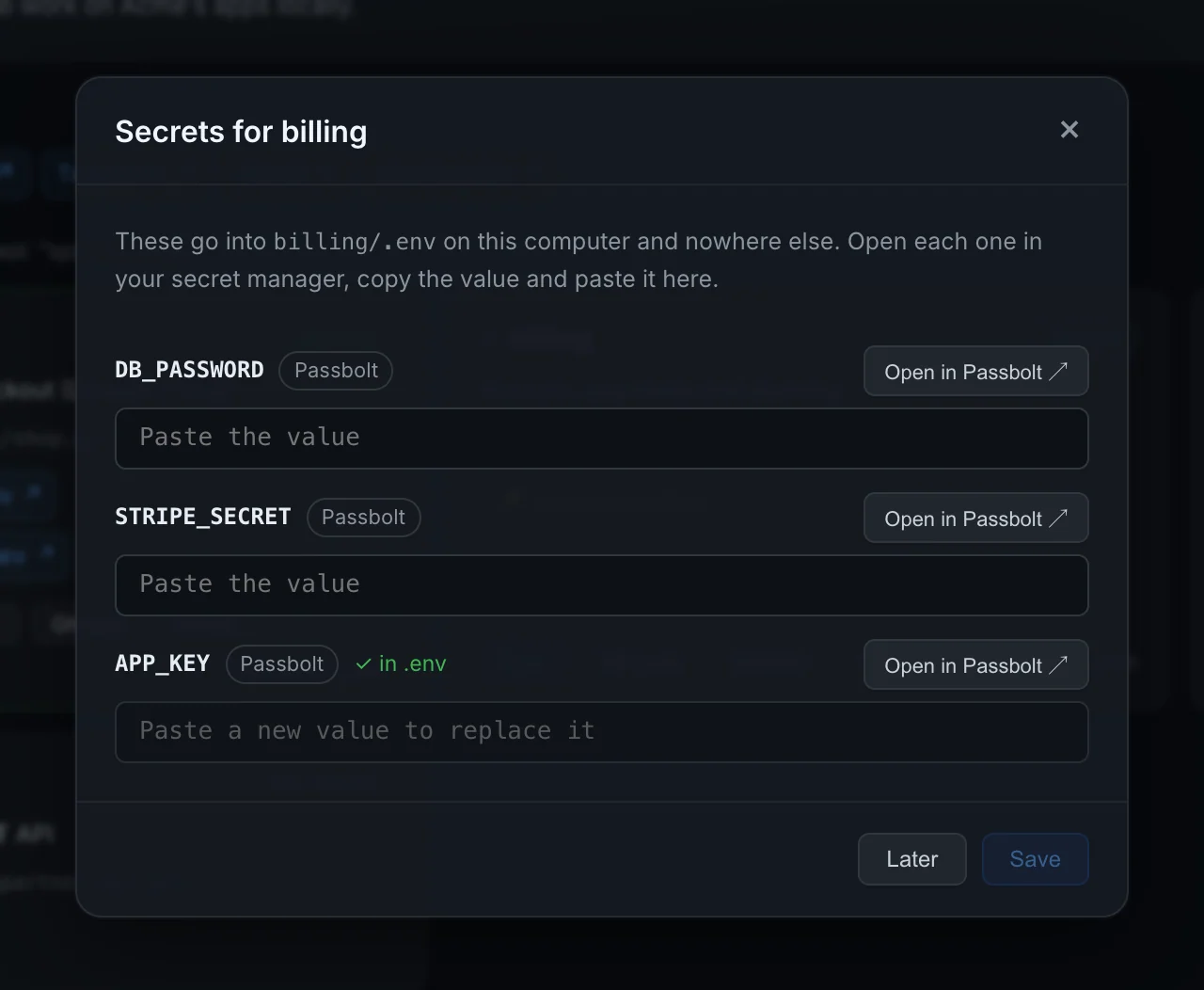
The dialog, Secrets for billing, lists every secret of the project. Each row shows:
- the variable name, such as
DB_PASSWORD, and the secret manager it's in; - ✓ in .env when the
.envalready has a value; - Open in Passbolt ↗ for a Passbolt secret, which opens that exact entry in your browser;
- for a 1Password secret, the reference itself as a button. Click it to copy the reference, then find the item in 1Password;
- a password field: Paste the value, or Paste a new value to replace it for one that's already filled.
To fill them in:
- Click Open in Passbolt ↗ (or copy the 1Password reference) for a secret.
- Copy the value in your secret manager and paste it into the field.
- Repeat for the others.
- Click Save and start when every missing secret has a value. Orca writes them to the
.envand runs setup again, which now goes all the way to starting the project. With some still empty, the button says Save: Orca writes what you entered and the project waits for the rest.
Later closes the dialog without saving.
A few rules apply:
- Only the variables the workspace lists as secrets for the project can be set this way.
- Empty fields are ignored, so you can fill in one secret at a time.
- A value must be a single line. For a multi-line value such as a private key, store it base64-encoded in the secret manager and decode it in the app. When a fetched value has several lines, Orca leaves it out and says so.
- The project must be cloned first. Setup clones it before it asks.
Find a Passbolt resource id
Team leads need the resource id for each Passbolt reference. Open the entry in Passbolt's web app and look at the address bar:
https://passbolt.acme.dev/app/passwords/view/7f3c91a2-5d0e-4c2b-9a51-2a9be1c3d4f0The id is the last part, after /view/. In the workspace file it becomes passbolt:7f3c91a2-5d0e-4c2b-9a51-2a9be1c3d4f0.
The entry must be shared with everyone who will set up the project, or with a group they're in. Otherwise the link opens an error and the CLI can't fetch it.
Fill in secrets automatically
When a secret manager's command-line tool is set up on your machine, Orca fetches the values itself during setup. In the dialog, a line says Your secret manager's command-line tool is set up on this computer. with a Fill in automatically button. Clicking it fetches every missing secret it can; when they're all filled, the project starts.
Orca never types anything into the CLI. If the CLI asks for a passphrase, a sign-in or a confirmation, the fetch fails and you fill that secret in by hand, as above. Each fetch has 30 seconds to answer.
Passbolt: go-passbolt-cli
Orca uses go-passbolt-cli, Passbolt's command-line client. It looks for a program called passbolt or go-passbolt-cli and runs, for each secret:
passbolt get resource --id <resource id> -jIt reads the password field from the JSON the CLI prints.
To set it up:
Install it. The project's README lists the packages and downloads for each platform. Make sure the program ends up in a folder Orca searches (see the PATH Orca uses below).
Get your private key. It's the recovery kit you downloaded when you set up your Passbolt account, a
.ascfile; Passbolt's web app can also give it to you again from your profile. Store it somewhere only you can read, such as~/.config/passbolt/private.asc.Configure the CLI with your server and key:
Terminalpassbolt configure \ --serverAddress https://passbolt.acme.dev \ --userPrivateKeyFile ~/.config/passbolt/private.asc \ --userPassword 'your passphrase'Check the README for the flags of the version you installed, and for servers that require multi-factor authentication.
Test it in a terminal with an id from your workspace file:
Terminalpassbolt get resource --id 7f3c91a2-5d0e-4c2b-9a51-2a9be1c3d4f0 -jIt should print JSON with a
passwordfield, without asking you anything.
Orca can only use the CLI when it answers without a prompt, which means the CLI has your passphrase saved in its configuration. That's a convenience trade-off: anyone who can read your user's files can then use your key. Without a saved passphrase, the CLI asks for it on every call, Orca's fetch fails, and you fill secrets in by hand instead.
1Password: the op CLI
Orca uses the 1Password CLI, op. For each secret it runs:
op read --no-newline op://Dev/Stripe/secretIf the workspace names a 1Password account (secrets.1password.account), Orca adds --account <account>, for developers signed in to several.
To set it up:
Install the 1Password CLI, following 1Password's instructions for your platform.
Sign in, either with the 1Password app's CLI integration or with
op signin.Test it with a reference from your workspace file:
Terminalop read --no-newline "op://Dev/Stripe/secret"
With the app integration, op may ask you to approve access in the 1Password app. Approve it within the 30 seconds Orca waits, or unlock the app before you click Fill in automatically.
When a fetch fails
A failed fetch never stops setup on its own. The secret stays empty, so setup stops before starting the project, as it does for any missing secret, and you can fill it in by hand.
To see why it failed, open the dialog and click Fill in automatically: each failure shows as a message with the variable name and the CLI's last error line, such as DB_PASSWORD: the CLI didn't answer within 30 seconds. Common causes are in Troubleshooting.
The PATH Orca uses
Orca starts the CLI itself, not through your shell, so it doesn't see PATH changes from your ~/.zshrc or ~/.bashrc. It looks in:
/opt/homebrew/binand/usr/local/bin;- Docker's own folders,
~/.docker/binand~/.rd/bin; - the
PATHOrca itself was started with.
A CLI installed elsewhere, such as ~/go/bin by go install, isn't found. Link it into one of those folders:
sudo ln -s ~/go/bin/go-passbolt-cli /usr/local/bin/passboltThe same applies to your projects' setup commands, such as just. See Troubleshooting.
The .env file
For each project with an env section, setup makes sure a .env exists before filling in secrets:
- If the file doesn't exist, Orca creates it as a copy of the template named in
env.from, such as.env.example, or as an empty file when there's no template. If the template is missing, setup fails with ".env.example doesn't exist". - If the file exists, Orca leaves it as it is. Your own changes are never overwritten, and running setup again doesn't reset anything.
The file is .env in the project's folder, unless the workspace sets another name with env.file.
When Orca writes secrets, it changes only those variables: an existing NAME= line is replaced in place (an export in front is kept), and a variable that isn't in the file yet is added at the end. A value with spaces, #, quotes, $, backticks or backslashes is written in double quotes, with those characters escaped.
Orca writes the new content to a temporary file and moves it into place, so the .env is never half-written. On macOS and Linux, the .env is readable and writable by your user only (mode 0600), from the moment setup creates it from the template.
A variable counts as filled when it has a non-empty value. That's why secret variables should be empty in the template: a placeholder like DB_PASSWORD=changeme counts as a value, and Orca won't ask for the real one.
APP_URL=https://billing.local.acme.dev
DB_HOST=billing-db
DB_USERNAME=billing

# Filled in by Orca from Passbolt
DB_PASSWORD=
STRIPE_SECRET=
Setup also checks with git check-ignore that the .env is ignored by git, and warns you when it isn't, on the Workspace page and in orca workspace setup. It doesn't stop. Make sure every project's .gitignore covers its .env before you add secrets to it.
Reference secrets in the workspace file
Team leads list the secret managers once, at the top of the file, and the references per project:
secrets:
  passbolt:
    url: https://passbolt.acme.dev   # must start with https://
  1password:
    account: acme.1password.com      # optional; {} when there's no account to name

projects:
  billing:
    repo: git@git.acme.dev:finance/billing.git
    env:
      from: .env.example
      secrets:
        DB_PASSWORD: passbolt:7f3c91a2-5d0e-4c2b-9a51-2a9be1c3d4f0
        STRIPE_SECRET: op://Dev/Stripe/secret
The rules, checked when Orca reads the file:
- A Passbolt reference is
passbolt:followed by the resource id: letters, digits and dashes. - A 1Password reference is
op://followed by at least three parts separated by/: vault, item and field, optionally with a section before the field (op://Dev/Stripe/live/secret). - A reference can only use a secret manager that's set up under
secrets:. Usingop://…without a1passwordentry is an error. - Variable names use letters, digits and underscores, and don't start with a digit.
See the file reference for every key.
What not to put in the workspace repo
- Secret values. Not in the workspace file, not in comments, not in a committed
.env. Use references. .envfiles of any kind. The.env.examplebelongs in each project's own repo.- Personal credentials, such as a Passbolt private key, a CLI config file or a registry password. Each developer sets those up on their own machine.
The references themselves aren't secrets, but they do reveal which vaults, items and resource ids exist. Keep the workspace repo private to your team. If you put the gateway's certificate in it, it must be private anyway: see the certificate.
Don't paste a secret into an AI tool's chat, even if it asks. Orca tells AI tools to send you to the Workspace page instead, but anything typed in a chat leaves your machine.
Related
- Join and use a workspace: the setup steps around this one.
- File reference:
env.file,env.fromandenv.secrets. - Troubleshooting: when automatic filling doesn't work.