
Quickstart
A ten-minute walkthrough after installing Orca: open a project folder, give it an HTTPS hostname, trust the certificate and add an orca.yaml.
On this page
This walkthrough takes you from a fresh install to a compose app served at https://<name>.localhost with a trusted certificate. It assumes Orca is installed and has finished its first-start setup. If not, start with Install Orca.
1. Check the runtime
Open System Health in the sidebar. When everything is in place it says All systems operational, with your platform and runtime underneath. If a check is red, click its Fix button, or see Troubleshooting.
The status bar at the bottom shows a green Docker dot while Orca is connected to the engine.
2. Open a project folder
If you have a project with a compose.yaml (or docker-compose.yml), open its folder. This is the main way to start an existing project in Orca.
- On the Dashboard, click Open folder. On a fresh install you can also click the Open a project folder card under Get your first app running.
- Click Choose a folder… and pick the project's folder. You can also drop the folder onto Orca's window.
- Orca shows the compose files, services and profiles it found, and whether there's an
orca.yaml. If the folder is a git repository, Also add it to Projects is ticked, so you can later run each worktree side by side. - Click Start.
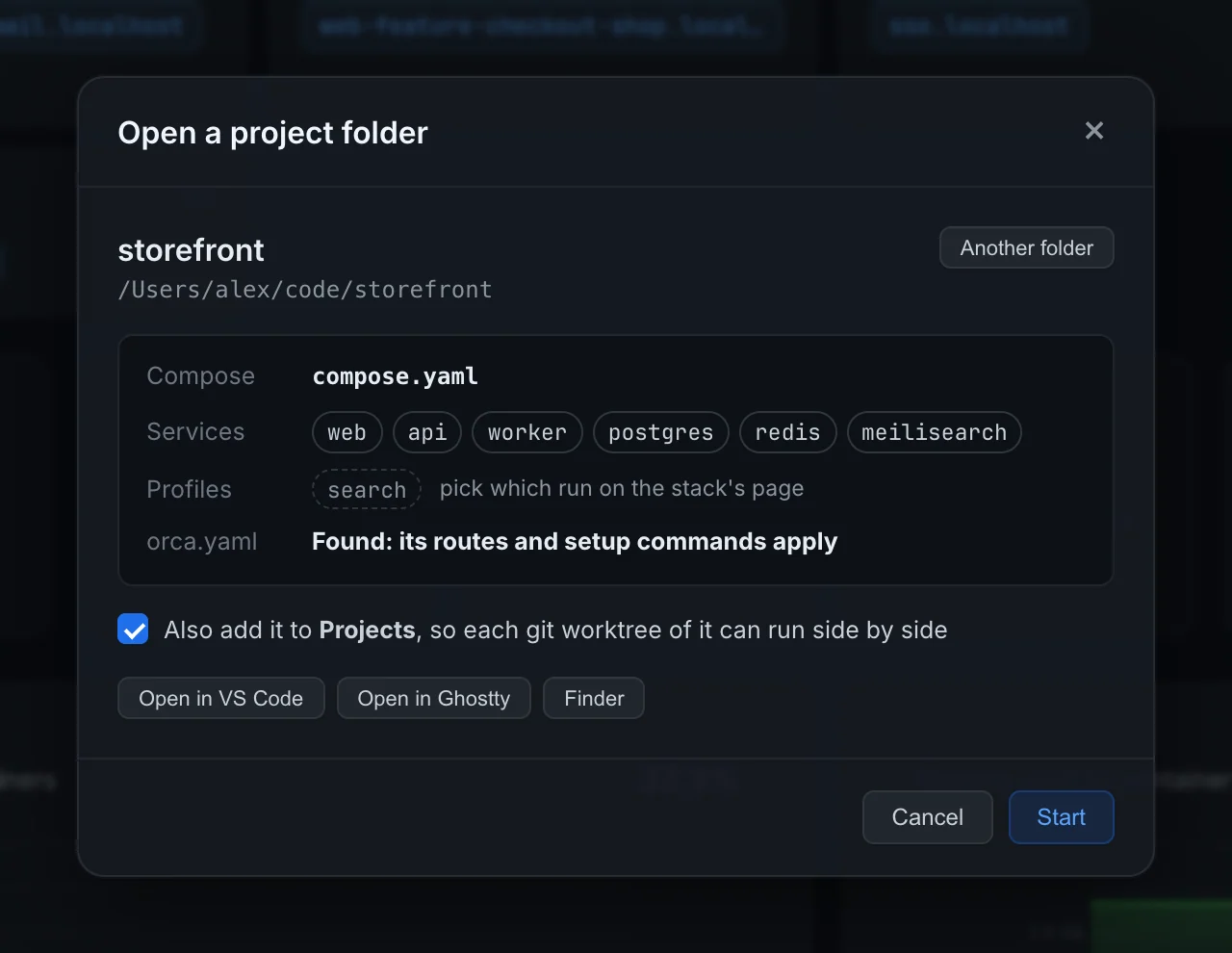
Orca runs the project as a stack named after the folder and opens the stack's page, with Services, Logs, Compose file and orca.yaml tabs. A folder without a compose file gets a starter compose.yaml, which you can edit in the dialog before Create and start. See Open a project folder for the details.
Projects you start from a terminal show up too. On macOS, first-start setup pointed the docker command at Orca's VM, and on Linux it talks to the same engine as Orca, so this works as usual:
docker compose up -d3. Or run a single container
No project at hand? Run an image instead.
- Go to Containers and click Run.
- In the Run container dialog, set Image to
nginx:alpineand Port mappings to8080:80. - Click Run.
Orca pulls the image if needed and starts the container. Open http://localhost:8080 to see the nginx welcome page. On macOS this works because Orca forwards the VM's ports to your Mac.
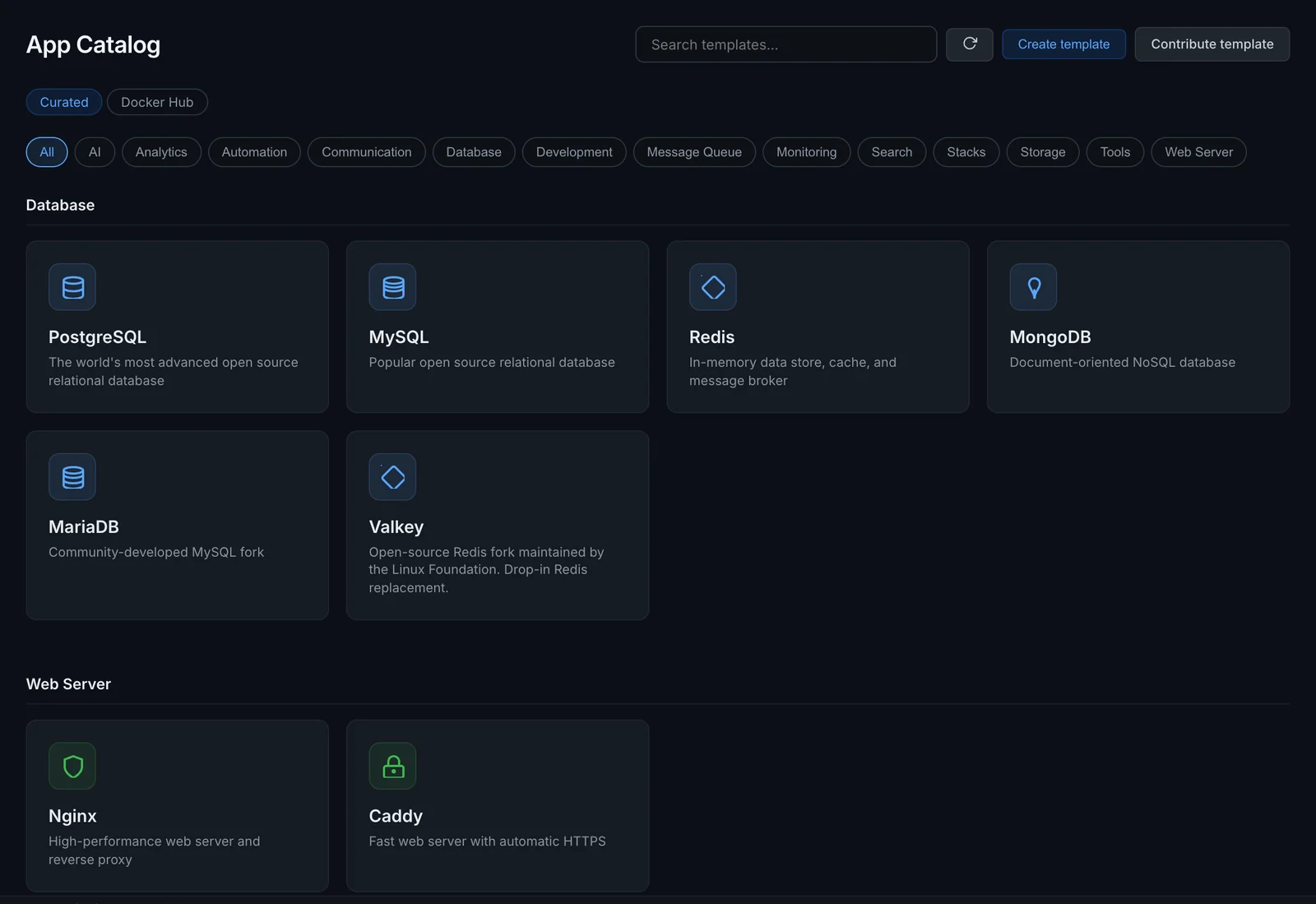
Prefer a ready-made app? Open App Catalog, click a template, review the settings in the Deploy dialog and click Deploy.
4. Give it an HTTPS hostname
The gateway is a reverse proxy, running as a container, that serves your containers at https://<name>.localhost on ports 80 and 443. .localhost names resolve to your own machine in browsers, so there's nothing to add to a hosts file.
- Open Gateway and click Start gateway. The first start pulls
caddy:2-alpine. - Go back to Containers. On the container you want to expose, open More actions (the "…" at the end of the row) and choose Expose via gateway. The container's own page has the same button in its header.
- Enter a Hostname, for example
myapp, and the Container port your app listens on inside the container (for nginx,80). A name without a dot gets.localhostadded. - Click Add route.
Open https://myapp.localhost. The route also shows on the container's row and on the Gateway page under Routes, where Add route works too. The stack's page shows its URLs as buttons in the header.
The Gateway page covers paths, custom domains and the landing page.
5. Trust Orca's certificate
Orca signs a certificate for each hostname with its own local certificate authority. Until your system trusts that CA, the browser shows a certificate warning.
Go to Settings > Certificates and click Download CA certificate. It saves orca-ca.pem to your Downloads folder, and the page shows the command to install it on your platform. On macOS that is:
sudo security add-trusted-cert -d -r trustRoot -k /Library/Keychains/System.keychain ~/Downloads/orca-ca.pemIf the orca CLI is on your PATH, this does the same in one step for macOS, Windows and Linux:
orca ca installReload https://myapp.localhost: the warning is gone. You only do this once per machine.
6. Add an orca.yaml
Routes you click together live in Orca's own config. To share them with your team, put them in an orca.yaml next to the compose file and commit it. Anyone who runs the project with Orca then gets the same hostnames.
- Open the stack's page and the orca.yaml tab.
- Click Create orca.yaml. Orca drafts a file from the stack's running services; nothing is saved yet.
- Adjust the routes in the form or in the YAML, then click Create orca.yaml to save it.
A minimal file routes one service:
gateway:
  - hostname: shop      # https://shop.localhost
    service: web        # the compose service
    port: 3000          # the port it listens on inside the container
Orca picks up changes to the file straight away. The orca.yaml reference covers links, builds, hooks and worktree instances.
Next steps
- Find your way around: the sidebar, the Cmd+K / Ctrl+K command palette and dropping folders on the window.
- orca.yaml reference: links, build targets, setup hooks and per-worktree instances.
- Gateway: custom domains, path routes and routes from container labels.
- How Orca runs on your platform: the VM, ports and where files live.
- Remote hosts: manage a Linux server from the same app.