
Containers
Run, inspect and manage containers in Orca, with logs, terminal, files, live stats, resource limits, exports, alerts and scheduled actions.
On this page
This page covers everything you do with individual containers: starting one, finding it in the list, and working with it on its detail page. It also touches on volumes and networks, which you reach from the same sidebar.
Run a container
Click Run on the Containers page to open the Run container dialog. Run a container… in the command palette opens it too. Only Image is required.
| Field | What it does |
|---|---|
| Image | The image to run, for example nginx:latest. Type a Docker Hub image name and Orca suggests its most recent tags. |
| Name | Optional container name. Docker picks one if you leave it empty. |
| Port mappings | host:container pairs, separated by commas or new lines, for example 8080:80, 5432:5432. |
| Environment variables | One KEY=value per line. |
Open Advanced options for the rest:
| Field | What it does |
|---|---|
| Command override | Replaces the image's default command. |
| Volume mounts | host:container pairs, one per line. |
| Network | The network to attach the container to. |
| Restart policy | No, Always, Unless stopped or On failure. |
| CPU limit | Cores, for example 0.5. |
| Memory | A memory limit, for example 512m. |
Click Run. The dialog shows the progress through pulling the image, creating the container and starting it. If something fails, the error is shown and Back returns you to the form with your values intact.
You can also start a container from an image on the Images page, or deploy a ready-made app from the App Catalog.
The containers list
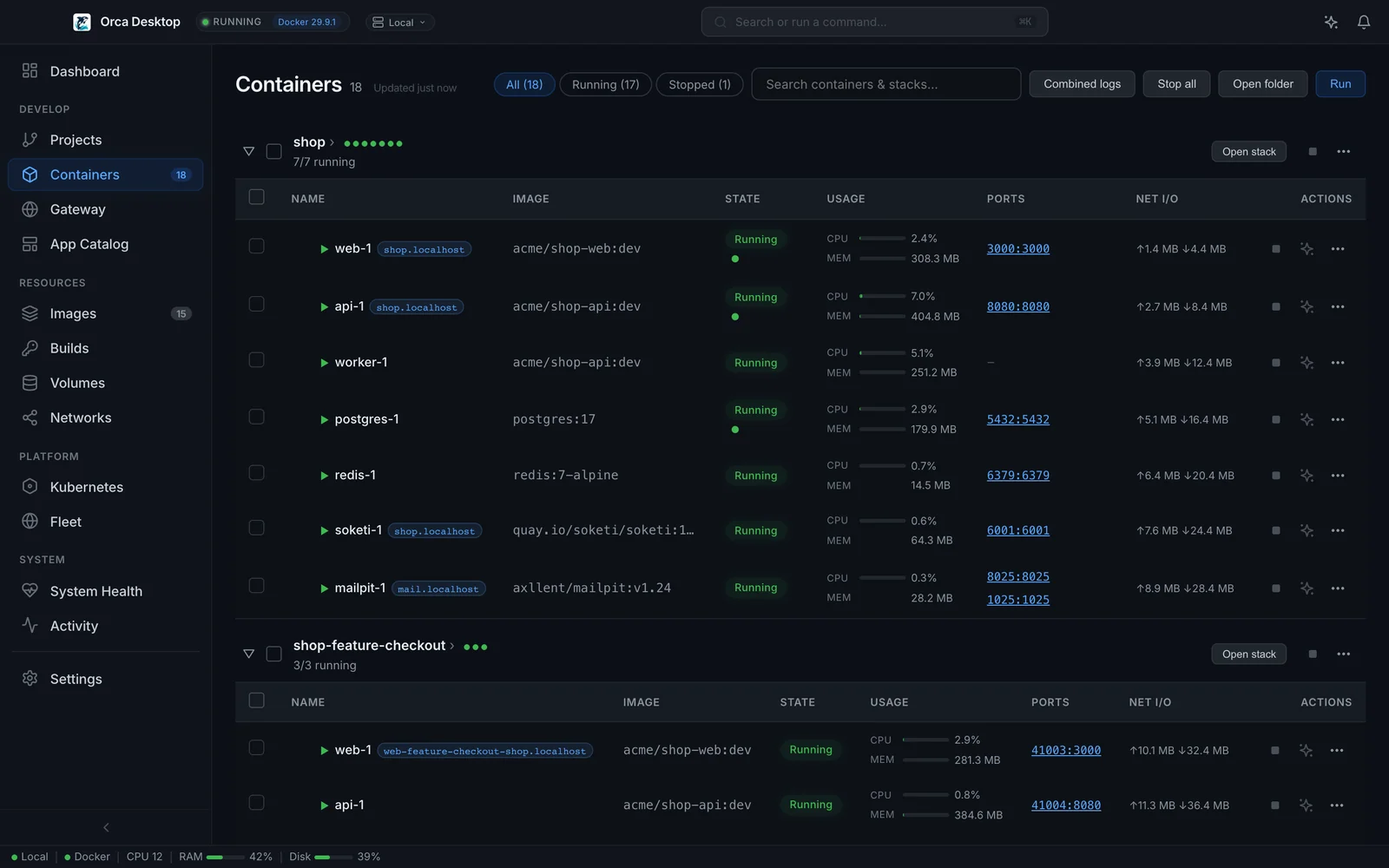
The Containers page lists every container, with compose projects grouped into stack cards. Each row shows the image, state, ports, current CPU and memory usage, and network I/O.
- Filter with All, Running and Stopped, or search by name with the search box.
- Select rows with the checkboxes to start, stop or delete several containers at once.
- Stop all stops every running container after a confirmation.
- The More actions menu (the "…" at the end of a row) has Restart, Logs, Open shell, Expose via gateway, Schedule restarts…, Auto-deploy on new image… and Remove container. Open shell shows only while the container runs, and opens its page on the Terminal tab. A running container has to be stopped before you can remove it.
Click a stack's name, or its Open stack button, to open its stack page. See Compose stacks.
Open folder in the page header starts a project from a folder with a compose file. See Open a project folder.
If Orca can't get the list from Docker, the page shows a Can't reach Docker banner with the error instead of a list that never loads. Open System Health shows what's wrong and can fix it. The Images page shows the same banner.
Container details
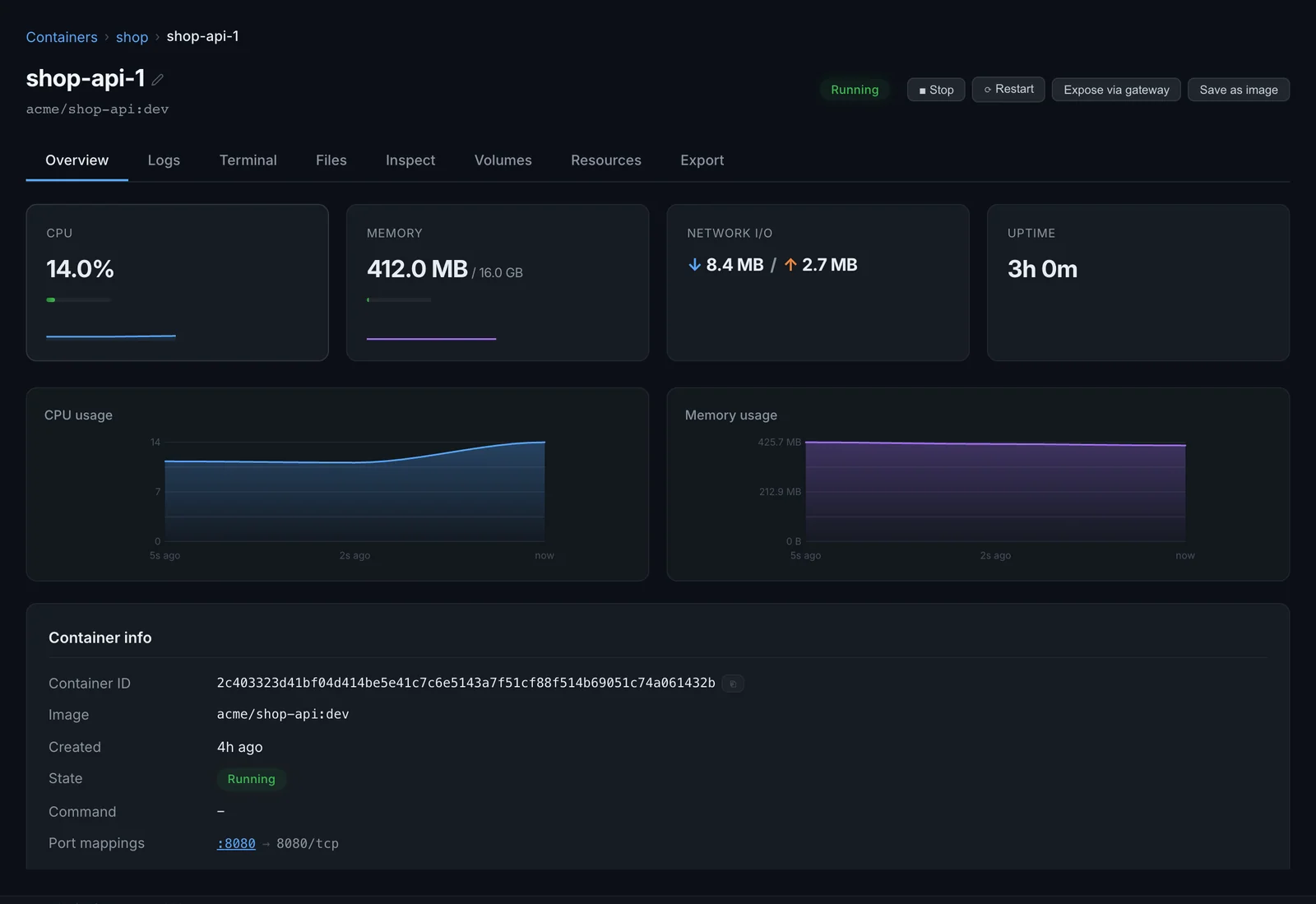
Click a container to open its detail page. The header has Start (or Stop and Restart while it runs), Expose via gateway, Save as image, and Remove, which shows only when the container is stopped. The tabs are Overview, Logs, Terminal, Files, Inspect, Volumes, Resources and Export. Terminal and Files appear only while the container is running.
Overview and stats
Overview shows live CPU, memory, network I/O and uptime. While the container runs, Orca also draws CPU usage and Memory usage charts from the readings it has collected since you opened the app.
Below the charts you find the container ID, image, creation time, state, command and port mappings, and how many times the container has restarted.
Health checks
If the image or your run options define a health check, the Health section shows the current status (healthy, unhealthy or starting) and a table of recent checks with their time, exit code and output. A container without a health check shows No health check configured.
Logs
The Logs tab streams the container's output and follows new lines as they arrive.
- Type in the filter box (Ctrl+F, or Cmd+F on macOS, while the log has focus) to show only matching lines. The match count appears next to the box.
- Toggle the regex button to treat the filter as a regular expression, and Aa to make it case sensitive.
- Pick how many lines to load: 100, 500, 2,000 or 10,000.
- Auto-scroll keeps the view at the newest line. Scroll up to pause it; a button shows how many new lines arrived and resumes when you click it.
- Use the toolbar to change the font size, copy all logs, download them or reload.
Terminal
Terminal opens an interactive shell inside the running container. Use the - and + buttons in its header to change the font size.
Files
Files lets you browse the container's filesystem. Click a folder to open it, use the path breadcrumbs to go back up, and click a file to view its contents.
Inspect and Volumes
Inspect lists environment variables, port mappings, mounts and labels. For a container that exited, a Diagnostics section shows the exit code, error and start and finish times.
Volumes lists the container's mounts with their source and destination.
Change resource limits live
The Resources tab changes limits on the container without recreating it:
- Memory limit in MB. Leave it empty for no limit.
- CPU limit in cores, such as
0.5for half a core or2.0for two. - Restart policy.
Each field shows the current value. Click Apply changes; they take effect on the running container right away. Reset puts the fields back to the current values.
Rename a container
Click the container's name at the top of its detail page, type the new name and click Save.
Save as an image
Save as image in the detail page header commits the container's current filesystem to a new image. Enter a Repository and a Tag (latest if you leave it empty). The new image appears on the Images page.
Export a container
The Export tab gives you three ways to take a container elsewhere:
- Docker run command: a
docker runcommand that recreates the container. Click Copy. - Compose YAML: the same container as a compose service. Click Copy.
- Export filesystem to tar: enter an absolute path such as
/path/to/container-export.tarand click Export.
Logs from several containers
When two or more containers are running, Combined logs on the Containers page opens one view with the output of all running containers. Each container gets its own color, and checkboxes let you hide or show containers. The filter supports the same regex and case-sensitive toggles as the single-container view.
Resource alerts
While the app is open, Orca watches container usage and shows a notification when:
- a container with a memory limit uses more than 90% of it, or
- a container's CPU usage stays above 90% for three readings in a row.
Orca repeats an alert for the same container and metric at most once every five minutes.
Scheduled actions
Settings > Schedules runs container actions on a cron schedule, such as a nightly restart. The daemon runs them, so they fire even when the app window is closed. Schedule restarts… in a container's More actions menu opens this tab too.
Click Add schedule and fill in:
- Name, for example "Nightly restart".
- Action: Restart, Stop, Start or Build.
- Container: a container name or ID. For Build, pick a Build target from an
orca.yamlinstead (see Images and builds). - Cron expression.
- Enabled, to pause a schedule without deleting it.
Cron expressions use the standard five fields, and times are in the local time of the machine the daemon runs on (the server, for a remote host):
min  hour  day-of-month  month  day-of-week
0    3     *             *      0            every Sunday at 03:00
0    18    *             *      1-5          weekdays at 18:00
0    */6   *             *      *            every six hours
0    0     1             *      *            the first of every month at midnight
For the day of the week, Sunday is 0 or 7. Day names such as Sun or Mon-Fri work too. Six-field expressions that start with seconds, which earlier versions of Orca used, are still accepted; in those, Sunday is 1.
The daemon checks schedules every minute. The list shows each schedule as Active or Paused.
Volumes
The Volumes page lists volumes with their driver, size and creation date. Create volume makes a new volume with a name, driver and optional labels. When there are no volumes yet, the empty page has the same button.
Click a volume to see its mount point and labels, which containers use it, and its files. On the Files tab, Browse files reads the volume through a temporary Alpine container, so it works whether or not a container is using the volume.
Networks
The Networks page lists networks with their driver, subnet and gateway. Create network makes a new network with the bridge, host, macvlan, ipvlan or none driver.
Click Topology to switch to a graph of networks and the containers connected to them.