
Worktree instances
Run every git worktree of a project as its own copy of the app, with its own HTTPS URLs and ports, while databases run once and are shared.
On this page
Worktree instances let every git worktree of a project run as its own copy of the app, side by side, each with its own URLs and ports. Databases, caches and other infrastructure run once in a shared stack that every worktree uses. This page is for you when you work on several branches at once, or let coding agents work in their own worktrees and want each of them to test against a running app.
How it works
Orca calls a registered git repository a project. Each worktree of it, including the main checkout, is an instance.
- Shared services, such as
postgresandredis, run once per project in a compose project called<project>-shared. - Per-instance services, typically everything built from your repository, run once per worktree in a compose project called
<project>-<instance>. - Each instance gets HTTPS hostnames through the gateway, host ports where it needs them, and a
.orca/envfile with its URLs, ports and database names.
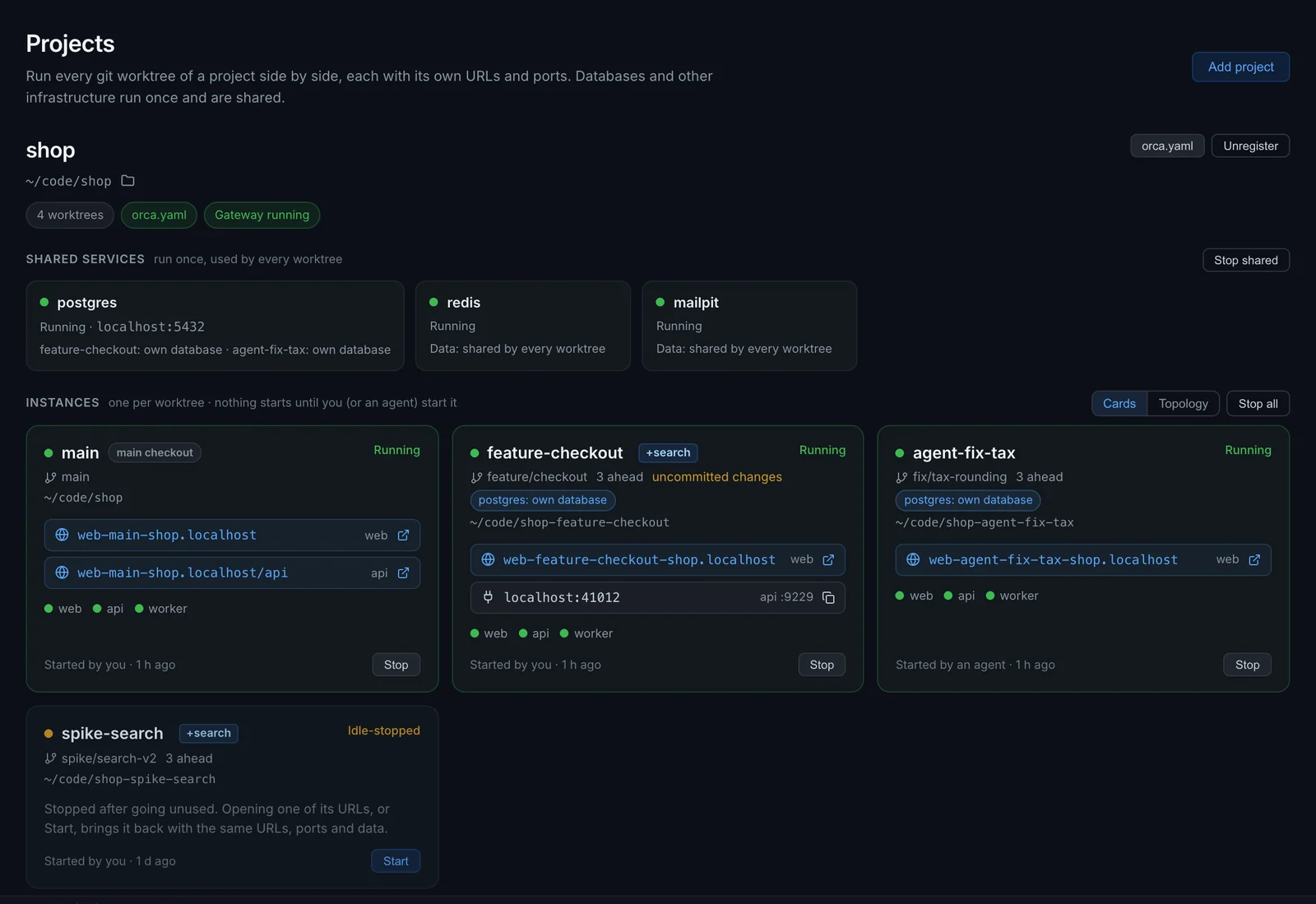
Orca never edits your compose files. It writes a compose override into the worktree's .orca/ folder and passes it to docker compose next to your own files.
The app reaches shared services by their usual names: Orca connects the shared containers to each instance's networks, so postgres:5432 works inside every instance as it does in a plain docker compose up.
Add a project
On the Worktrees page, choose Add project, then pick any folder inside the repository or paste its path. Orca finds the main checkout and all of its worktrees. Repositories that already have compose stacks running on your machine are listed under Found on this machine.
You can get there in other ways too: the Add a git repository card on a fresh dashboard, or Add a git repository for worktrees in the command palette (Cmd+K, Ctrl+K elsewhere). When you open a project folder that is a git repository, Also add it to Projects adds it as a project as well as starting it.
From the command line, inside the repository:
orca projects addNothing starts when you add a project. Each worktree shows up as an instance card, ready to start.
The setup wizard
If the repository's orca.yaml has no dev: section, Orca opens a setup wizard. Until you save one, the project runs on a Suggested setup: infrastructure images such as Postgres, MySQL, Redis and RabbitMQ are shared, and everything else runs per worktree. Set up worktrees… opens the wizard again.
The wizard walks through:
- Shared or per worktree? Which services run once and which run per worktree.
- How much data do worktrees share? The default data mode for each shared service.
- How do you reach it? Which ports go through the gateway, which get host ports, and the hostname pattern.
- Profiles and setup commands. The compose profiles worktrees can choose from, commands to run when a worktree gets its own database (Orca suggests migration commands it finds in your repository), and commands to run after every start.
- Review and save. Writes the
dev:section toorca.yamlin the main checkout.
When you save, you can also add orca.local.yaml to .gitignore, add a short section about running the app to CLAUDE.md or AGENTS.md for coding agents, and, if you already ran the project with docker compose up, keep that stack's data: Orca stops its containers and the shared stack takes over its volumes.
Commit orca.yaml so every worktree and every teammate gets the same setup.
The dev: section
The setup lives in the dev: section of orca.yaml. A typical one:
dev:
  shared:
    postgres:
      data: own-database
      database: shop
    redis:
  instance:
    expose:
      web: 3000
      api: 8080
    host_ports:
      api: [9229]
    env:
      web:
        API_URL: "{url.api}"
    hooks:
      after_up:
        - "api: php artisan migrate --force"
    idle_stop: 2h
The orca.yaml reference lists every key with its default. On the Worktrees page, the orca.yaml button edits this section as a form or as YAML.
Which services are shared, their data defaults, start, idle_stop and max_running are read from the main checkout. The rest (dev.instance and dev.naming) is read from each worktree's own orca.yaml, so a branch can add a service, an environment variable or a hook without touching the main branch. An orca.local.yaml next to it is merged on top, for settings that differ per machine.
Shared and per-instance services
The shared stack starts with the first instance, or with Start shared on the Worktrees page. Orca waits until its services are healthy before it starts an instance.
Stop shared stops the shared stack and keeps its data volumes. Running instances lose their database until it starts again.
To keep instances apart, Orca adjusts the per-instance services in the override:
- Services built from your repository get their own image tag per instance, so instances never overwrite each other's build.
- A fixed
container_nameis removed. - Fixed host ports are replaced by the instance's own ports, or removed when the service is reached through the gateway.
depends_onentries pointing at shared services are removed; Orca starts those first instead.- Volumes and networks with a fixed
name:get a per-instance name. External ones stay shared, and Orca warns about it.
The Generated files tab of an instance shows the override, with a comment on each line saying why it's there.
A per-instance service can't use network_mode: service:<x> or volumes_from with a shared service. Make that service per-instance too.
Data modes
Each shared service has a data mode per instance. The default comes from orca.yaml, and each worktree can choose its own in the Start dialog or on the instance's Data tab.
| Mode | In the UI | What the instance gets |
|---|---|---|
shared | Shared data | The same database as every other worktree. Changes are seen everywhere. |
own-database | Own database | Its own database inside the shared server. For branches that change data or run migrations. |
own-server | Own server | A private copy of the service inside the instance, with its own volume. Starts empty. For branches that change the server itself. |
Orca knows how to create an own database for Postgres (including PostGIS, TimescaleDB and pgvector images), MySQL and MariaDB, MongoDB, Redis and RabbitMQ:
- Postgres, MySQL and MongoDB get a database named
<database>_<instance>, or whatown_database.namesays. - Redis gets its own database number (1 to 15) and starts empty.
- RabbitMQ gets its own vhost and starts empty.
In own-database mode Orca rewrites the instance's connection strings and database-name variables that point at the shared database, so the app uses its own one without any change. Values you set in dev.instance.env win over the rewrite. {db.<service>} in an env template gives the database the instance uses.
Seeding
own_database.seed decides how a new database starts:
clone-main(the default) copies the shared database when the instance first gets its own. The copy streams a dump, so it works while other instances are connected.emptystarts empty. Usedev.instance.hooks.after_own_databaseto run migrations or seeders the first time.
On the Data tab, Reset to a fresh copy drops the instance's database and copies the shared one again. When an instance leaves own-database mode, Orca asks whether to delete its database or keep it for when you switch back.
Hostnames
Each per-instance service with a browser-facing port gets a hostname from dev.naming.hostname. Two patterns are built in:
| Pattern | Example | |
|---|---|---|
| Flat (default) | web-feat-x-shop.localhost | One label below the domain, so a single wildcard certificate covers every instance. |
| Nested | web.feat-x.shop.localhost | Each instance gets its own parent domain, so cookies set for .feat-x.shop.localhost stay within one instance. |
dev:
  naming:
    hostname: "{service}.{instance}.{project}.{domain}"
A pattern can use {service}, {instance}, {project}, {domain} and {worktree}. Without {instance}, every worktree gets the same hostnames and only one can be reached at a time; Orca warns about that.
If your app sets a cookie domain (a variable such as SESSION_DOMAIN or COOKIE_DOMAIN), the wizard offers the nested pattern and scopes the variable to each instance with .{instance}.{project}.{domain}.
Using a custom wildcard certificate? Keep the flat pattern: a wildcard covers one level only. With the Orca CA, any pattern works.
To give one service of one instance a different hostname, set it on the instance's Settings tab. Orca keeps these overrides for that worktree on your machine, not in orca.yaml.
Instance names
Instance names come from the branch name, made safe for DNS (claude/Fix_Login#2 becomes claude-fix-login-2). Set dev.naming.instance: folder to use the worktree folder name instead. You can rename an instance on its Settings tab while it's stopped.
Ports
Without expose and host_ports in orca.yaml, Orca decides from the ports your compose file publishes: the first one that looks like HTTP goes through the gateway, and well-known non-HTTP ports (databases, debuggers and the like) get a host port.
dev.instance.expose.<service>names the port to reach through the gateway. The long form{port, host, path}serves it under another service's hostname, for example an API at/api/*on the web hostname.dev.instance.host_ports.<service>lists container ports to publish on your machine.
Host ports come from the range 41000 to 41999, are bound to 127.0.0.1, and stay the same for a worktree across restarts. A shared service can be published on a fixed port with dev.shared.<service>.host_port.
Environment and .orca/env
Every start writes .orca/env in the worktree, for tests, scripts and tools that run on your machine rather than in a container:
ORCA_PROJECT=shop
ORCA_INSTANCE=feat-x
ORCA_COMPOSE_PROJECT=shop-feat-x
ORCA_URL_WEB=https://web-feat-x-shop.localhost
ORCA_PORT_API_9229=41003
ORCA_DB_POSTGRES=shop_feat_x
ORCA_SHARED_POSTGRES=localhost:5432| Variable | |
|---|---|
ORCA_URL_<SERVICE> | The service's URL through the gateway. |
ORCA_PORT_<SERVICE>_<PORT> | The host port for a container port. |
ORCA_DB_<SERVICE> | The database this instance uses in a shared service. |
ORCA_SHARED_<SERVICE> | Where a shared service listens on your machine, when it publishes a port. |
Load it into your shell:
eval $(orca env)The .orca/ folder ignores itself in git. The instance's Env tab shows the same values, with Copy .env and Copy as exports, and lists each service's environment inside its containers, with the values Orca set marked.
To pass instance values to the containers themselves, use templates in dev.instance.env: {url.<service>}, {port.<service>.<port>} and {db.<service>}, as well as {instance}, {project} and {domain}.
Start and stop instances
On an instance card, Start opens the Start dialog the first time:
- What runs: the compose profiles to include. See profiles.
- Data: the data mode for each shared service.
- You'll get: the URLs and host ports the instance will have, and any warnings.
- Rebuild images from this worktree's code, on by default.
- Show the generated compose override, to see exactly what Orca changes.
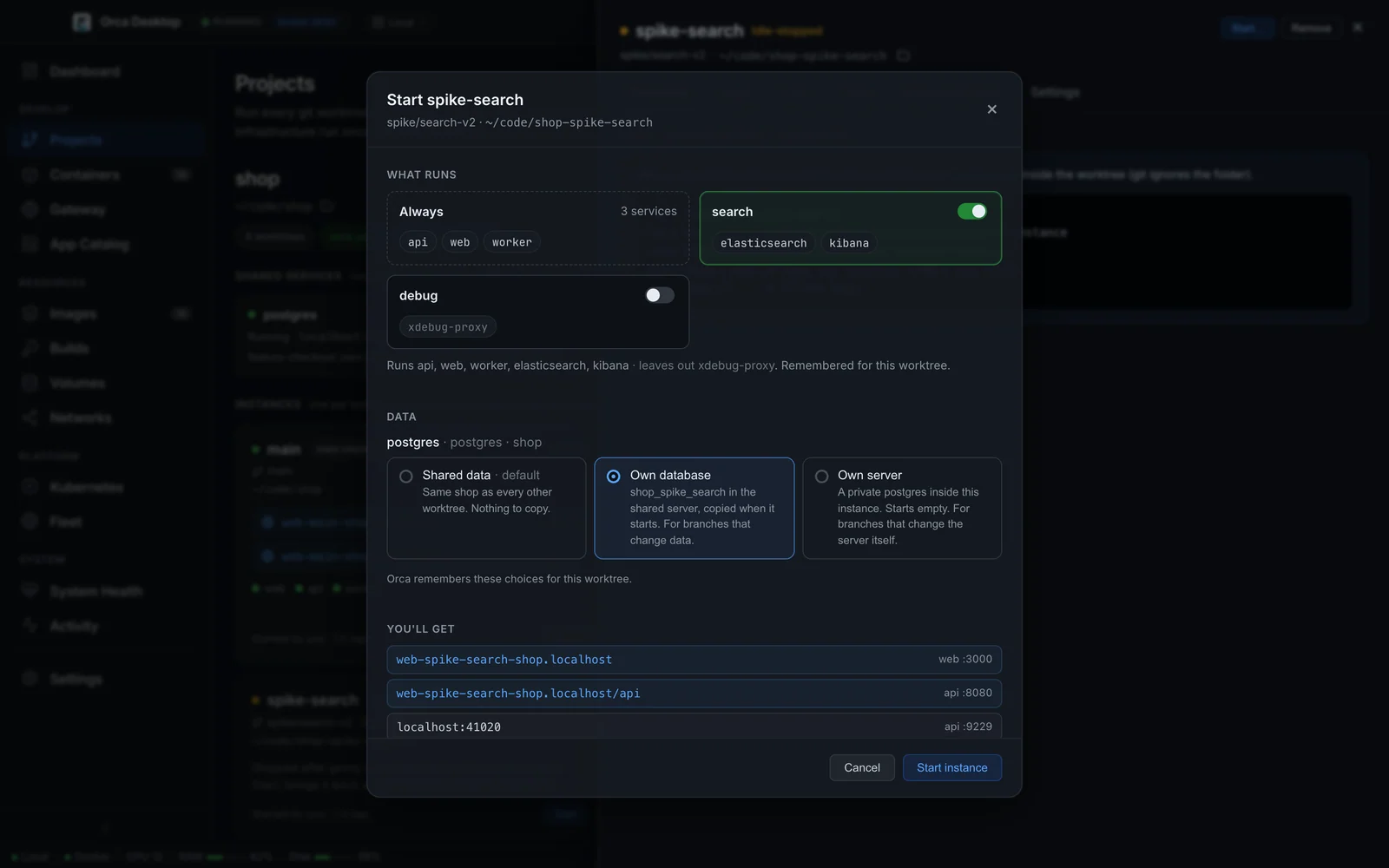
Orca remembers these choices for the worktree, so the next start of a stopped instance runs right away with the same setup.
A start runs these steps: read the compose files and orca.yaml, start the shared services, prepare data, write the override and env file, build images and create containers, connect the shared services, start the containers, register gateway routes, and run the after_up hooks. Hooks for services that aren't running are skipped.
Stop removes the instance's containers and gateway routes. Its settings, host ports and data are kept. Stop all stops every running instance of the project; shared services keep running.
Remove deletes the instance's containers, volumes, images, own databases, gateway routes, host ports and .orca folder. Your code and the shared services are not touched.
A project runs at most 6 instances at once. Starting one more fails with the names of the running ones; raise the limit with dev.instance.max_running.
Start new worktrees on their own
With dev.start: on-create in the main checkout's orca.yaml, a worktree you create with git worktree add starts its instance on its own within a minute. Worktrees that already existed when Orca started, or when you added the project, are left alone, so a restart of Orca doesn't start a batch of old ones. The default is manual.
dev:
  start: on-create
The instance card of such a worktree says "Started by Orca, as a new worktree".
Stop unused instances
With dev.instance.idle_stop set (30m, 2h, 1h30m), Orca stops instances that go unused for that long. An instance counts as used when its URLs get requests through the gateway, or when you or an agent run Orca commands for it.
An idle-stopped instance keeps its URLs. Opening one shows a page saying the instance is starting, and Orca starts it again without rebuilding, with the same URLs, ports and data. Start brings it back too.
The command line
The instance commands work out the project and instance from the folder you run them in, so inside a worktree you only type the command.
| Command | |
|---|---|
orca up | Start or rebuild this worktree's instance and print its URLs and host ports. --profile <name> (repeatable) picks compose profiles and is remembered; --no-build skips rebuilding images; --json prints the result as JSON. |
orca down | Stop the instance. --remove also deletes its volumes, images, host ports and generated files. |
orca status | Daemon health, plus this worktree's instance: state, URLs, ports and shared services. --all lists every instance of the project; --json for scripts. |
orca logs [service] | Recent logs, all services or one. --tail <n> (default 200), -f to follow. |
orca env | Print .orca/env as shell exports, for eval $(orca env). |
orca run -- <cmd> | Run a command against the instance. See below. |
orca projects add [path] | Register a repository. Any of its worktrees works. |
orca projects list | List projects, their shared services and instances. --json for scripts. |
orca projects remove <id> | Unregister a project. Stop its instances and shared services first. |
orca run
orca run makes sure the instance runs, loads .orca/env into the command's environment, runs the command and exits with its exit code:
orca run -- npm test
orca run --profile search -- npm test
orca run --down -- ./e2e.sh        # stop the instance afterwards
orca run --no-up -- ./script.sh # only pass the env, don't start anythingRun a dev server on your machine
--serve <service> runs a dev server on your machine in place of that service's container, on the service's usual URL:
orca run --serve web -- npm run devOrca gives the command a free port in $PORT, sets HOST=0.0.0.0 and ORCA_URL_<SERVICE>, and routes the service's hostname to that port while the command runs. The instance's own web container steps aside for that time. The dev server must listen on all interfaces so the gateway container can reach it. When the command ends, the hostname goes back to the container.
AI agents
Coding agents that work in their own worktrees can start and test their own instance.
From the shell, agents use the same commands you do: orca up, orca status, orca logs -f, eval $(orca env) and orca down.
Over MCP, Orca's MCP server (connect it under Settings → AI & agents) has tools that take the worktree path:
| Tool | |
|---|---|
instance_status | Whether the instance runs, its URLs, host ports, services and shared services, and where its .orca/env is. |
instance_up | Start or rebuild the instance and wait until it's up. Takes profiles, rebuild and data (a data mode per shared service). Returns URLs, host ports and the env file, or the error with a log tail. |
instance_down | Stop the instance. With remove: true, also delete its volumes, images, own databases and generated files. |
instance_logs | Recent logs, all services or one. |
instance_env | The contents of .orca/env as key/value pairs. |
instance_db_reset | Reset the instance's own database in a shared service to a fresh copy. |
The instance card says who started it last, such as "Started by an agent" or "Started by the CLI".
Tell agents about it
The setup wizard can add a short section to CLAUDE.md, or to AGENTS.md when there's no CLAUDE.md (it creates AGENTS.md if neither exists). The section sits between <!-- orca:dev --> markers, and Orca replaces it in place when it writes it again:
## Running the app (Orca)

This repo runs with Orca worktree instances. Each git worktree gets its own running copy of the app; databases and other infrastructure (`shop`'s shared services) run once and are shared.

- `orca up` starts or rebuilds this worktree's instance. Run it before testing.
- URLs, ports and connection strings for this instance are in `.orca/env` (load with `eval $(orca env)`).
- `orca status` shows the URLs and service states; `orca logs -f` follows logs.
- `orca down` stops the instance when you're done.
- Orca's MCP server has the same operations (`instance_up`, `instance_status`, …); pass this worktree's path.Before an agent runs migrations or writes test data, have it start with its own database: instance_up with data: {"postgres": "own-database"}, or choose Own database in the Start dialog.
Clean up removed worktrees
When you delete a worktree folder, or its branch is deleted on the remote after a merge, the instance stays in Orca with its containers, volumes and own databases. Its card is marked Worktree gone, or says remote branch deleted.
Clean up on the Worktrees page lists those instances and removes them all: containers, volumes, images, own databases, ports and .orca folders. Worktree folders and branches are not touched. To remove one at a time, use Remove on its card, or orca down --remove inside a worktree that still exists.
Unregister makes Orca forget a project and its instance settings. Stop its instances and shared services first; the repository itself is not touched.
Related
- orca.yaml reference: every
dev:key. - Running only the services you need: compose profiles per worktree.
- Gateway and HTTPS hostnames: domains, certificates and the landing page.