
Built-in assistant
Chat with Orca's optional built-in assistant, running on a local model (Ollama, LM Studio, llama.cpp) or a cloud API key.
On this page
Orca has an optional built-in assistant: a chat window that can look at your containers, images, stacks and Kubernetes cluster and act on them. It's meant for a model running on your own computer, so it's free, private and works offline.
Already use Claude, ChatGPT/Codex, Cursor or Copilot? Connect it to Orca instead. It uses the subscription you already have, gets all of Orca's tools, and you don't need an API key. Until the built-in assistant is set up, its window offers exactly that.
Open the assistant
Click the sparkle icon (AI assistant) in the title bar. The assistant opens in its own window, Orca Desktop AI, so you can keep it next to the main window.
Until the assistant has a model, the window offers to connect the AI tools found on your computer instead. If you came from Ask AI on a container or build, it also offers the question ready to copy into Claude.
- Press Enter to send, Shift+Enter for a new line.
- Compact conversation history replaces a long conversation (six messages or more) with a short summary.
- Clear conversation starts over.
Each question is sent with the last 20 messages, so you can ask follow-ups.
Use a local model
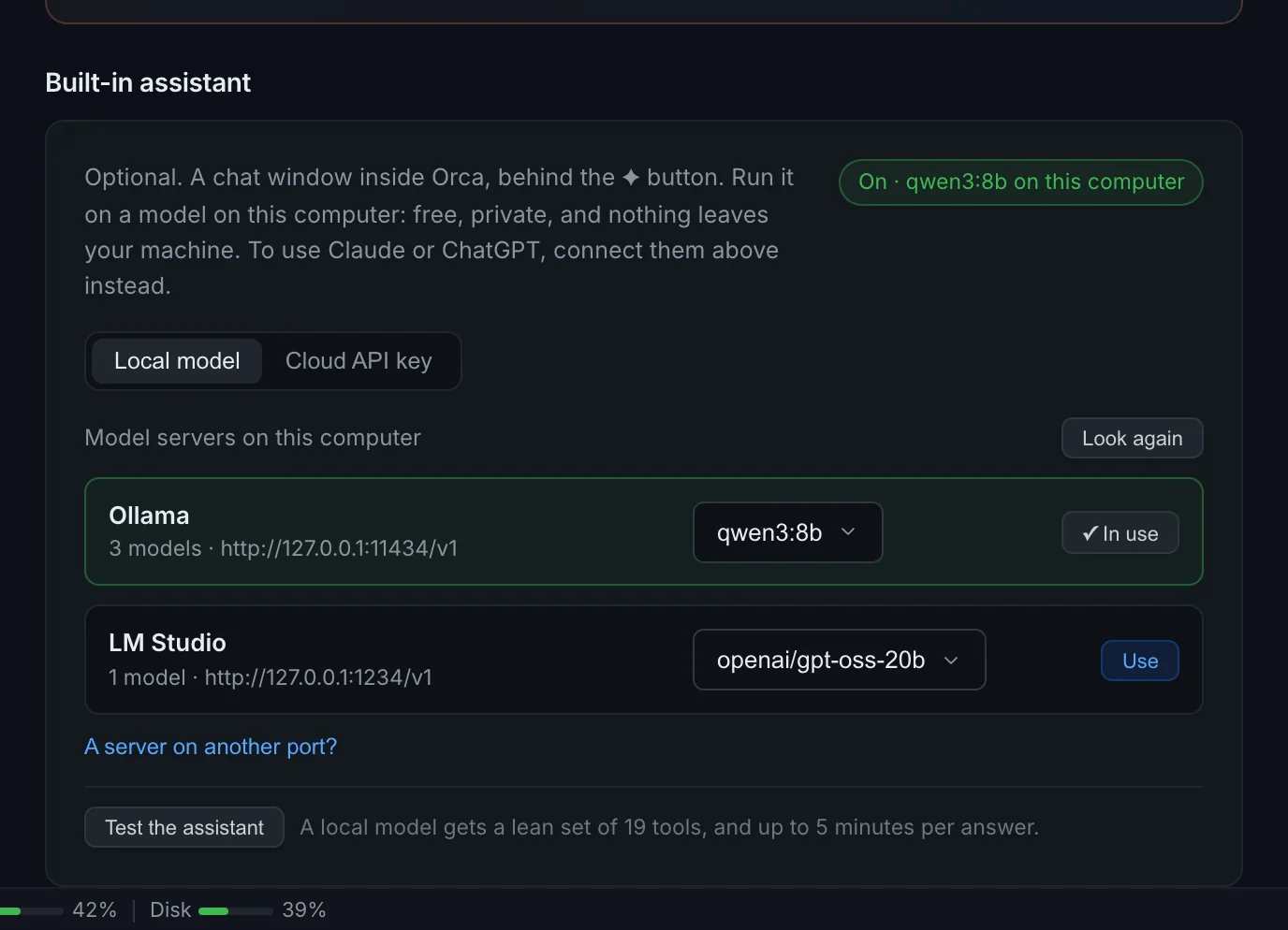
Open Settings → AI & agents. Under Built-in assistant, Local model lists the model servers running on this computer. Orca looks for:
| Server | Where Orca looks |
|---|---|
| Ollama | http://127.0.0.1:11434/v1 |
| LM Studio (its server started) | http://127.0.0.1:1234/v1 |
llama.cpp's llama-server | http://127.0.0.1:8080/v1 |
Pick a model next to a server and click Use. The assistant switches to it right away. Look again searches once more after you start a server. For a server on another port, click A server on another port? and enter its OpenAI-compatible URL and a model name.
If nothing is running yet, the easiest start is Ollama:
ollama pull qwen3:8bqwen3:8b (about 5 GB) handles Orca's tools well on a laptop. Bigger models answer better if your machine has the memory. With llama.cpp: llama-server -hf Qwen/Qwen3-8B-GGUF.
On a Mac, install Ollama or LM Studio as an app rather than running it in a container: containers can't use the Mac's GPU, so a model in one runs on the CPU only.
Ollama in a container
On Linux and Windows, Or run Ollama in a container → Set up does it for you. Orca:
- pulls
ollama/ollama:latestand starts a container namedollamaon port 11434, with models in theollama-modelsvolume and restart policyunless-stopped; - downloads
qwen3:8b(about 5 GB, and about 8 GB of memory to run); - switches the assistant to it.
If the machine has an NVIDIA GPU, Orca gives it to the container. Without one, the model runs on the CPU, which works but is slow.
What changes with a local model
A small model does better with fewer tools to choose from, so a local model gets a lean set of 19 tools: containers (list, inspect, logs, stats, diagnose, start, stop, restart), ports, system health, stacks (list, logs, up, down, restart), gateway routes, images, and worktree instance status and logs. It also gets up to five minutes per answer instead of one, since a model on a CPU can be slow to start.
Nothing you ask a local model leaves your computer.
Use a cloud API key
Choose Cloud API key to use a provider's API instead:
| Provider | Endpoint used | Default model |
|---|---|---|
| Anthropic (Claude) | Anthropic Messages API | claude-sonnet-5-5 |
| OpenAI | https://api.openai.com/v1 | gpt-4o |
| Google Gemini | Gemini's OpenAI-compatible API | gemini-2.0-flash |
| Other endpoint | Any API base URL that supports /chat/completions | none |
API use is billed per token by the provider. A Claude or ChatGPT subscription doesn't cover it; connecting the app you subscribe to does.
Enter the API key and click Save. The Model list loads once a key is saved. Get a key opens the provider's key page. Keys are saved in Orca's local config file and only sent to the provider you chose.
Orca keeps two key slots: one for Anthropic, and one shared by OpenAI, Gemini and other endpoints. Saving a key for one of those replaces the saved key for the others.
You can also give the daemon a key through an environment variable. When it's set, it takes precedence over the saved key:
| Provider | Environment variable |
|---|---|
| Anthropic | ANTHROPIC_API_KEY |
| Gemini | GOOGLE_API_KEY |
| OpenAI, other endpoints | OPENAI_API_KEY |
The variable must be set in the environment the daemon runs in. Settings then shows the key as set (from ANTHROPIC_API_KEY), or whichever variable it came from.
Once the assistant is set up, Test the assistant checks that the model answers.
What the assistant can do
With a cloud provider, the assistant has the tools Orca offers to external agents, except those that delete data (a local model gets the 19 above), listed in the tool reference. It uses them to get real data instead of guessing, for example:
- "Why does the api container keep restarting?" (it runs
diagnose_containerand reads the logs) - "Which container is using port 5432?"
- "Pull postgres:16 and start it with a volume for the data"
- "Scale the web deployment to 3 replicas"
- "Start my worktree instance at /Users/me/src/shop-feature"
When you name a container or image by part of its name and there's exactly one match, the assistant acts on it directly. It asks only when several resources match.
Tool calls run without a confirmation step, including ones that stop or restart containers. Tools that delete data or work (removing containers, images, volumes, routes or projects, pruning, compose down, resetting a worktree's database, overwriting orca.yaml) are not available to the built-in assistant at all: do those in Orca, or from an AI tool connected over MCP, which asks you first. Each message allows up to five rounds of tool calls.
Logs and errors attached with Ask AI are passed to the model marked as untrusted data, and the model is told not to follow instructions inside them.
Before a tool result goes to the model, Orca blanks out secrets in it: values of keys and environment variables that look like passwords, tokens or keys, passwords in URLs, and the data of Kubernetes Secrets. See Security.
Ask about a container
On the Containers page, click the sparkle icon in a container's row (Ask AI about this container). The assistant window opens with that container as context: its name, image and the last 50 log lines. A banner above the input shows the attached context; click × to remove it.
Type your question, such as "Why did this exit?", and send it.
Ask about a failed build
On the Builds page, open a failed build. Next to the error, click Ask AI, or Ask AI to Debug if the build failed without an error message. The assistant opens with the build's error and the last 50 lines of the build log, and a question asking what went wrong. Edit it if you like, then send.
Related
- AI agents and MCP: connect Claude Code or another agent to the same tools.
- REST API: the
/ai/askand/settings/aiendpoints.