
Remote hosts and fleet
Install orca-daemon on a Linux server, connect to it from Orca Desktop over HTTPS, and watch all your hosts from the Fleet page.
On this page
Orca Desktop can manage Docker on other machines. You install orca-daemon on a Linux server, add it as a remote host in the app, and switch between hosts from the titlebar. This page covers installing the daemon, securing it with TLS, the Fleet page, and updating or removing the daemon.
Requirements
- A Debian or Ubuntu server on x86_64 or arm64. The installer uses apt.
- Docker on the server. The installer warns if it can't find
dockerbut continues. - A way for your desktop to reach the server on port 9477, or through a reverse proxy on 443.
Install the daemon
Run this on the server:
curl -fsSL https://orca-desktop.com/install-daemon.sh | sudo shThe script adds the Orca apt repository hosted on Cloudsmith and installs the orca-daemon package. The package:
- installs
orca-daemonand theorcaCLI to/usr/local/bin/ - installs a systemd unit,
orca-daemon.service, that runs as root and restarts on failure - generates an API token in
/etc/orca/config.jsonwith mode600, if that file doesn't exist yet - enables and starts the service
When it finishes, the script prints the URL and token to use in the app:
=== Connection Details ===

URL:     http://203.0.113.10:9477/api/v1
Token: <your token>Install with apt directly
If you'd rather not pipe a script into sh, add the repository and install the package yourself:
curl -1sLf 'https://dl.cloudsmith.io/public/edvin/orca/setup.deb.sh' | sudo bash
sudo apt install orca-daemonCheck that it runs
systemctl status orca-daemon
journalctl -u orca-daemon -f
curl http://localhost:9477/api/v1/health
The health endpoint returns the daemon version and needs no token.
The API token
Every API call needs the token in an Authorization: Bearer <token> header. On a server installed from the package, it lives in /etc/orca/config.json under api_token:
sudo grep api_token /etc/orca/config.jsonTo rotate it, change the value in that file and restart the daemon with sudo systemctl restart orca-daemon. Then update the host in the app. If you remove the key, the daemon generates a new token on the next start.
Listen address
The daemon itself listens on 127.0.0.1:9477 by default. The packaged systemd unit starts it with --bind 0.0.0.0, so a fresh install accepts connections on every interface, and the daemon logs a warning that the API is network-accessible.
orca-daemon takes these flags:
| Flag | Default | Purpose |
|---|---|---|
--bind <ADDR> | 127.0.0.1 | Address to listen on in TCP mode: an IPv4 or IPv6 address (::1, ::), or localhost. |
--port <PORT> | 9477 | TCP port. |
--socket <PATH> | none | Listen on a Unix socket instead of TCP. auto uses $XDG_RUNTIME_DIR/orca-daemon.sock. |
Once a reverse proxy is in front of the daemon, bind it back to localhost with a systemd drop-in, which survives package upgrades:
sudo systemctl edit orca-daemon[Service]
ExecStart=
ExecStart=/usr/local/bin/orca-daemon --bind 127.0.0.1sudo systemctl restart orca-daemonAdd TLS with a reverse proxy
The token travels with every request, so don't expose port 9477 over the internet without TLS. Put a reverse proxy in front of the daemon and connect to it over HTTPS. The repository has ready-made examples in deploy/caddy-example and deploy/nginx-example.
Caddy
Caddy gets and renews a Let's Encrypt certificate on its own, and proxies WebSockets and streaming responses without extra settings.
orca.example.com {
    reverse_proxy localhost:9477
}nginx
nginx needs WebSocket upgrade headers for terminals and port forwarding, and buffering turned off for streamed logs and builds. Get the certificate first, for example with sudo certbot --nginx -d orca.example.com.
server {
    listen 443 ssl http2;
    server_name orca.example.com;

    ssl_certificate /etc/letsencrypt/live/orca.example.com/fullchain.pem;
    ssl_certificate_key /etc/letsencrypt/live/orca.example.com/privkey.pem;

    location / {
        proxy_pass http://127.0.0.1:9477;
        proxy_set_header Host $host;
        proxy_set_header X-Real-IP $remote_addr;
        proxy_set_header X-Forwarded-For $proxy_add_x_forwarded_for;
        proxy_set_header X-Forwarded-Proto $scheme;

        # WebSocket support (for terminal)
        proxy_http_version 1.1;
        proxy_set_header Upgrade $http_upgrade;
        proxy_set_header Connection "upgrade";

        # SSE support (for logs, build streaming)
        proxy_buffering off;
        proxy_cache off;
    }
}sudo ln -s /etc/nginx/sites-available/orca-daemon.conf /etc/nginx/sites-enabled/
sudo nginx -t && sudo systemctl reload nginxWebSocket connections, such as terminals and port forwards, pass the token as a token query parameter, so it can show up in proxy access logs. Restrict who can read those logs, or turn off access logging for the daemon's site.
SSH tunnel
Without a public hostname, you can skip TLS and tunnel the port over SSH instead:
ssh -L 9477:localhost:9477 user@your-serverThen add the host in the app as http://localhost:9477. Use a different local port if your own daemon already uses 9477.
Add the host in Orca Desktop
- Open Settings and select the Remote hosts tab.
- Click Add host. The form is titled Add remote host.
- Fill in the form:
- Display name: how the host appears in the app, for example
Production Server. - Daemon URL: for example
https://orca.example.com. A trailing/api/v1is optional. - API Token: the token from
/etc/orca/config.json. - Verify TLS certificate: on by default for
https://URLs. Turn it off only for a self-signed certificate. - Tags: optional, comma-separated, for example
production, eu-west.
- Display name: how the host appears in the app, for example
- Click Test connection. Orca checks that the daemon answers and that the token is accepted.
- Click Save.
Hosts are saved in the desktop app's own config file, together with their tokens. To change or remove one, use Edit host or Remove host in the Actions column.
Switch hosts
The host selector sits in the titlebar and shows the name of the active host. Open it to choose Local or any remote host, or Manage hosts... to go to the Remote hosts tab.
Orca shows one host at a time. After you switch, every page, from containers to Kubernetes and settings such as push to deploy rules, talks to the selected daemon.
A few things work differently on a remote host, because its folders aren't on your computer. Open a project folder asks you to type the folder's path on the server instead of picking it, and the buttons that open a stack's folder in your editor, terminal or file manager are hidden.
Fleet page
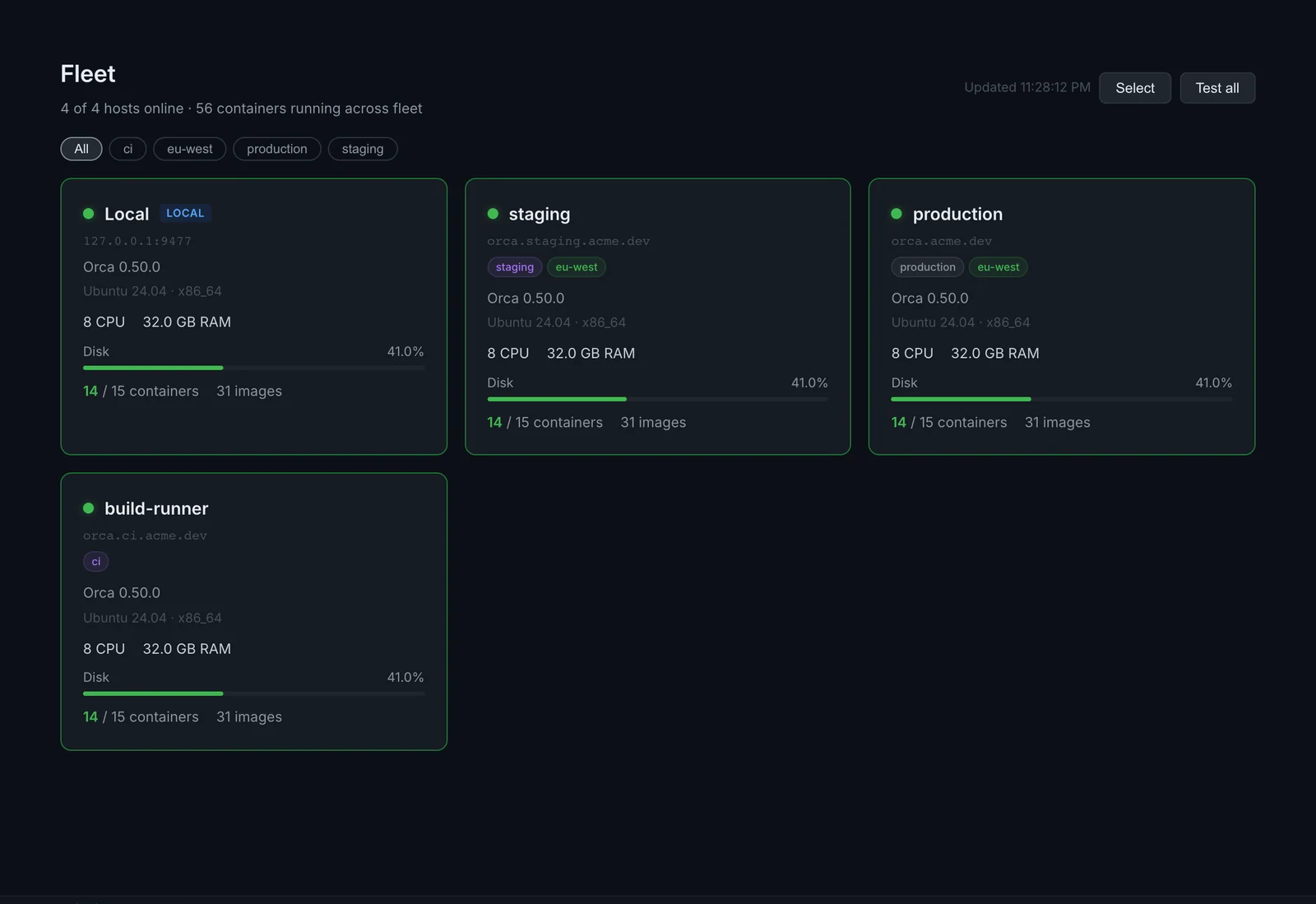
Fleet appears in the sidebar, under Platform, once you've added a remote host. It shows a card for each host, with the local daemon first. Each card shows:
- online or offline status, and how long ago an offline host was last seen
- the daemon version, and a note if Docker is disconnected
- operating system and architecture, CPU count and memory
- disk usage, which turns yellow above 75% and red above 90%
- running and total containers, and the number of images
The page checks every host again every 30 seconds. Click Test all to check now, or click a card to switch to that host and open its dashboard.
If hosts run different daemon versions, the page shows a Version mismatch detected banner.
Tags
Tags come from the Tags field on each host. On the Fleet page, click a tag pill to show only hosts with that tag, and All to clear the filter.
Compare and remove hosts
Click Select to pick hosts. With exactly two selected, Compare opens a side-by-side view of their resources, containers and images, and marks the items only one host has. Remove selected removes the hosts from the app. It doesn't stop or uninstall the remote daemons.
Update the daemon
The daemon is a normal apt package:
sudo apt update && sudo apt upgrade orca-daemonRunning the install script again also works. Upgrades keep /etc/orca/config.json, so the token doesn't change, and restart the service.
Uninstall
curl -fsSL https://orca-desktop.com/uninstall-daemon.sh | sudo shThe script removes the orca-daemon package, which stops and disables the service, and removes the Orca apt repository and its signing key. If the daemon was installed by hand instead, it stops the service and deletes the unit file and the binaries in /usr/local/bin/.
It keeps /etc/orca/. Delete it yourself if you don't need the token and settings any more:
sudo rm -rf /etc/orcaTroubleshooting
- Test connection fails: run
curl http://localhost:9477/api/v1/healthon the server, then check your firewall and proxy. - Connected to daemon v…, but authentication failed: the token in the app doesn't match
api_tokenin/etc/orca/config.json. - Daemon won't start: read
journalctl -u orca-daemon -e --no-pager. Common causes are Docker not running or port 9477 already in use (sudo ss -tlnp | grep 9477).