
Join and use a workspace
Join your team's workspace, set up projects with one click, the CLI or an AI tool, keep it up to date, and leave it again.
On this page
This page is for developers whose team already has a workspace. It covers joining, what the Workspace page shows, setting up projects, using the workspace from the terminal or an AI tool, and staying up to date. To write a workspace for your team, see Create a workspace.
Before you start
- Install Orca and make sure Docker runs (the Dashboard shows your containers).
- Make sure
git cloneof your team's repositories works in a terminal, with your SSH key or a credential helper. Orca uses the same credentials and never asks for a password itself. - Free ports 80 and 443. If your team ran its own reverse proxy until now, stop it first. See Migrate from a reverse proxy.
Join a workspace
Open Workspace in the sidebar. Paste the workspace's git URL, such as git@git.acme.dev:devops/dev-workspace.git, and click Join.
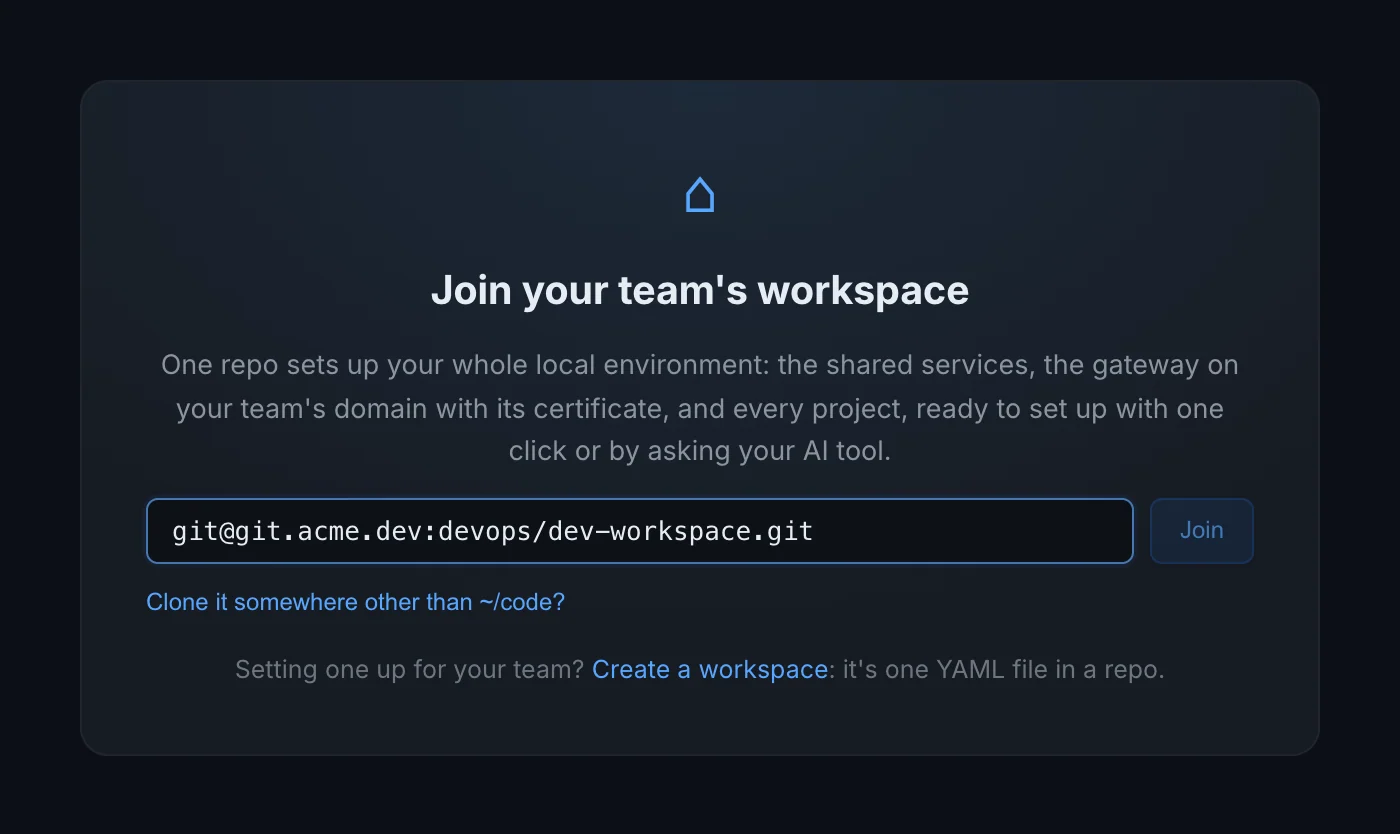
Where the workspace goes decides where its projects go: they're cloned next to it. So Orca suggests your code folder: as you type the URL, it shows where it will clone, such as Clones to ~/projects/dev-workspace, next to your 82 checkouts. It looks in the usual places, ~/code, ~/projects, ~/src, ~/dev, ~/Developer and a few more, and picks the one with the most git checkouts. Without one, it uses ~/code. If you already have a copy of the workspace in one of them, Orca joins it where it is.
To choose yourself, click Change and enter a path, such as ~/work/dev-workspace or /srv/dev/dev-workspace. With the CLI, orca workspace join <url> makes the same choice, and --folder sets it.
The steps appear under the form while they run. When they're done, the page shows the workspace.
With a link
Teams usually put a link in their wiki or README that opens Orca with the URL filled in:
orca://workspace?repo=git@git.acme.dev:devops/dev-workspace.gitClicking it opens Orca on the Workspace page with the URL in the field. You still click Join yourself. In Markdown, the link looks like this:
[Join the Acme workspace](orca://workspace?repo=git@git.acme.dev:devops/dev-workspace.git)Some wikis and chat tools only make http and https links clickable. If yours doesn't, put the git URL next to the link so people can paste it.
From a terminal
orca workspace join git@git.acme.dev:devops/dev-workspace.git
orca workspace join git@git.acme.dev:devops/dev-workspace.git --folder ~/work/dev-workspace
The command prints each step as it finishes and fails with the error if one fails.
From a folder you already have
Instead of a git URL, you can give the path of a folder that already contains an orca-workspace.yaml, such as ~/projects/dev-workspace: click Choose its folder… on the Workspace page, or paste the path where the git URL goes. Orca then uses that folder as it is, without cloning, and projects go beside it. When you type the workspace's git URL instead and Orca finds your copy in your code folder, it offers to use that copy. This is how a team lead tests a workspace before publishing it.
orca workspace join /Users/you/code/dev-workspaceFrom a terminal, a relative path such as . works too: the CLI turns it into an absolute one.
What joining does
Joining runs these steps. Each one shows a short result, such as the folder it cloned to or the number of routes.
| Step | What happens |
|---|---|
| Get the workspace | Runs git clone into the folder. If the folder already holds this workspace (it has an orca-workspace.yaml), Orca uses it instead. If it exists, isn't empty and has no workspace file, joining stops with "… already exists and isn't this workspace. Choose another folder." |
| Create the shared network | Creates the workspace's Docker network if it doesn't exist. Skipped when the file names none. |
| Set up the gateway | Sets the gateway's domain to the workspace's domain, uses the workspace's certificate (or Orca's own certificate authority when there's none), and starts the gateway. A gateway that already runs restarts. |
| Start the shared services | Runs the shared compose file as its own stack, then runs the hooks from an orca.yaml next to it. Skipped when the file has no shared services. |
| Add the routes | Adds every route from the workspace file: the shared services' and every project's. |
A few things to know:
- Git runs without prompts. Orca runs git with
GIT_TERMINAL_PROMPT=0and SSH in batch mode, so it never waits for a password. It accepts a server's host key the first time it sees it, assshdoes when you type "yes", and refuses a changed one. - Your own routes keep working. Joining only adds the workspace's routes; the ones you added, and those from labels or a project's
orca.yaml, stay. A short hostname such asmyappgets the workspace's domain. A full one outside it, such asmyapp.localhost, keeps a certificate from Orca's own certificate authority. Leaving puts the gateway's domain, certificate, title and logo back as they were. - Services behind a compose profile don't start on join. Only services without a
profiles:entry start. A project that lists a profiled service underusesstarts it when you set the project up, and you can switch profiles on for the shared stack on its stack page. - Orca joins one workspace at a time. Joining another one replaces the first.
If the workspace has no certificate of its own, the gateway uses Orca's certificate authority. Trust it once on your machine with orca ca install so browsers accept the names. See Trust the Orca CA.
The Workspace page
Once you've joined, the Workspace page shows the workspace's name and description, and at the top right:
- buttons that open the workspace folder in your editor, your terminal and your file manager (Finder on macOS), when Orca finds them;
- Update, which pulls the workspace and applies it again;
- Leave, which forgets the workspace.
Check this machine
Check this machine at the top of the page checks everything this computer needs for the workspace, and says what to do about each problem:
- The gateway runs on ports 80 and 443, so addresses need no port.
- The domain points at this computer.
- The team certificate is valid, and for how long.
- Orca's certificate authority is trusted, when routes need it.
- The shared network exists.
- You're logged in to each registry.
- The secret manager's CLI is installed.
- Every project's repository can be cloned with your git credentials.
It asks each git server, so it takes a few seconds and only runs when you click it. AI tools run the same check with check_workspace.
The summary chips
| Chip | Meaning |
|---|---|
*.local.acme.dev | The domain the gateway serves every hostname under. |
| Team certificate or Orca CA | Team certificate: the certificate comes with the workspace, with the date it's valid until. It turns yellow 30 days before it expires and red once it has; the gateway's landing page says so too. Orca CA: Orca's own certificate authority signs the names. |
local-dev | The Docker network projects join. Hidden when the workspace has none. |
| 7/7 shared services | How many of the shared stack's services run. Green when all of them do, yellow when some are stopped (for example services behind a profile that's off). |
Registry login
If the workspace lists image registries and your Docker isn't logged in to one, the page shows Log in to registry.acme.dev with the command to run once in a terminal, and a Copy button:
docker login registry.acme.devOrca checks your ~/.docker/config.json for an entry for that registry, from docker login or a credential helper. The alert goes away on the next refresh after you log in.
Shared services
Under Shared services, a button for each shared route opens it in your browser, such as Mailpit or Grafana. Hostname patterns and WebSocket-only routes have no button, since there's no single page to open.
Project cards
Under Projects, each project has a card with its key, description and repository, and one of these states:
| State | Meaning | Main button |
|---|---|---|
| Running | At least one of its containers runs. Its URLs are shown as buttons. | Open stack opens its stack page. |
| Cloned | Its folder exists on this machine, but nothing runs. | Start runs the same steps; the ones already done pass straight through. |
| Not cloned | Its folder doesn't exist yet. | Set up runs every step. |
A cloned project also has buttons that open its folder in your editor, terminal and file manager, and Run setup again when it has a setup command. Hover over Run setup again to see the command.
A project that isn't set up yet also shows on the gateway's landing page, as a card that opens this page at it.
When a cloned project's .env lacks secrets, the card shows N secrets to fill in. Click it to open the secrets dialog.
While a project is being set up, the card shows a progress bar with the current step. When setup fails, the card lists every step with the one that failed, and the error under it.
The page refreshes itself every few seconds, so a project you start or stop elsewhere updates on its own.
Set up a project
Click Set up on a project's card, or Start if it's already cloned. Orca runs these steps and shows each one's progress on the card:
| Step | What happens |
|---|---|
| Clone the repository | Runs git clone (with --branch when the workspace names one) into the project's folder. If the folder already exists, Orca uses it as it is and shows "Already in …". |
| Create the .env file | Creates the .env from its template, such as .env.example, if the file doesn't exist yet. An existing .env is never overwritten. |
| Fill in secrets | Fetches each missing secret with your secret manager's CLI, when it's set up on this machine, and writes it to the .env. |
| Create its database | When the project's orca.yaml requires a database, creates it and a user for it on the workspace's server (or another, see Databases) and writes the connection into the .env, before the setup command, so migrations find it. Skipped with "Its orca.yaml requires none" otherwise. |
| Run the setup command | Runs the project's setup command, such as just setup, in its folder. Only the first time on this machine. |
| Start the shared services it uses | Starts the shared services the project lists under uses. |
| Start the project | Starts the project's compose file as a stack, as Open a project folder does, and runs the hooks from its own orca.yaml. |
When it's done, the card shows Running with the project's URLs, and Orca shows "billing is running".
A step that doesn't apply is skipped with a reason, such as "None in the workspace file" for a project without a setup command, or "Ran before" for a setup command that already ran.
When secrets are missing
If a secret is still empty after Fill in secrets, setup stops there. The last four steps are skipped with "Waiting for the missing secrets", nothing is started, and the secrets dialog opens.
Fill the values in and click Save and start: setup runs again from the top and this time continues to the end. Click Later to close the dialog; the card keeps showing N secrets to fill in until you do.
This is deliberate. Starting an app without its database password or API keys usually fails in confusing ways, so Orca waits until the .env is complete. See Secrets.
The setup command runs once
The setup command is for one-time work, such as installing dependencies, generating keys or seeding a database. Orca records that it ran for that project on this machine and skips it on later starts.
To run it again, for example after a big change on the main branch, click Run setup again on the card, or:
orca workspace setup billing --rerun-setupThe record is per machine and per joined workspace. Leaving and joining again forgets it, so every setup command runs again on the next start.
Existing checkouts are reused
If the project's folder already exists, Orca doesn't clone or touch it: it uses your checkout, on whatever branch it's on, with your local changes. This means you can join a workspace after years of working on its projects: when you join, clone the workspace into the folder where you keep your checkouts, such as ~/projects, and they're all picked up.
A project's folder is <clone_into>/<path>. Both come from the workspace file: clone_into defaults to the folder that holds the workspace, and path defaults to the project's key. See the file reference.
Worktree instances
A project with worktrees: true in the workspace file is also added to the Worktrees page when it starts, so each git worktree of it can run as its own copy with its own URLs. See Worktree instances.
Use it from an AI tool
With Orca connected to your AI tool, ask in plain words:
- "spin up billing"
- "set up the CRM project and give me its URL"
- "which workspace projects are running?"
- "pull the latest workspace"
The tool mostly uses these of Orca's tools:
| Tool | What it does |
|---|---|
workspace_status | The workspace's shared services and every project: its repo, whether it's cloned and running, its URLs and which secrets are still missing. The tool uses it to find a project by name or description. |
setup_project | Runs the setup steps for a project by its key and waits for them, up to 20 minutes. Returns the URLs, or the missing secrets with links. rerun_setup runs the setup command again. |
update_workspace | Pulls the workspace and applies it again, like Update. |
join_workspace | Joins a workspace from scratch, so "set me up with the Acme workspace" works on a new machine. Your AI tool asks you first. |
check_workspace | The same check as Check this machine on the Workspace page. |
fetch_project_secrets | Fetches a project's secrets with your Passbolt or 1Password CLI. Only the names of the secrets reach the AI tool. |
When secrets are missing, Orca's instructions tell the tool to ask you to fill them in on the Workspace page and then try again, and never to ask you to paste a secret into the chat. Don't paste one anyway: anything you type in a chat goes to the AI provider.
When setup fails, the tool gets the error and the last lines of the setup log, so it can often tell you what went wrong.
Use it from a terminal
orca workspace status                    # the workspace and its projects
orca workspace status --json             # the same, as JSON for scripts
orca workspace setup billing             # set up and start a project
orca workspace setup billing --rerun-setup
orca workspace update                    # pull the workspace and apply it
orca workspace status prints the domain, how many shared services run, registries you're not logged in to, and a line per project with its state (running, cloned or not cloned), its URLs when it runs, and its missing secrets when it's cloned.
orca workspace setup prints each step as it finishes and the project's URLs at the end. When secrets are missing, it lists them with a link or reference for each, and exits without starting the project. Fill them in, then run the command again.
Stay up to date
Every time Orca starts, it pulls the workspace with git pull --ff-only. When the pull brought something new, Orca applies the whole workspace, as Update does, so a new project, route, shared service or renewed certificate arrives without anyone doing anything. When nothing changed, it only refreshes the routes.
The pull is fast-forward only: it never merges, rebases or touches your local changes. If you have commits of your own on the workspace's branch, or the pull fails for another reason (offline, no access), Orca keeps using what you have and tries again on the next start.
After a pull that brought something new, the Workspace page shows Workspace updated with the subject of each new commit, such as Add Gravity or Renew the certificate, until you dismiss it. Update also says how many new changes it got.
When the pull can't fast-forward (you have commits of your own, the history was rewritten, or you're offline), Update says so on its first step and applies the workspace as it is in its folder, including any edits you made there.
To get a change before Orca next starts, click Update on the Workspace page, run orca workspace update, or ask your AI tool. Update runs the join steps again, starting with Get the latest workspace, and restarts the gateway, so routes are briefly unavailable.
If the workspace file has a mistake, the page shows The workspace file has a problem with the error, and Update to try again once it's fixed.
Leave the workspace
Click Leave on the Workspace page and confirm, or run orca workspace leave. Orca forgets the workspace, removes its routes, and puts the gateway's domain, certificate, and landing page title and logo back as they were before you joined.
Everything else stays: the workspace folder, the cloned projects, their .env files and running containers. Stop the stacks you don't need on the Containers page, and delete folders yourself if you want them gone.
Several machines and remote hosts
Joining is per machine: join on each computer you work on. Secrets and the record of which setup commands ran are per machine too.
When Orca manages a remote host, the Workspace page shows that host's workspace. Cloning, setup commands and secret CLIs all run on the machine the daemon runs on, with that machine's git credentials and ~ folder. The buttons that open folders in your editor are hidden there, since the folders aren't on your computer.
Related
- Secrets: fill in
.envvalues by hand or automatically. - Troubleshooting: when a step fails.
- CLI reference: every
orca workspacecommand.