
Compose stacks
How Orca finds Docker Compose projects, how to open a project folder, and how to start, stop, edit and create stacks, switch profiles and set up orca.yaml.
On this page
A stack is a Docker Compose project. Orca shows every compose project on the machine as a stack, whether you started it from Orca or from a terminal, and gives it a page with its services, logs, compose file and orca.yaml.
How stacks are found
Docker Compose labels every container it creates with the project name, its working directory and its compose files. Orca groups containers by these labels, so any project you start with docker compose up shows up as a stack without extra setup. A project started from several compose files (docker compose -f compose.yaml -f compose.dev.yaml up) works the same way: Orca passes every file to Compose for every command it runs on the stack.
Stacks appear as cards at the top of the Containers page. Each card shows the stack's services, start and stop buttons, and a More actions menu with Restart, Pull images and Delete stack. Click the stack's name, or Open stack, to open its page. The Your apps cards on the Dashboard list the same stacks with their HTTPS URLs.
The stack status is Running when all services run, Partial when only some do, and Stopped when none do.
Open a project folder
To run a project you already have on disk, open its folder. Orca shows what's in it and starts it as a stack, the same as docker compose up in that folder would.
You can open the Open a project folder dialog from several places:
- Open folder in the header of the Dashboard or the Containers page.
- Open a project folder on the dashboard's Get your first app running cards, shown before you have any apps.
- Open a project folder… in the command palette (Cmd+K on macOS, Ctrl+K elsewhere).
- Dropping a folder, or a compose file, onto Orca's window. A dropped compose file stands for its folder.
Click Choose a folder…, or paste a path and click Open. For the folder you pick, the dialog shows:
- Compose: the compose files it found (
compose.yaml,compose.yml,docker-compose.yamlordocker-compose.yml). - Services and Profiles from those files. Pick which profiles run later, on the stack's page.
- orca.yaml: whether the folder has one. If it does, its routes and setup commands apply when the stack starts.
- Also add it to Projects, a checkbox that is on by default when the folder is a git repository, so each git worktree of it can run side by side. See Worktree instances.
Click Start. Orca runs the project as a stack named after the folder, runs any setup commands from its orca.yaml, and opens the stack's page. If the folder already runs in Orca, the dialog says so, with Show it and Start again.
A folder without a compose file gets a first compose.yaml. The dialog shows a small starter file you can edit before you click Create and start. Orca never overwrites a compose file that's already there.
When you manage a remote host, the dialog asks you to type the folder's path on that machine instead of picking it.
The stack page
The breadcrumb at the top reads Containers › the stack's name. The header shows the stack's working directory (Copy path copies it), how many services are running, and the stack actions. When the stack has HTTPS routes, its first URLs show as buttons that open in your browser.
On your own machine, the header also has buttons to open the stack's folder in the first editor Orca finds (VS Code, Cursor, Zed, Windsurf, IntelliJ IDEA or PhpStorm), the first terminal it finds (Ghostty, iTerm, Warp or Terminal on macOS; the desktop's terminal on Linux; Windows Terminal or cmd on Windows), and the file manager (Finder, Explorer or Files). Each button is labelled with the app's name, such as VS Code or Finder. The Open a project folder dialog shows the same buttons, as Open in VS Code and so on. They are hidden while you manage a remote host, since the folder isn't on your computer.
Below are four tabs: Services, Logs, Compose file and orca.yaml.
Start, stop, restart and pull
| Button | What it does |
|---|---|
| Start | Runs docker compose up for the stack, then any setup commands from its orca.yaml. Shown when the stack is not fully running. |
| Stop | Runs docker compose down after a confirmation. This stops and removes the stack's containers. Named volumes are kept. |
| Restart | Stops and starts the stack's existing containers. |
| Pull | Runs docker compose pull to fetch newer images. |
Restart, Pull and Start need the stack's working directory, which Compose records when it creates the containers.
Restart reuses the existing containers. To pick up new images after Pull, use Stop and then Start so Compose recreates the containers. For changes to the compose file, use Apply changes on the Compose file tab.
Services
Services lists each service with its container name, image, state and ports. Each row has Logs, Shell while the service runs (it opens the container's page on its Terminal tab), and Start, Stop or Restart for that service alone. Click a row to open the container's detail page (see Containers).
If the compose file uses profiles, services whose profile is off are listed too, marked Off, with a button to turn their profile on.
Logs
Logs shows the output of one service at a time. Pick the service from the row of buttons at the top. The log viewer has the same filter, regex and case-sensitive options as on a container's page.
Compose file
Compose file opens the stack's compose file in an editor, with its path above it. If the stack was started from several compose files, a picker above the editor switches between them. The editor works wherever the project lives, and for stacks on a remote host it edits the files on that host.
Click Apply changes above the editor (or press Ctrl+S, Cmd+S on macOS) to save. Orca checks that the file is valid YAML and doesn't save it otherwise. After a save, a banner offers Apply changes again: it runs docker compose up, which recreates the services whose definition changed and leaves the others running, then runs the stack's setup commands.
orca.yaml
The orca.yaml tab edits the stack's orca.yaml, see below.
Create a new stack
There are two ways to create a compose project from Orca. The project is named after its folder.
Start in a folder of your own. Open the folder. If it has no compose file yet, Orca writes a starter compose.yaml that you edit in the dialog, then starts it.
Use the wizard. Open the command palette (Cmd+K on macOS, Ctrl+K elsewhere) and run Create a stack from scratch…. The wizard saves a docker-compose.yml in a new folder inside Orca's stacks folder. It has three steps:
- Name: the stack name.
- Services: add services with an image (with Docker Hub search), ports, environment variables, volumes, Depends on and a restart policy.
- Review & Deploy: check and edit the generated YAML, then click Deploy, or Save only to write the file without starting it.
To deploy a ready-made app instead, use the App Catalog.
Profiles
Compose profiles mark services as optional, such as an admin UI or a mail catcher. When a stack's compose file has profiles, the Services tab shows a Profiles panel with a card for each profile.
Turn profiles on or off, check what will start and stop, and click Apply (or Save when the stack is stopped). Orca remembers the choice on this machine and starts the same set every time it starts the stack. If a service you turned on depends on a service in another profile, Orca tells you and offers to turn that profile on too.
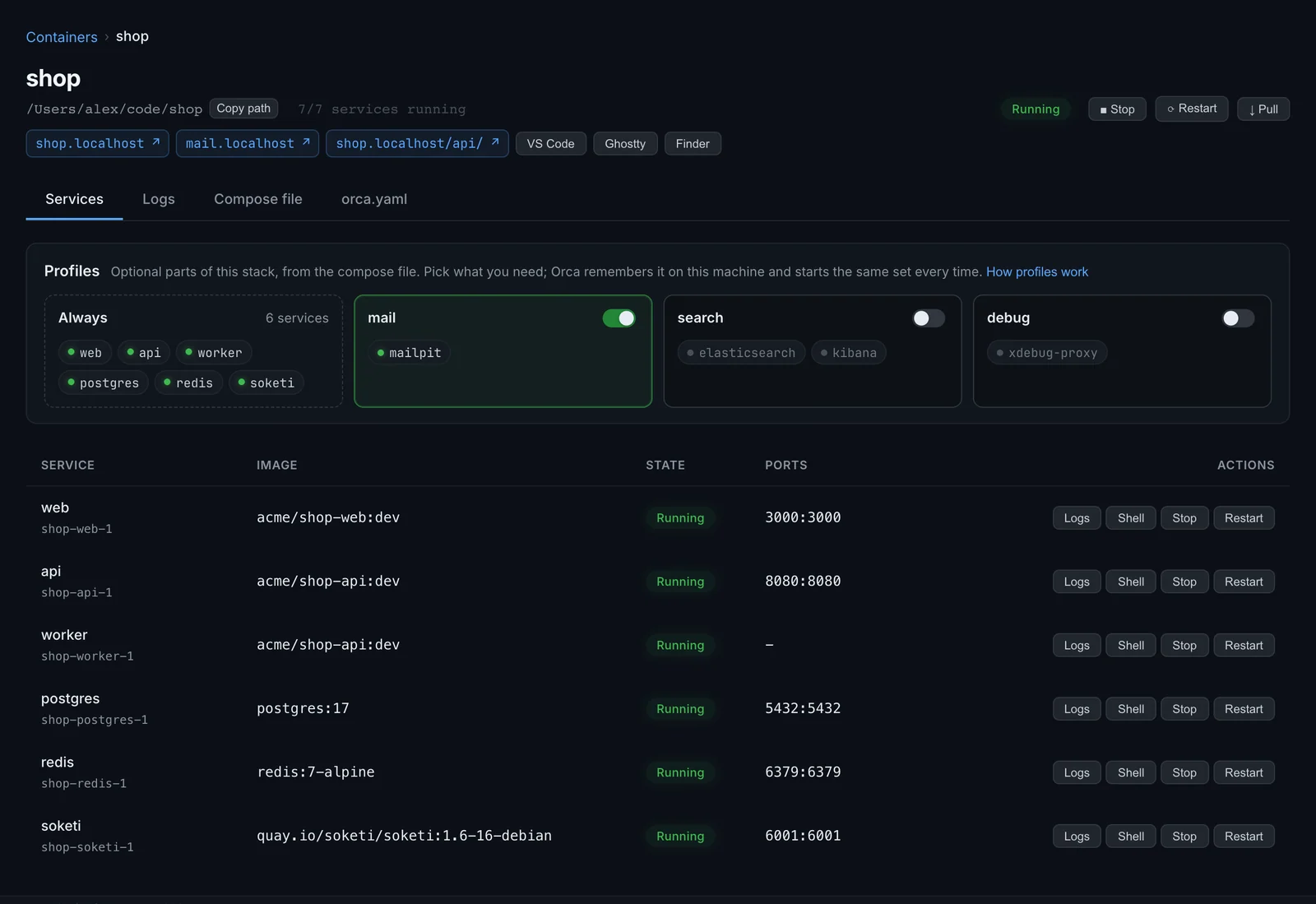
See Compose profiles for the details.
Setup commands
An orca.yaml next to the compose file can list commands to run inside a service after the stack starts, such as database migrations. Orca runs them in order with sh -c after every start from Orca. If one fails, Orca reports it and still runs the rest; the output is in Activity.
Because they run on every start, make them safe to repeat, for example with --force, || true or IF NOT EXISTS. See orca.yaml hooks.
orca.yaml
An orca.yaml in the same folder as the compose file gives the stack HTTPS hostnames through the gateway, links to its other environments, build targets and setup commands. Orca reads it whenever the stack runs, however it was started, so you can commit it and share the setup with your team.
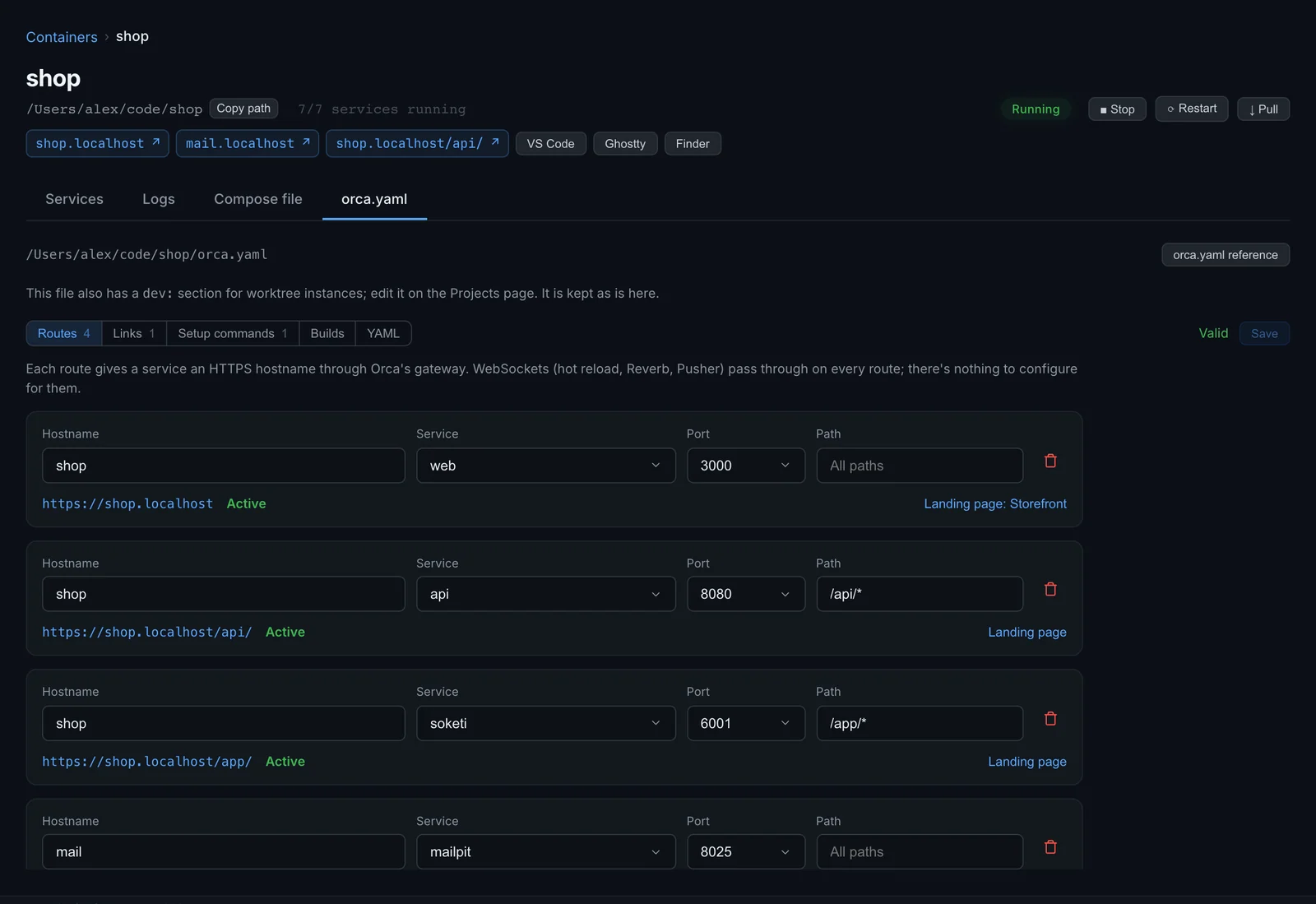
The orca.yaml tab shows the file's path and a orca.yaml reference button. If the stack has no orca.yaml yet, click Create orca.yaml to start from the stack's running services. Nothing is written until you save.
The editor has a tab for each section, with forms instead of raw YAML:
| Tab | What you edit |
|---|---|
| Routes | Gateway hostnames: a hostname, a service, a port and an optional path. Each route shows its current state, such as Active, Waiting or Not applied. |
| Links | Groups of links to the app in other environments, such as local and staging. |
| Setup commands | Commands to run in a service after every start. |
| Builds | Images to build from this project: name, context, Dockerfile, tag and build args. They appear on the Builds page. |
| YAML | The file itself, with autocompletion. |
The status next to the tabs says whether the file is Valid or points to the line with an error. Click Save to write the file; Orca applies the changes right away.
If an orca.local.yaml overrides some values on this machine, the tab says so. A dev: section for worktree instances is kept as is; edit it on the Worktrees page.
See the orca.yaml reference for every key.