
Kubernetes
Run a local k3s cluster from Orca, use it with kubectl and Helm through the orca context, and manage workloads, YAML, Helm releases and jobs.
On this page
Orca can install and run a single-node k3s cluster with Traefik ingress, and gives you a UI for the workloads in it. Use this page when you want a local Kubernetes cluster next to your containers, or want to know how Orca's cluster fits with your own kubectl setup.
Enable the cluster
Open Kubernetes in the sidebar. If k3s isn't installed yet, the page offers to set it up.
- Pick a Container runtime from the dropdown:
- Docker (default) runs k3s on Docker, so images you build locally are usable in the cluster with no push or import.
- containerd is the upstream Kubernetes default.
- Click Enable Kubernetes.
A dialog streams the setup log while Orca downloads k3s and waits for the cluster to become ready. This can take several minutes the first time. When it's done the dialog shows Kubernetes cluster ready.
How the cluster is installed depends on your platform:
| Platform | Where k3s runs |
|---|---|
| Linux | On the host, installed with the k3s install script through sudo and started with systemd. |
| macOS | Inside the Lima VM that Orca uses for Docker. Set up Docker first under System Health if you haven't. |
| Windows | Inside WSL2. Run wsl --install first if WSL is missing. |
Orca installs k3s with the metrics server turned off, so the CPU and Memory columns for pods usually stay empty.
The runtime choice applies the next time the cluster is enabled or reset. To change the runtime of a cluster that already exists, reset it.
Start, stop and reset
When the cluster is running, the More actions menu next to the cluster status has Refresh, Traefik info (when Traefik runs), Reset Kubernetes and Stop Kubernetes. Stop Kubernetes asks first; stopping deletes nothing, and workloads come back when you start it again. A stopped cluster shows Start Kubernetes and Reset Kubernetes. These act where k3s runs: on the host on Linux, in the Lima VM on macOS and in WSL2 on Windows.
Reset uninstalls k3s and deletes every workload, volume and setting in the cluster, then installs a fresh one.
You can do the same from the command line:
orca k8s status
orca k8s enable
orca k8s disable
orca k8s runtime containerdThe orca context
Orca names the cluster, user and context in its kubeconfig orca, so it never clashes with a default entry you already have. Orca itself never reads your current context: every kubectl call it makes passes --context orca, and every Helm call passes --kube-context orca. That keeps Orca from acting on a remote cluster you happen to have selected.
Enabling the cluster adds the orca cluster, user and context to ~/.kube/config (%USERPROFILE%\.kube\config on Windows), creating the file if you don't have one. On Linux, Orca merges in the kubeconfig k3s writes to /etc/rancher/k3s/k3s.yaml. Your other contexts and your current context stay as they are.
If you enabled the cluster with an older version of Orca, your current context may have been switched to orca. Switch back with:
kubectl config use-context <your-context>Use kubectl and Helm
Pass the context explicitly and your own tools work against the same cluster:
kubectl --context orca get pods -A
helm --kube-context orca list -A
To reach a service from your machine, forward a port from the Services tab (see Port forwarding) or use kubectl port-forward:
kubectl --context orca -n default port-forward svc/my-api 8080:80Browse resources
The Kubernetes page has one tab per resource group. Use the Namespace dropdown to choose which namespace the namespaced tabs show. The + next to it creates a namespace, and the delete button removes one, except for the system namespaces.
| Tab | What you can do |
|---|---|
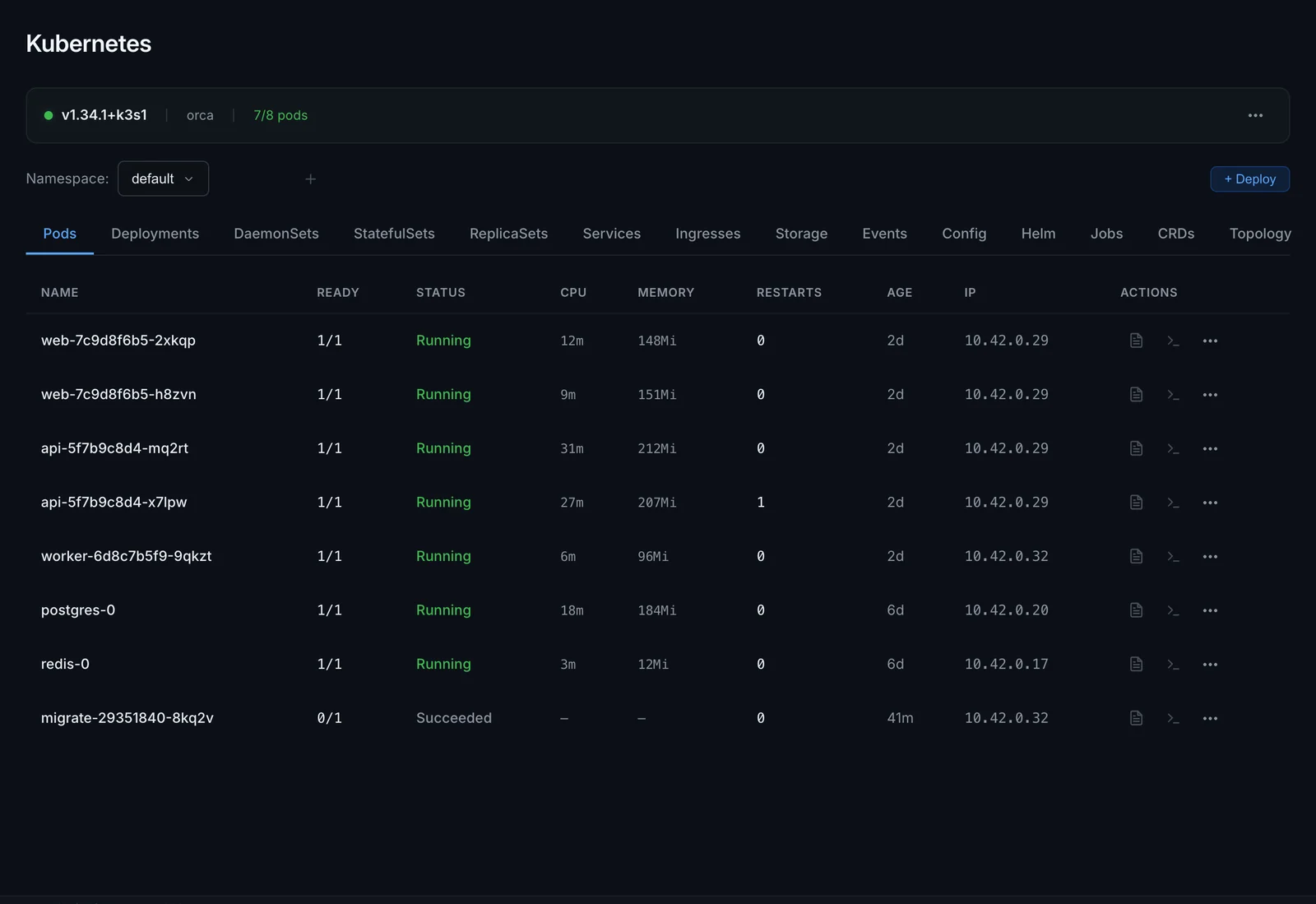
| Pods | See status, restarts, age and IP. View logs, open a shell, edit YAML, restart or delete a pod. |
| Deployments | Scale, restart, view Rollout history and roll back to an earlier revision. Create and delete autoscalers with + Create HPA. |
| DaemonSets | Edit YAML, delete. |
| StatefulSets | Scale, restart, edit YAML, delete. |
| ReplicaSets | Edit YAML, delete. |
| Services | See ports, forward them to your machine, Expose a service through an ingress, edit YAML. Network policies are listed here too. |
| Ingresses | Create one with + Create Ingress, with optional TLS. Edit YAML. |
| Storage | Persistent volume claims, with + Create PVC and delete. Persistent volumes and storage classes, read-only. |
| Events | Recent cluster events with type, reason, object and count. |
| Config | ConfigMaps and Secrets. View values, edit secret data, + Create Secret. |
| Helm | Installed releases. See Helm releases. |
| Jobs | CronJobs and Jobs. See Jobs and CronJobs. |
| CRDs | Installed custom resource definitions, read-only. |
| Topology | A map of services, deployments and pods. |
Each pod row has two buttons, for its logs and for a shell, and a "…" menu with Restart pod, View/edit YAML and Delete pod. The shell runs sh in the pod's default container. Restart pod asks first, then deletes the pod so its controller creates a new one. On the other tabs, too, deleting a resource is in its row's "…" menu.
Port forwarding
The Access column of the Services tab has a button per service port, such as :80. Click it, enter the local port (it defaults to the service port) and click the play button or press Enter. The service is then reachable at localhost:<local port>, and the button shows a check mark. Click it again to stop forwarding.
A service with more than one port shows a button such as 2 ports instead. It opens a Port forward dialog with a local port, a Forward or Stop button and an Open in browser link for each port.
The daemon forwards each connection through the Kubernetes API to a ready pod behind the service, the same way kubectl port-forward svc/... does. That works when Orca manages a remote host too: the local port is on your machine, and the daemon on the remote host connects to its cluster. A port that isn't one of the service's ports is forwarded to that port on the pod. Traefik dashboard uses this to reach Traefik's dashboard on port 9000 when there is no direct URL for it.
Forwarding needs a service with a selector and at least one ready pod.
Edit YAML and apply
Every resource has a View/edit YAML action, as a button or in its "…" menu. It opens the resource's live YAML in an editor. Change it and click Apply changes, or press Cmd+S (Ctrl+S on Windows and Linux).
To create something new, click + Deploy (Deploy from YAML). The editor starts with an example Pod that you can replace. A file can hold several documents separated by ---.
Both run kubectl apply with your YAML, up to 1 MB. For safety, Orca only applies these kinds:
Pod, Service, ConfigMap, Secret, Deployment, DaemonSet, StatefulSet, ReplicaSet,
Job, CronJob, Ingress, PersistentVolumeClaim, Namespace, HorizontalPodAutoscaler,
ServiceAccount, Role, RoleBinding, NetworkPolicy, IngressRoute, Middleware,
HelmChartConfig
Anything else, such as a ClusterRole or a CustomResourceDefinition, is rejected. Apply those with kubectl --context orca apply -f.
Helm releases
The Helm tab lists releases in all namespaces, with chart, status, revision and update time. It needs the helm binary. If Orca can't find it, the tab shows an Install Helm button.
To install a chart, click Install chart and fill in Release name, Chart and Namespace. Add key=value overrides under Set values (optional). Orca runs helm install with --create-namespace, so the namespace doesn't have to exist.
Charts from a repository need that repository added first:
helm repo add bitnami https://charts.bitnami.com/bitnamiTo uninstall a release, choose Uninstall Helm release in its "…" menu. For upgrades and rollbacks, use helm --kube-context orca directly.
Topology
The Topology tab draws each service with its deployments and their pods, then deployments without a service, then Standalone pods. Click a card to jump to that resource's tab.
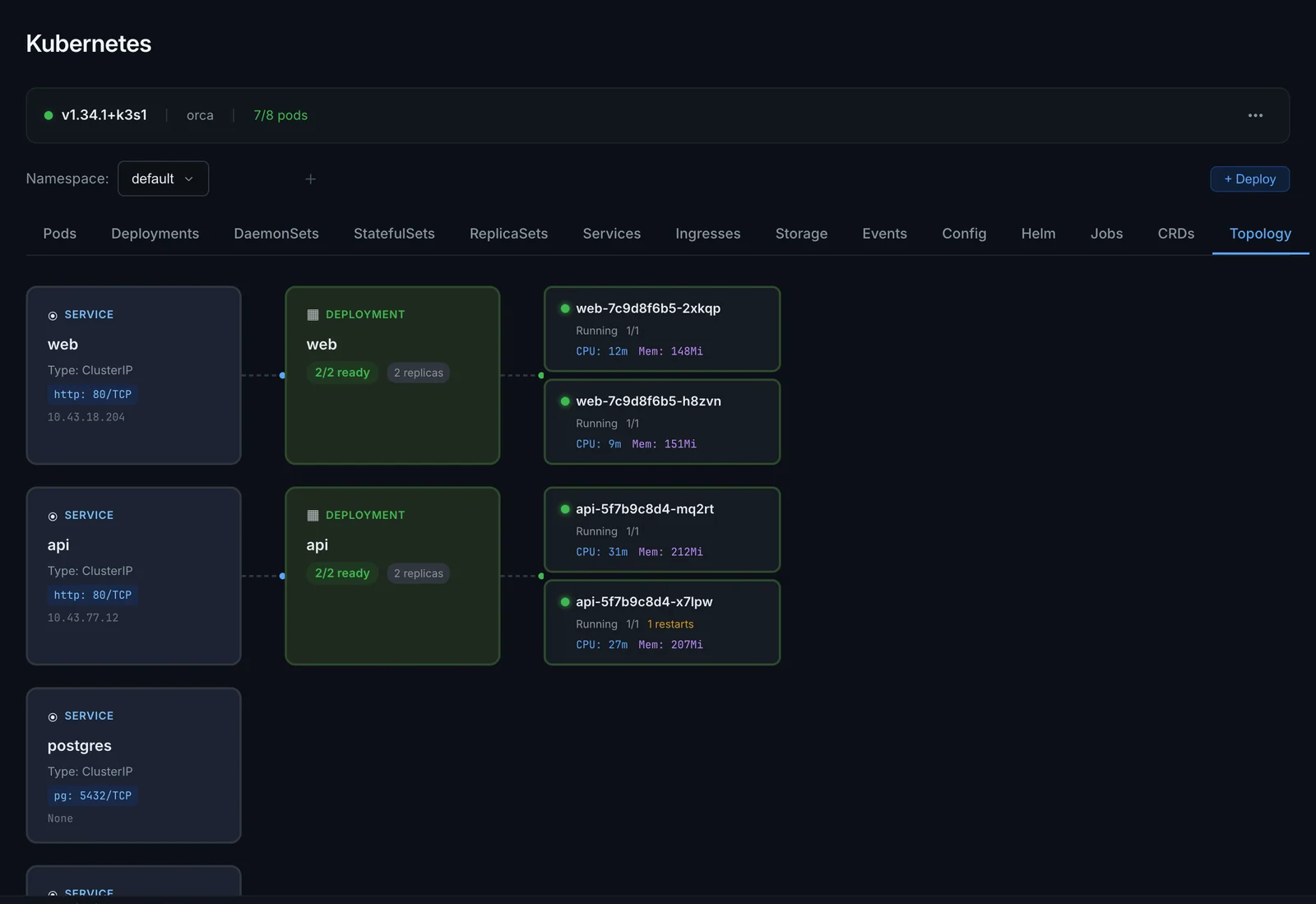
Orca links resources by label selector, the way Kubernetes routes traffic: a service is linked to the deployments whose pod labels its selector matches, and a deployment to the pods its selector matches. With an older daemon that doesn't send labels, it falls back to matching by name.
Jobs and CronJobs
The Jobs tab has two sections.
CronJobs shows each schedule, whether it's suspended, active jobs and the last run. For each CronJob you can:
- Trigger Job now, which creates a job named
<cronjob>-manual-<timestamp>from the CronJob's template - Suspend CronJob or Resume CronJob
- view its YAML, or delete it, which stops future runs
Jobs shows status, completions, duration and start time. View logs shows the logs of the job's newest pod. You can also view YAML or delete a job together with its pods.
Ingress and Traefik
k3s ships with Traefik as its ingress controller. Ingresses you create from Orca, with + Create Ingress or a service's Expose button, are served by Traefik. The status bar shows how Traefik is wired up, which you configure on the Gateway page, and Traefik dashboard opens Traefik's own dashboard.