
App Catalog and templates
Deploy apps from Orca's App Catalog, with generated secrets, TLS certificates and setup guides, and write or contribute your own templates.
On this page
The App Catalog deploys ready-made apps, from a single database container to multi-service compose stacks, with passwords and secrets generated for you. This page covers deploying from the catalog, what happens during a deploy, creating your own templates and contributing one to the community catalog.
Deploy an app
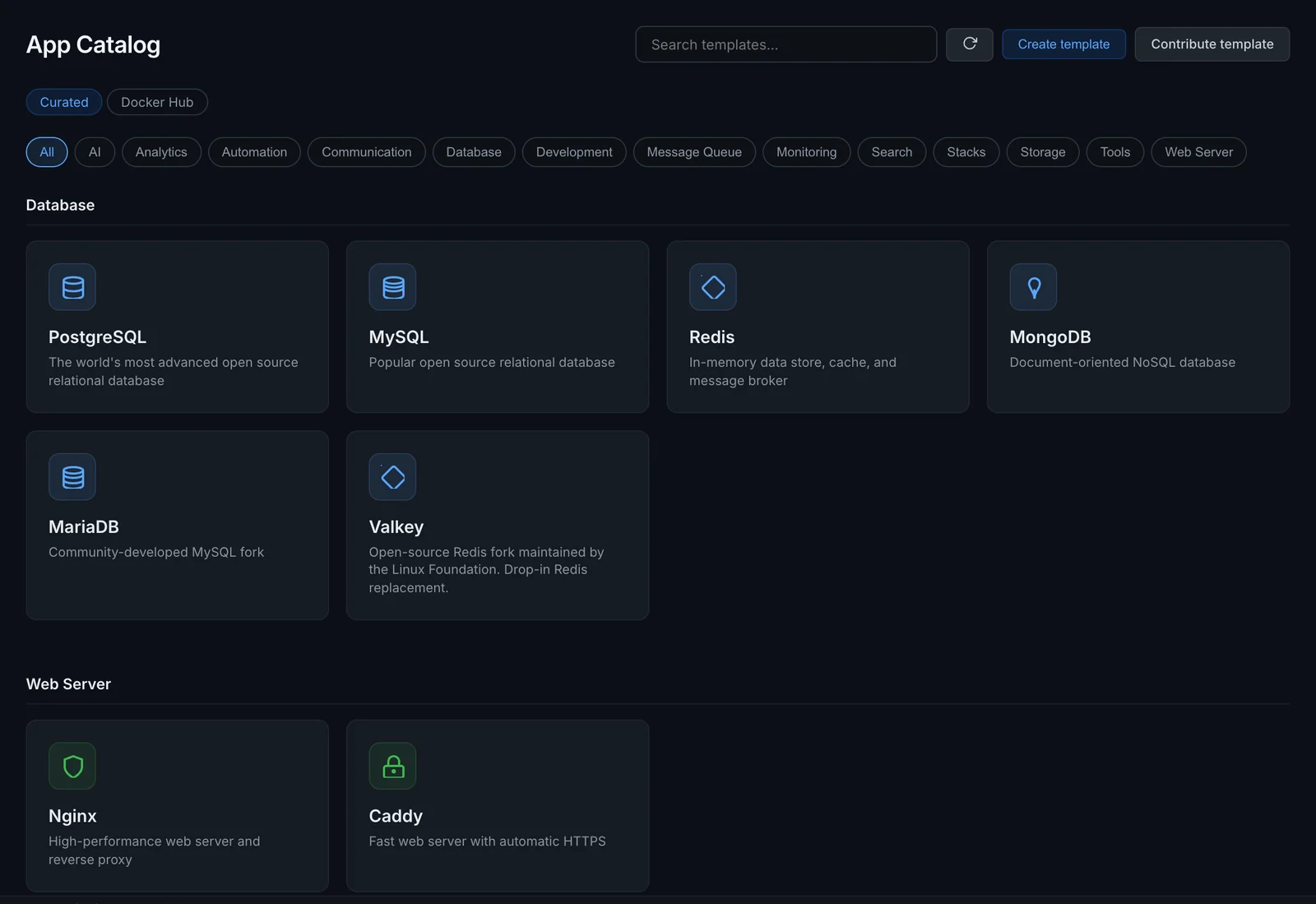
Open App Catalog in the sidebar, or click Start from the catalog on a fresh dashboard. The Curated view lists the catalog's templates by category; use the category tabs or Search templates... to narrow it down. Click a template to open its deploy dialog.
For a single-container app, the dialog shows the Container name, the image, and the port mappings, environment variables and volumes from the template. Change any of them before you deploy. When you deploy, Orca checks that the host ports are free and pulls the image before it creates the container.
For a compose stack, the dialog shows the Stack name and the Compose YAML, which you can edit before you deploy. If the template asks for values, such as an admin email address, they appear under Configuration.
Click Deploy (or Deploy stack). A single container opens on its detail page afterwards. A stack opens its setup guide if it has one.
If you have set up remote hosts under Settings > Remote hosts, a Deploy to row lets you pick one or more hosts to deploy to.
The Docker Hub view searches Docker Hub instead. Click Pull on a result to pull the image, then run it from the Images page.
You can also use the CLI:
orca templates list
orca templates search postgres
orca deploy --template postgresGenerated passwords and secrets
Templates never ship with real credentials. Orca fills them in at deploy time:
- In a single-container template, every
changemein the environment variables is replaced with a generated password. The same password replaceschangemein the template's notes, so the notes shown after deploy tell you what it is. - In a compose template, every
changemein the compose YAML is replaced with one generated password for the whole stack, so the services that share a password (an app and its database) still match. - A compose template can also declare
generated_env: values Orca generates or asks you for, written to the stack's.envfile. See the template format.
Compose stacks from the catalog are saved in Orca's stacks folder, one folder per stack: ~/.config/orca/stacks/<name> on Linux and ~/Library/Application Support/orca/stacks/<name> on macOS. After deploy you manage them like any other compose stack, including editing the compose file on the stack page.
TLS certificates from Orca's CA
Some apps need a TLS certificate, for example a mail server. A template can ask for one with the self_signed_cert and self_signed_key generators. Orca issues the certificate from its own local certificate authority, the same CA that signs the gateway's HTTPS certificates. The certificate is valid for one year, for the name the template asks for (localhost by default) plus localhost and 127.0.0.1.
To make your browser and tools trust these certificates, install Orca's CA once. Go to Settings > Certificates, click Download CA certificate and run the install command shown for your system, or run:
orca ca installorca ca info shows the CA's details and orca ca export prints the certificate.
Setup guides
Apps that need a few manual steps after deploy, such as creating an admin account, come with a setup guide. It opens after the stack is deployed and walks you through numbered steps. Steps can:
- explain something,
- open a URL in your browser,
- show a service's logs, for example to find a generated admin password,
- restart a service,
- run a command inside a service and show its output,
- open a terminal in a service,
- ask for a value and save it to the stack's
.envfile.
Mark steps as done as you go. Done closes the guide and opens the stack's page.
If the template declares gateway routes, Orca registers them during deploy and shows the HTTPS hostnames. See Gateway.
Create your own templates
Click Create template to save an app you deploy often. Fill in an Icon, Name, Category, Description and Docker image, plus port mappings, environment variables, volumes and notes. Use changeme for passwords so Orca generates one on each deploy.
Your templates appear in the catalog next to the community ones, with buttons to edit and delete them. They are single-container templates and are stored on your machine in templates.json in Orca's config folder (~/.config/orca/ on Linux, ~/Library/Application Support/orca/ on macOS).
The community catalog
The curated templates come from the community catalog at https://orca-desktop.com/templates.json. Orca downloads it and keeps a local copy for an hour, so the catalog also works offline. Click the refresh button next to the search box to fetch the latest version right away.
Template format
The catalog is a JSON array of templates. This is the Redis entry, a complete single-container template:
{
  "id": "redis",
  "name": "Redis",
  "description": "In-memory data store, cache, and message broker",
  "icon": "<svg xmlns=\"http://www.w3.org/2000/svg\" viewBox=\"0 0 24 24\" fill=\"none\" stroke=\"currentColor\" stroke-width=\"2\" stroke-linecap=\"round\" stroke-linejoin=\"round\"><rect x=\"4\" y=\"4\" width=\"16\" height=\"16\" rx=\"2\" transform=\"rotate(45 12 12)\"/><line x1=\"12\" y1=\"8\" x2=\"12\" y2=\"16\"/><line x1=\"8\" y1=\"12\" x2=\"16\" y2=\"12\"/></svg>",
  "category": "Database",
  "image": "redis:alpine",
  "default_ports": ["6379:6379"],
  "default_env": [],
  "default_volumes": ["redisdata:/data"],
  "restart_policy": "unless-stopped",
  "notes": "Connect with: redis-cli",
  "is_builtin": true
}
Every template needs all of these fields, even when a list is empty or a string is blank.
| Field | Description |
|---|---|
id | Unique lowercase identifier, such as my-app. Also the default container or stack name. |
name, description | Shown on the catalog card. |
icon | An inline SVG string, 24×24 viewBox, stroke-based. |
category | The category tab the template appears under, such as Database or Monitoring. |
image | The image to run. Compose templates set it to their main image, but deploy from compose_yaml instead. |
default_ports | host:container port mappings. |
default_env | KEY=value environment variables. Use changeme for passwords. |
default_volumes | source:target mounts. A source without a slash is a named volume. |
restart_policy | unless-stopped for services, no for one-off tools. |
notes | Shown after deploy, unless the template has a setup guide. |
is_builtin | true for catalog templates. |
Compose templates
Add compose_yaml to deploy a multi-service stack instead of a single container. The value is the full compose file as a string, with newlines as \n. This is the WordPress entry from the catalog:
{
  "id": "wordpress-mysql",
  "name": "WordPress + MySQL",
  "description": "Full WordPress blog with MySQL database. Multi-service compose stack.",
  "icon": "<svg ...>...</svg>",
  "category": "Stacks",
  "image": "wordpress:latest",
  "default_ports": [],
  "default_env": [],
  "default_volumes": [],
  "restart_policy": "unless-stopped",
  "notes": "WordPress at http://localhost:8080. Database password is auto-generated.",
  "is_builtin": true,
  "compose_yaml": "version: '3.8'\nservices:\n  wordpress:\n    image: wordpress:latest\n    ports:\n      - '8080:80'\n    environment:\n      WORDPRESS_DB_HOST: db\n      WORDPRESS_DB_PASSWORD: changeme\n    depends_on:\n      - db\n    restart: unless-stopped\n  db:\n    image: mysql:8\n    environment:\n      MYSQL_ROOT_PASSWORD: changeme\n      MYSQL_DATABASE: wordpress\n    volumes:\n      - wp-db:/var/lib/mysql\n    restart: unless-stopped\nvolumes:\n  wp-db:\n"
}
Compose templates can also use these optional fields:
| Field | Description |
|---|---|
generated_env | Values written to the stack's .env file at deploy time. See below. |
generated_files | Files written into the stack folder at deploy time, keyed by relative path, using the same generators. |
setup_guide | A step-by-step guide shown after deploy. |
gateway_routes | HTTPS hostnames to register with the gateway: hostname, service, port and an optional path. |
links | Groups of links shown for the stack, each with a group name and links of name and urls. |
Generated values
generated_env maps a variable name to a generator. Reference the variables from the compose file, for example with env_file: .env.
"generated_env": {
  "SECRET_ENCRYPTION_KEY": { "type": "random_hex", "length": 64 },
  "ADMIN_EMAIL": {
    "type": "user_input",
    "label": "Admin email address",
    "placeholder": "admin@example.com",
    "required": true
  }
}| Type | Generates |
|---|---|
random_hex | A random hex string. length is the number of hex characters (default 32). |
random_base64 | Random bytes as base64. length is the number of bytes (default 32). |
lan_ip | The machine's LAN IP address. |
user_input | A field in the deploy dialog. Options: label, placeholder, required, secret. |
self_signed_cert | A PEM certificate signed by Orca's CA. Optional subject sets the name (default localhost). |
self_signed_key | The private key that matches self_signed_cert. |
Setup guide steps
"setup_guide": {
  "title": "Webmail + Stalwart Setup",
  "steps": [
    {
      "title": "Get the admin password",
      "description": "The default admin password is printed in the Stalwart container logs on first start.",
      "type": "action",
      "action": "view_logs",
      "service": "stalwart"
    },
    {
      "title": "Set the admin token",
      "description": "Paste the token so the webmail can authenticate with Stalwart.",
      "type": "set_env",
      "env_key": "STALWART_ADMIN_TOKEN",
      "label": "Paste the Stalwart admin token here"
    }
  ]
}
type | Fields | What it does |
|---|---|---|
info (default) | Shows the title and description. | |
link | url | Opens the URL in your browser. |
action | action, service | Runs an action on a service: view_logs, restart_service, terminal, or exec with a command array. |
set_env | env_key, label | Asks for a value and saves it to the stack's .env file. |
Contribute a template
The community catalog lives in the Orca repository as docs/templates.json. To add an app:
- Fork the repository and add your template to
docs/templates.json. - Run
cargo test -p orca-coreto check that the file still parses. - Open a pull request.
To try a template before you submit it, add it to your own templates.json in Orca's config folder (see Create your own templates) with a unique id. That file is a JSON array too, and it accepts the full format, including compose_yaml.
If your local templates.json isn't valid JSON, Orca ignores the whole file and none of your own templates show up.
If you'd rather not write JSON, click Contribute template in the App Catalog. It opens a GitHub issue form where you describe the app, and a maintainer adds it. CONTRIBUTING.md in the repository has more guidance on icons, categories and gateway routes.