
Gateway and HTTPS hostnames
Give containers trusted HTTPS hostnames like shop.localhost through Orca's gateway, from the UI, orca.yaml, container labels or worktree instances.
On this page
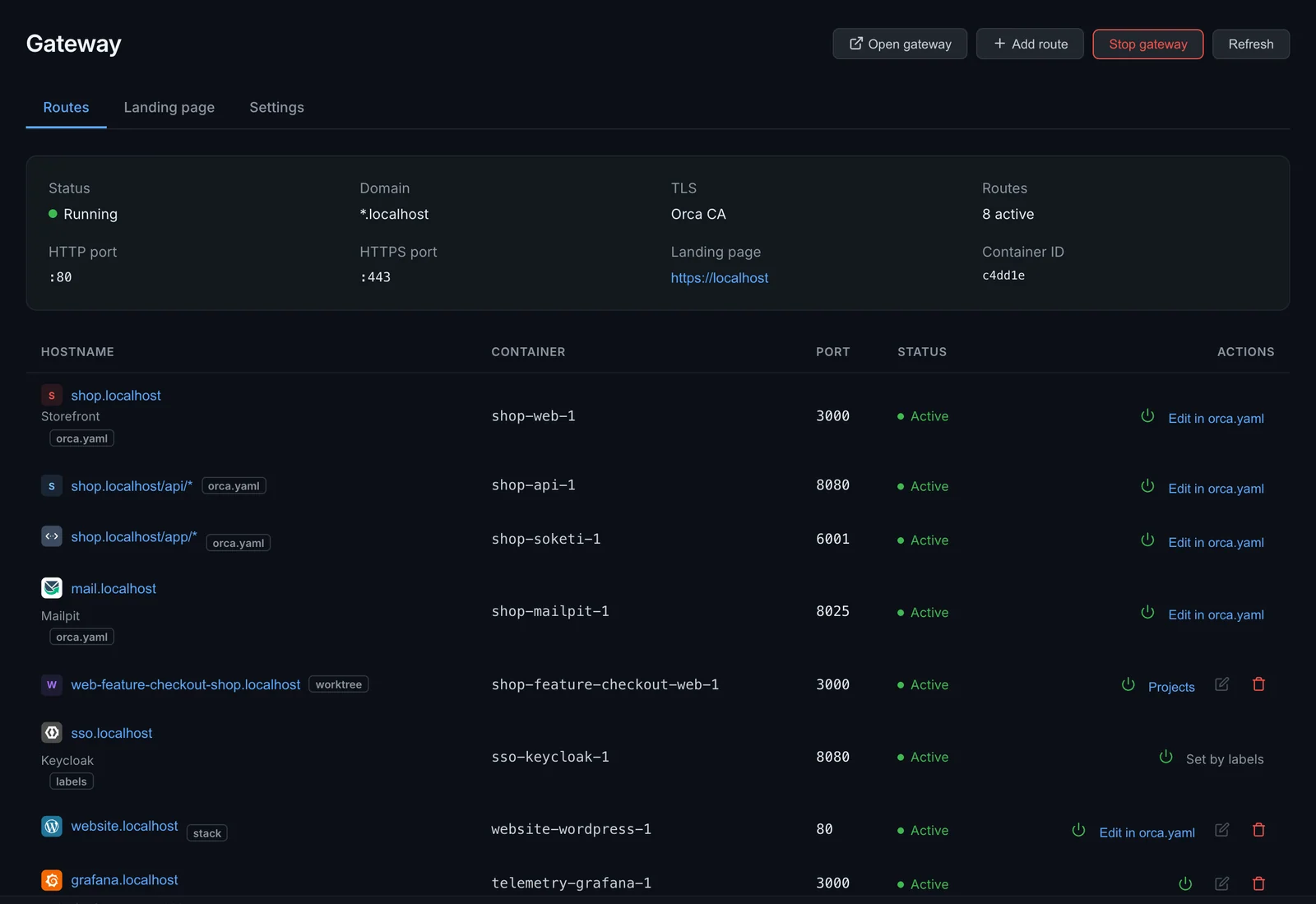
The gateway gives your containers real HTTPS addresses, such as https://shop.localhost, instead of http://localhost:8095. This page covers how it works, where routes come from, certificates, custom domains and the landing page that lists everything you run.
How it works
The gateway is a Caddy container (caddy:2-alpine, named orca-gateway) that Orca creates and configures for you. It listens on ports 80 and 443 of your machine, matches each request's hostname (and optionally its path) and forwards it to a port inside a container. Port 80 only redirects to HTTPS.
Start it with Start gateway on the Gateway page, or orca gateway start. The first start pulls the image. After that the container comes back when Docker restarts, until you stop it with Stop gateway, which asks first because every gateway URL stops working until you start it again. Orca also starts the gateway on its own when a worktree instance needs it.
The gateway forwards to the container's internal port, so the container doesn't need to publish anything on your machine. Orca connects the gateway to each routed container's networks for you.
The Gateway page has three tabs: Routes, Landing page and Settings. Settings holds the whole configuration under four headings: Domain and ports, HTTPS, Kubernetes integration and Suggestions, where Clear dismissed brings back suggested routes you dismissed.
Hostnames
The default domain is localhost. A route named shop becomes shop.localhost, and Chrome and Firefox send every *.localhost name to your own machine without any DNS setup.
Other programs (Safari, curl, scripts, test runners) use the system resolver, which may not resolve *.localhost. The Worktrees page warns when an instance hostname doesn't resolve on your computer.
Use your own domain
To use names that resolve everywhere, pick a domain with a wildcard DNS record pointing at 127.0.0.1, such as *.local.yourcompany.dev, and set it as the Domain on the Gateway page's Settings tab, under Domain and ports:
orca gateway config --domain local.yourcompany.devRoutes from orca.yaml and labels follow the new domain. Routes you added by hand keep the full hostname they were given. When you click Save settings (domain, ports, TLS) or change them with orca gateway config, a running gateway restarts with the new settings, so they apply at once.
Certificates
The TLS mode under HTTPS on the Settings tab decides where certificates come from.
| Mode | ||
|---|---|---|
| Orca CA (automatic) | orca_ca | The default. Orca runs its own certificate authority and issues a certificate for every routed hostname and for the domain itself. Works with any domain and any hostname depth. |
| Custom certificate | custom | You paste a certificate and private key in PEM format. Every route uses that one certificate, so it must cover all of your hostnames. |
Trust the Orca CA
Browsers trust Orca's certificates once the Orca CA is in your system trust store. Install it from the command line:
orca ca installThis runs sudo security add-trusted-cert into the System keychain on macOS, copies it to /usr/local/share/ca-certificates/ and runs update-ca-certificates on Linux, and uses certutil on Windows. You can also download it from Settings → Certificates with Download CA certificate, which shows install instructions too. orca ca info prints its subject, expiry and fingerprint.
The CA is created on first use and stored in Orca's config folder, under orca/ca/.
Trust it inside containers
A container that calls a gateway hostname over HTTPS needs to trust the CA as well. Write it out and mount it into the container:
orca ca export > orca-ca.pemThe certificate is also served without authentication at http://127.0.0.1:9477/api/v1/ca/certificate, which is handy in setup scripts. How a container uses it depends on the runtime; Node.js, for example, reads NODE_EXTRA_CA_CERTS=/path/to/orca-ca.pem.
Wildcard certificates
With a custom wildcard certificate such as *.local.yourcompany.dev, remember that a wildcard covers exactly one label. web-feat-x-shop.local.yourcompany.dev is covered; web.feat-x.shop.local.yourcompany.dev is not. Worktree instances use the flat form by default for this reason, and Orca warns when a planned instance hostname isn't covered by the gateway's certificate. See hostnames per instance.
orca gateway config --tls-mode custom \
--cert-file wildcard.pem --key-file wildcard-key.pemWhere routes come from
A route maps a hostname, and optionally a path, to a container and a port. The Routes tab lists all of them, with a badge saying where each comes from.
The table groups routes by project, like the landing page; click a group's name to fold it. Each route shows whether its service runs: Running, Stopped, Unhealthy, Paused for a route you switched off, or Not set up with a Set up link for a workspace project that isn't on your computer yet. With more than a few routes, a search box above the table finds them by hostname, container, project or status; press / to jump to it.
Added by hand
On the Gateway page, Add route asks for a hostname, an optional path, a container and the Container port (the port the app listens on inside the container). On the Containers page and a container's detail page, Expose via gateway does the same for that container. When the gateway runs, Suggested routes lists containers with web pages that aren't routed yet.
Each port in a suggestion says what it is when Orca knows, from the image and the port number: :8123 ClickHouse HTTP, :5432 PostgreSQL. A blue dot marks a web page, which the gateway can serve. A hollow dot marks anything else. A run of ports, such as a TURN server's relay range, shows as one label: :49160–49200 relay ports. Add to Gateway routes to the first web port.
Check asks a suggestion's ports what they are. It connects to each port the container publishes on your computer, and names a web page by its title, or anything else by its protocol, such as PostgreSQL, Redis, SMTP or SSH. Orca only checks when you click it, and remembers the answer until the app restarts.
Containers with no web ports, such as databases, are listed under Other services, with the address to reach them on your computer, such as localhost:5432.
From the command line, give the full hostname:
orca gateway add shop.localhost shop-web-1 3000
orca gateway routes
orca gateway remove shop.localhost
Routes you add by hand can be edited, paused and removed on the Routes tab.
orca.yaml
A compose project can declare its routes in an orca.yaml next to its compose file. They exist while the service runs, whether the project was started from Orca or with docker compose up:
gateway:
  - hostname: shop
    service: web
    port: 3000
  - hostname: shop
    service: api
    port: 8080
    path: /api/*
The full key table is in the orca.yaml reference.
Container labels
A container can ask for routes in its own labels. A hostname without a dot gets the gateway's domain, and {domain} is replaced:
services:
  web:
    labels:
      orca.route: shop               # shop.<domain>, on the port the image exposes
      orca.route.port: "3000"        # when it exposes none or several
      orca.route.api: api.{domain}   # more routes, each with its own name
      orca.route.api.port: "8080"
      orca.route.api.path: /v1*
Traefik labels work as well. Each traefik.http.routers.<name>.rule with Host(...), and optionally PathPrefix(...) or Path(...), becomes a route to the router's loadbalancer.server.port. traefik.enable=false opts a container out. When neither the labels nor the image name a single port, Orca uses port 80.
Routes from orca.yaml and labels are added when the container starts and removed when it stops. To change one, change its source; you can still pause it on the Gateway page. A route from an orca.yaml has an Edit in orca.yaml link that opens its stack's page, where the orca.yaml tab edits the file.
Templates
Templates from the app catalog that define routes register them when you deploy them. The badge reads stack.
Worktree instances
Every running worktree instance gets its own hostnames, registered when it starts and removed when it stops. The badge reads worktree.
When two routes want one hostname
A hostname and path combination has one owner. The rules:
- Routes added by hand, by templates and by worktree instances keep the hostname they have.
- After those, orca.yaml wins over labels.
- Between two of the same kind, the first one keeps it.
The route that loses is left out, not changed. The Routes tab says which container asked for which hostname and who already has it, and the stack's orca.yaml tab shows it too. A worktree instance whose hostname is taken starts without that URL and says so; give the service its own hostname in the instance's Settings.
Paths
Several routes can share a hostname with different paths. Path routes are matched before the route for the whole hostname, so /api/* goes to the API and everything else to the app:
gateway:
  - hostname: shop
    service: web
    port: 3000
  - hostname: shop
    service: api
    port: 8080
    path: /api/*
A path with * matches everything under it. Without a *, only that exact path matches.
WebSockets and streaming
WebSockets and server-sent events pass through every route unchanged. Hot reload, Laravel Reverb and GraphQL subscriptions need no extra setup.
For a Pusher-protocol server such as Soketi, route /app/* on the app's own hostname to it, so the browser talks to one host. The recipe, with the .env settings for Laravel Echo and pusher-js, is in the orca.yaml reference.
Hostnames inside containers
Inside a container, a name like auth.localhost would normally point at the container itself. Orca fixes this: the gateway joins the networks of every routed container and carries every routed hostname as a network alias. Containers on those networks reach https://auth.localhost through the gateway, exactly as the browser does.
This matters for OIDC issuer URLs and other server-to-server calls by public name. The calling container must trust the Orca CA for HTTPS to verify. The default bridge network has no DNS, so this works on compose and user-defined networks only.
Environment links
links: in a project's orca.yaml lists the project's addresses per environment, such as local, staging and production. The Gateway page shows them under Environment links, with one tab per environment, and the landing page shows them too. A local link names a gateway hostname, optionally with a path; the others are full URLs. See links.
The landing page
The gateway's own address, https://localhost by default, is a page that lists every routed service as a card. Cards are grouped by project, and each shows whether the service runs and for how long: running, starting, unhealthy (from the container's healthcheck), sleeping or stopped. The page updates when containers start or stop and refreshes itself while it's open.
Open it with Open gateway at the top of the Gateway page. Its settings are on the Landing page tab:
- Title and Subtitle at the top of the page.
- Show status and uptime.
- Show container and port behind each card.
- Search box, and where it searches the web (see below).
- My links: your own cards at the top of the page, such as your Jira board or a staging admin. Add one with a name and an address; ↑ and ↓ reorder them. They're kept on your computer only, never in a workspace or project file.
In the page's top bar:
- Cards and Compact switch the layout. Compact shows each service as a one-line row, which fits many more on a screen.
- Running only hides services that are stopped or not set up. Searching still finds everything.
- Click a group's name to fold it; a folded group shows how many services it has.
Each browser remembers these choices.
A small group shares its row with others: a project with one service takes one column instead of a whole row. A workspace's shared services come first, as a strip of small chips with a status dot, since they're tools you open now and then. The number of services running is under the title.
Each card's title, description, group and icon come from the route:
| Route from | Set it with |
|---|---|
| Added by hand | Edit on the Landing page tab (or the route's edit dialog): Title, Description, Group, Icon, and Hide |
| orca.yaml | title, description, group, icon, hidden on the gateway entry |
| Labels | orca.route.title, .description, .group, .icon, .hidden (for a named route, orca.route.<name>.title and so on) |
A workspace project that isn't set up on your computer yet still gets its cards, marked Not set up · set it up in Orca with a dashed border. Clicking one opens Orca's Workspace page at that project, with its Set up button highlighted; setting it up still takes your click.
Without a title, the card is named after the hostname. The group defaults to the compose project. A group of environment links with the same name as a group of cards, such as the project's name, joins that section instead of showing as a second one. A hidden route still routes; it's only left off the page.
A team certificate that's about to expire is announced on the page from 30 days before, and in red once it has.
Icons
Every app gets an icon on the landing page, on the dashboard's Your apps, on the Workspace and Gateway pages and in the ⌘K palette.
Most need no setting at all. When a route doesn't set an icon, the image of the container behind it picks one: postgres:17 gets PostgreSQL's logo, grafana/grafana Grafana's, axllent/mailpit Mailpit's. Anything Orca doesn't recognise shows its initial.
To choose one, set icon on the route (in orca.yaml, a label, the workspace file or the route's Edit dialog) to one of these:
| Kind | Example | Notes |
|---|---|---|
| A built-in icon | icon: grafana | Works everywhere, offline. The list is below. |
| An image file in the repo | icon: assets/logo.svg | SVG, PNG, WebP or JPEG, up to 64 KB, relative to the project folder (or the workspace folder in a workspace file). Orca reads it in, so it works offline too. Not for routes added by hand. |
| An image URL | icon: https://example.com/logo.png | Loaded by the browser from that address, on the landing page only: the app doesn't load images from other sites. |
Built-in brand icons: grafana, prometheus, postgresql, redis, mysql, mariadb, mongodb, rabbitmq, nginx, traefik, caddy, minio, elasticsearch, kibana, keycloak, phpmyadmin, temporal, wordpress, nodejs, php, python, go, meilisearch, clickhouse, docker, kubernetes, kafka, vault, consul, jenkins, gitlab, sentry, jaeger, opentelemetry, adminer, laravel, symfony, vue, react, nextjs, vite, django, rails, apache, influxdb, opensearch, ollama, n8n, metabase, mattermost, nextcloud, gitea, portainer, pusher, pocketbase, sonarqube, mailpit.
Built-in generic icons, for roles rather than products: mail, database, cache, queue, websocket, docs, api, worker, auth, search, storage, web, metrics, app.
Common other names work too, such as postgres, node, mongo, s3 and oidc. The brand icons come from Simple Icons (CC0), the Mailpit logo from Mailpit (MIT). Logos are trademarks of their owners.
Anyone who can reach the gateway can see the landing page. It lists hostnames and, unless you switch it off, the container and port behind each one.
Search, and using it as your start page
The landing page opens with the cursor in a search box. Type a few letters and the cards narrow down to the ones that match by name, hostname, description, project, container or status. Try mail, admin or unhealthy.
| Key | What it does |
|---|---|
| Enter | Opens the highlighted service. When nothing matches, a hostname such as github.com/acme/shop opens directly, and anything else searches the web. |
| Shift+Enter | Searches the web, even when a service matches. |
| Ctrl/⌘+Enter | Opens the service or search in a new tab. |
| ↑ ↓ | Chooses between several matching services. |
| / or Ctrl/⌘+K | Jumps to the search box from anywhere on the page. |
| Esc | Clears the search. |
Under the box, the page shows what Enter and Shift+Enter will do before you press them.
Searches go to Google unless you choose otherwise. Search the web on the Landing page tab picks another engine: DuckDuckGo, Bing, Brave Search, Kagi, Ecosia or Startpage. Custom URL… takes any search address with {query} where the search terms go, such as your company wiki, Jira, or GitHub code search:
https://github.com/search?type=code&q={query}Choose Off: only find services and the box only finds services. Switch Search box off to hide it.
With search on, the page works well as your browser's home page: set https://localhost (or your gateway's domain) as the home page. Safari can also open it in every new tab. Each time you open it, you can type the name of a service or a search straight away.
Requests
The Requests tab on the Gateway page lists recent requests through the gateway, newest first: the time, status, method, address, the route it went to, how long it took and how large the answer was. It updates every few seconds while it's open. Type in the filter to narrow it by hostname, path, project or status (502), and Only problems keeps just the failed ones. The landing page's own requests are left out.
A failed request (status 502, 503 or 504, or none when nothing answered) says why, from the gateway's own log:
| What the gateway logged | What it means |
|---|---|
no such host | Nothing on the gateway's networks answers to that name: its container isn't running, or isn't on a network the gateway joined. |
connection refused | The container runs but doesn't accept connections on that port: it's still starting, or it listens on another port. |
| A timeout | It didn't answer in time. |
EOF or connection reset | It closed the connection before answering, often because it crashed or restarted. |
Click a failed request to see the gateway's own error. AI tools read the same list with gateway_requests.
The requests come from the gateway's access log, which Caddy keeps in Orca's certificates folder and rotates at 10 MB.
Sleeping routes
A worktree instance can stop itself after a period without use (dev.instance.idle_stop in orca.yaml). Its routes stay, marked as sleeping. Opening one of its URLs shows a page that says the instance is starting and reloads itself every few seconds; Orca starts the instance in the background and the page turns into the app. See idle stop.
Ports 80 and 443
The gateway needs ports 80 and 443 on your machine. If another program holds one of them, the Gateway page shows Port conflict detected with the port. Stop that program, or move the gateway to other ports in HTTP port and HTTPS port on the Settings tab. Check ports tests them first.
orca gateway config --http-port 8080 --https-port 8443With another HTTPS port, URLs carry it, such as https://shop.localhost:8443. Orca includes it in instance URLs, .orca/env and the landing page.
Kubernetes ingress
When Kubernetes runs with Traefik, the Kubernetes integration section of the Settings tab decides how the two share the machine: Gateway only (independent), Separate ports (Traefik moves to its own ports) or Gateway proxies Traefik (one entry point; ingress hostnames are routed through the gateway). Click Apply changes to switch.
CLI reference
| Command | |
|---|---|
orca gateway status | Whether the gateway runs. |
orca gateway start / stop | Start or stop the gateway container. |
orca gateway routes | List routes. |
orca gateway add <host> <container> <port> | Add a route. Give the full hostname, such as app.localhost. |
orca gateway remove <host> | Remove a route added by hand. |
orca gateway config | Show the configuration. With --domain, --http-port, --https-port, --tls-mode orca_ca|custom, --cert-file and --key-file, change it. |
orca ca install | Add the Orca CA to the system trust store. |
orca ca export | Print the CA certificate (PEM). |
orca ca info | Show the CA's subject, expiry and fingerprint. |
Related
- orca.yaml reference: routes, links and the WebSocket recipe.
- Worktree instances: a set of hostnames for every branch.