
Workspaces
One git repo with an orca-workspace.yaml sets up a team's whole local environment: shared services, network, gateway domain and certificate, and every project.
On this page
A workspace is one git repository with an orca-workspace.yaml file in it. It describes everything a developer needs to work on your team's projects on their own computer. A new developer installs Orca, joins the workspace, and from then on any project is one click away on the Workspace page, or one sentence to an AI tool: "spin up billing".
This page explains what a workspace is and how the pieces fit together. The pages after it cover each part in detail.
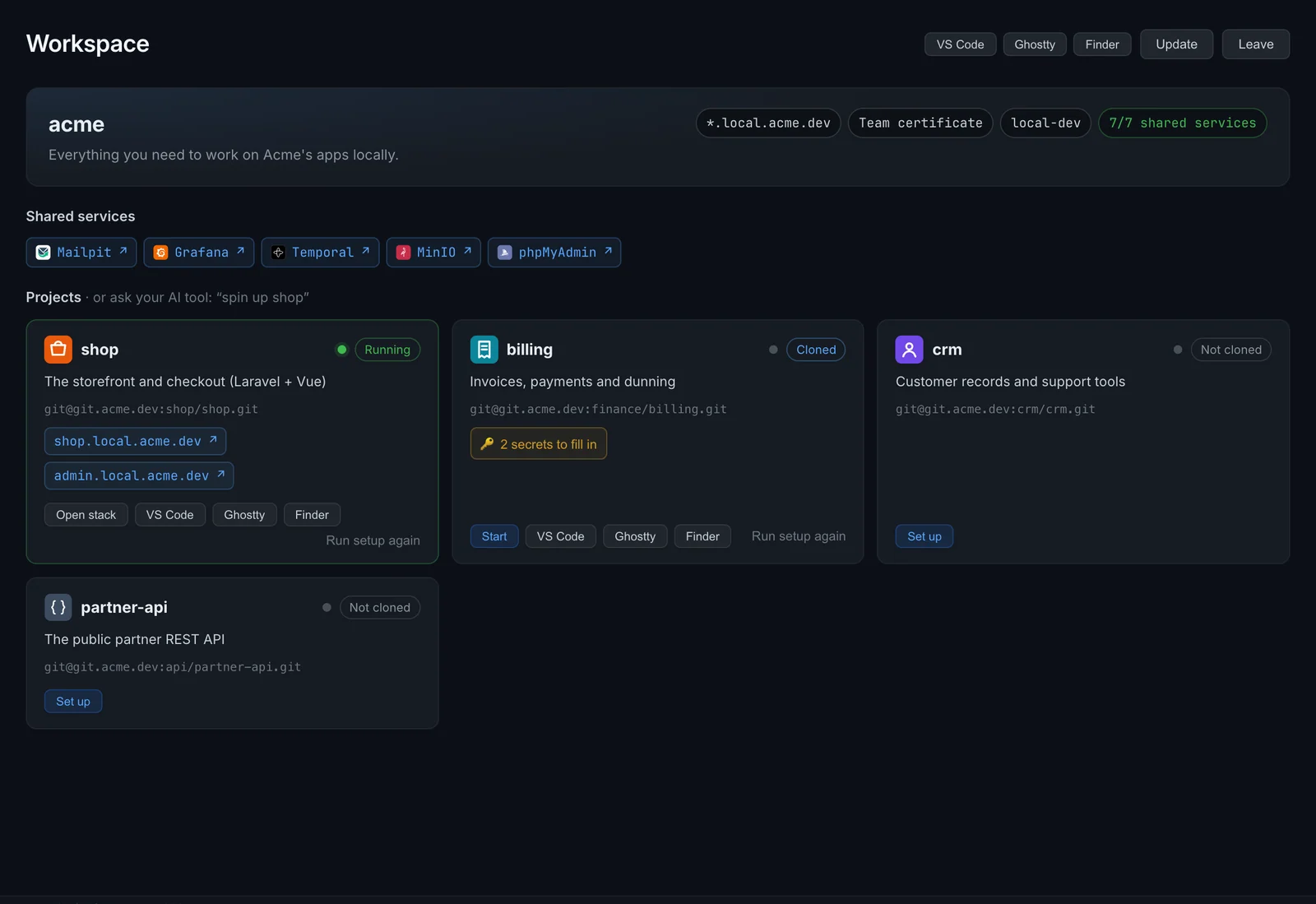
What a workspace holds
One repository describes the whole local environment:
| Part | What it is | Example |
|---|---|---|
| Shared services | A compose file with the services every project uses. | A mail catcher, Temporal, MinIO, Grafana |
| Network | A Docker network the shared services and projects meet on. | local-dev |
| Gateway domain and certificate | The domain every HTTPS hostname lives under, and the certificate for it. | *.local.acme.dev |
| Routes | Which hostname (and path) goes to which container and port. | mail.local.acme.dev to mailpit:8025 |
| Database servers | Shared MySQL, MariaDB or PostgreSQL servers. Each project that requires a database gets one and a user of its own on them. | One MySQL 8.4 and one PostgreSQL 17 for everyone |
| Projects | Each project's git repo, its setup command, the shared services it needs, its routes and the secrets its .env file needs. | billing, crm, shop |
| Secret references | Where each secret lives in your team's secret manager. Never the values. | passbolt:7f3c91a2-…, op://Dev/Stripe/secret |
The workspace repo is usually small: orca-workspace.yaml, the shared services' compose.yaml and their config files, and optionally a certificate and an orca.yaml for links and post-start commands.
The mental model
Think of the workspace as two layers.
The environment is the same for everyone and is applied when you join: the network, the gateway on your team's domain, the shared services and every route. After joining, https://mail.local.acme.dev works on your machine the same way it does on a colleague's.
The projects are a menu. Joining doesn't clone any of them. Each project card on the Workspace page shows whether it's Running, Cloned or Not cloned, and you set up only the ones you work on. Setting one up clones it, writes its .env, fills in secrets, runs its setup command once, starts the shared services it needs and starts it.
The workspace file is the single source of truth. When a team lead adds a project or a hostname and pushes, everyone's Orca pulls the change the next time it starts.
What happens when you join
Joining runs five steps, shown as they happen:
- Get the workspace: clone the repo, to
~/code/<repo name>unless you choose a folder. - Create the shared network, if it doesn't exist yet.
- Set up the gateway on the workspace's domain, with its certificate, and start it.
- Start the shared services from the workspace's compose file.
- Add the routes for the shared services and every project.
Nothing else on your machine changes. See Join and use a workspace for the details.
What happens when you set up a project
Setting up a project runs seven steps:
- Clone the repository, or use the checkout that's already there.
- Create the .env file from the project's template, such as
.env.example. - Fill in secrets from your team's secret manager.
- Create its database, when its
orca.yamlrequires one: a database and a user of its own on the team's shared server. - Run the setup command, such as
just setup, once per machine. - Start the shared services it uses.
- Start the project, and show its URLs.
If a secret is still missing after step 3, Orca stops before starting anything and asks you to fill it in. See Set up a project and Secrets.
With an AI tool
With Orca connected to your AI tool, a developer can say "spin up the CRM" or "set up billing and give me its URL". The tool looks the project up in the workspace, sets it up with the same steps and answers with its URLs. If secrets are missing, it names them and sends you to the Workspace page to fill them in. Orca tells AI tools never to ask for secrets in the chat.
Who it's for
- Developers join once and set up projects as they need them. Start with Join and use a workspace.
- Team leads and platform engineers write the workspace file and keep it current. Start with Create a workspace.
- Teams with a hand-run reverse proxy, such as an HAProxy, nginx or Traefik stack every developer clones, can move it into a workspace. See Migrate from a reverse proxy.
Only join workspaces you trust. Joining starts the services in the workspace's compose file, and setting up a project runs its setup command on your computer.
Where next
| Page | Read it when you want to |
|---|---|
| Join and use | Join a workspace, set up projects, use it from the CLI or an AI tool, stay up to date. |
| Secrets | Understand how .env values get filled in, by hand or with the Passbolt or 1Password CLI. |
| Create a workspace | Set one up for your team, step by step, with a complete example. |
| File reference | Look up a key in orca-workspace.yaml, its default and its rules. |
| Routes | Route hostnames, paths, hostname patterns and WebSockets. |
| Migrate from a reverse proxy | Replace an HAProxy, nginx or Traefik setup with a workspace. |
| Troubleshooting | Fix a clone, gateway, certificate, route or secret problem. |
Related
- Gateway: how hostnames, certificates and the landing page work.
- orca.yaml reference: a project's own routes, links and hooks.
- Worktree instances: run every branch of a project side by side.